Need help?
Do you have a question about the Huawei E3276 4G LTE and is the answer not in the manual?
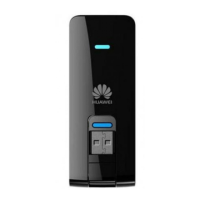
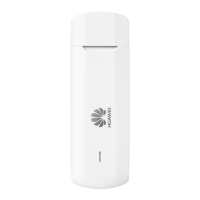
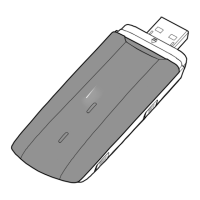
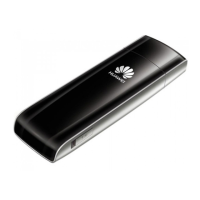
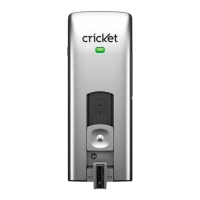
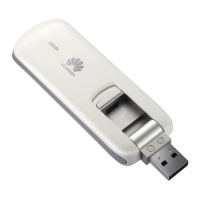
Details the USB connector, release button, LED, SIM/microSD slots, and antenna ports.
Steps to install the SIM card, including cover removal and alignment.
Instructions for inserting the optional microSD card into the Internet Key.
Plug the Internet Key directly into a USB port, avoiding USB hubs.
Follow on-screen instructions for automatic detection and installation on Windows and MAC.
Launch Connection Manager, wait for TELUS signal, and click Connect.
Procedures for disconnecting from Windows (XP, 7, 8) and MAC.
Steps to uninstall on Windows XP, 7, and 8 via Control Panel.
Steps to uninstall on MAC OS by moving the application to Trash.
 General
| Category | Modem |
|---|---|
| Manufacturer | Huawei |
| Model | E3276 |
| Form Factor | USB Dongle |
| Network Type | 4G LTE, 3G, 2G |
| 4G LTE Frequency Bands | 800/900/1800/2100/2600 MHz |
| 3G Bands | 900/2100 MHz |
| 2G Bands | 850/900/1800/1900 MHz |
| Max Download Speed | 150 Mbps |
| Max Upload Speed | 50 Mbps |
| 3G DC-HSPA+ Download Speed | 42 Mbps |
| 3G HSUPA Upload Speed | 5.76 Mbps |
| Interface | USB 2.0 |
| External Antenna Support | Yes |
| SIM Card Type | Standard SIM |
| Weight | 40 g |
| LTE Bands | 1, 3, 7, 8, 20 |
| Dimensions | 92 mm x 32 mm x 14 mm |
| Operating System Compatibility | Windows, Mac |
| SIM Type | Standard SIM |

 To Next Page