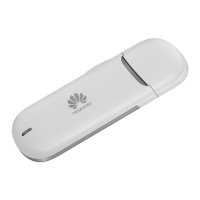
Need help?
Do you have a question about the Huawei E397U-53 and is the answer not in the manual?
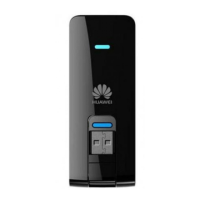
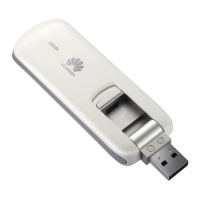
Connects the USB Stick to a PC.
Holds a microSD card.
Indicates the status of the USB Stick with LED lights.
Holds a Subscriber Identity Module (SIM)/Universal Subscriber Identity Module (USIM) card.
Insert the SIM/USIM card into the USB Stick.
Insert the microSD card into the corresponding card slots.
Plug the USB Stick into the USB port of your PC.
Install the management program following on-screen instructions.
The management program starts automatically or via shortcut.
Safely remove the USB Stick using the system tray icon.
Uninstall the management program via Control Panel.
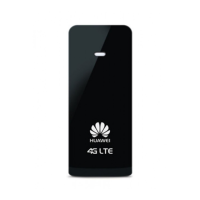
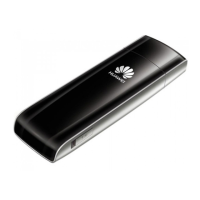
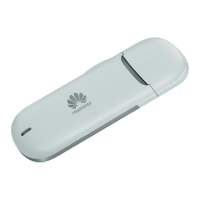
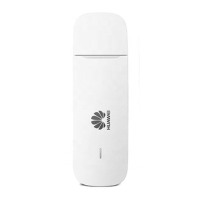
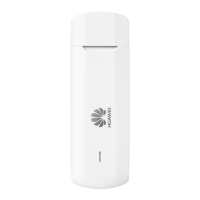
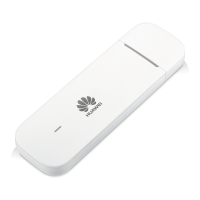
The Mobile Broadband USB Stick is a portable device designed to provide high-speed wireless network access. It connects to a personal computer (PC) via a USB port, allowing users to access the internet and other network resources. The device is compact and features a rotatable USB connector, enhancing its portability and ease of use.
The primary function of the USB Stick is to establish a wireless network connection for a connected PC. It supports various network technologies, including 2G, 3G, and 4G, indicated by a multi-color LED indicator. This indicator provides real-time status updates on the device's operation, such as power status, network registration, and connection type.
The USB Stick also includes a microSD card slot, enabling it to function as a portable storage device. Users can insert a microSD card to expand the storage capacity, allowing for the transfer and storage of files. Additionally, it features a SIM/USIM card slot, which is essential for network access. The SIM/USIM card holds the subscriber identity information required to connect to a mobile network.
The USB Stick is designed for straightforward installation and use. To connect the device to a PC, the rotatable USB connector is plugged into an available USB port. Before rotating the connector, a button must be pushed down to unlock it, ensuring secure and controlled movement. Once connected, the PC's operating system (OS) typically detects the new hardware automatically and initiates the installation wizard for the management program. If the auto-run program does not start automatically, users can manually run the AutoRun.exe file from the device's driver path.
The management program, once installed, provides an interface for controlling and monitoring the USB Stick's network connection. It starts automatically when the device is connected to the PC, and a shortcut icon is placed on the desktop for easy access. This program allows users to manage their network settings and view connection details.
The device's LED indicator is a key usage feature, providing visual feedback on its operational status:
Inserting the SIM/USIM card involves sliding it into the designated slot on the device. For the microSD card, a button needs to be pushed up to prepare the slot, and then the card is inserted. Proper alignment of the beveled edge of both cards with their respective slots is crucial for correct insertion.
Maintaining the USB Stick primarily involves proper handling and software management. Users are advised not to remove the microSD or SIM/USIM card while the card is in use, as this can lead to damage to the cards or the USB Stick itself, and potentially corrupt stored data.
Before removing the USB Stick from the PC, it is essential to follow the safe removal procedure. This involves clicking the "Unplug or Eject Hardware" icon in the notification area, selecting the corresponding hardware, and then clicking "Stop." The device should only be removed once a message confirming "It is safe to remove the device" appears. This practice helps prevent data loss and hardware damage.
Uninstalling the management program, if necessary, is done through the PC's "Control Panel" by navigating to "Add or Remove Programs." Users should find the management program in the list and select "Remove." It is important to exit the management program before attempting to uninstall it to ensure a complete and clean removal.
The microSD card is an optional accessory; if not included in the package, users can purchase one separately. This flexibility allows users to customize the device's storage capabilities according to their needs. The manual itself serves as a key maintenance feature, providing detailed instructions for preparation, installation, and removal, ensuring users can effectively manage their device. For more advanced operation details regarding the management program, users are directed to the online help integrated within the program.
 General
| Model | E397U-53 |
|---|---|
| Category | Modem |
| Max Download Speed | 150 Mbps |
| Max Upload Speed | 50 Mbps |
| Interface | USB 2.0 |
| Type | USB Modem |
| 2G Network | GSM/GPRS/EDGE |
| 3G Network | HSPA+/DC-HSPA+ |
| 4G Network | LTE |
| Operating System Compatibility | Windows XP, Vista, 7, 8, 10; Mac OS X 10.5 and above |
| Antenna | Internal |
| Weight | 40 g |
| Battery | None (Powered by USB) |

 To Next Page