2
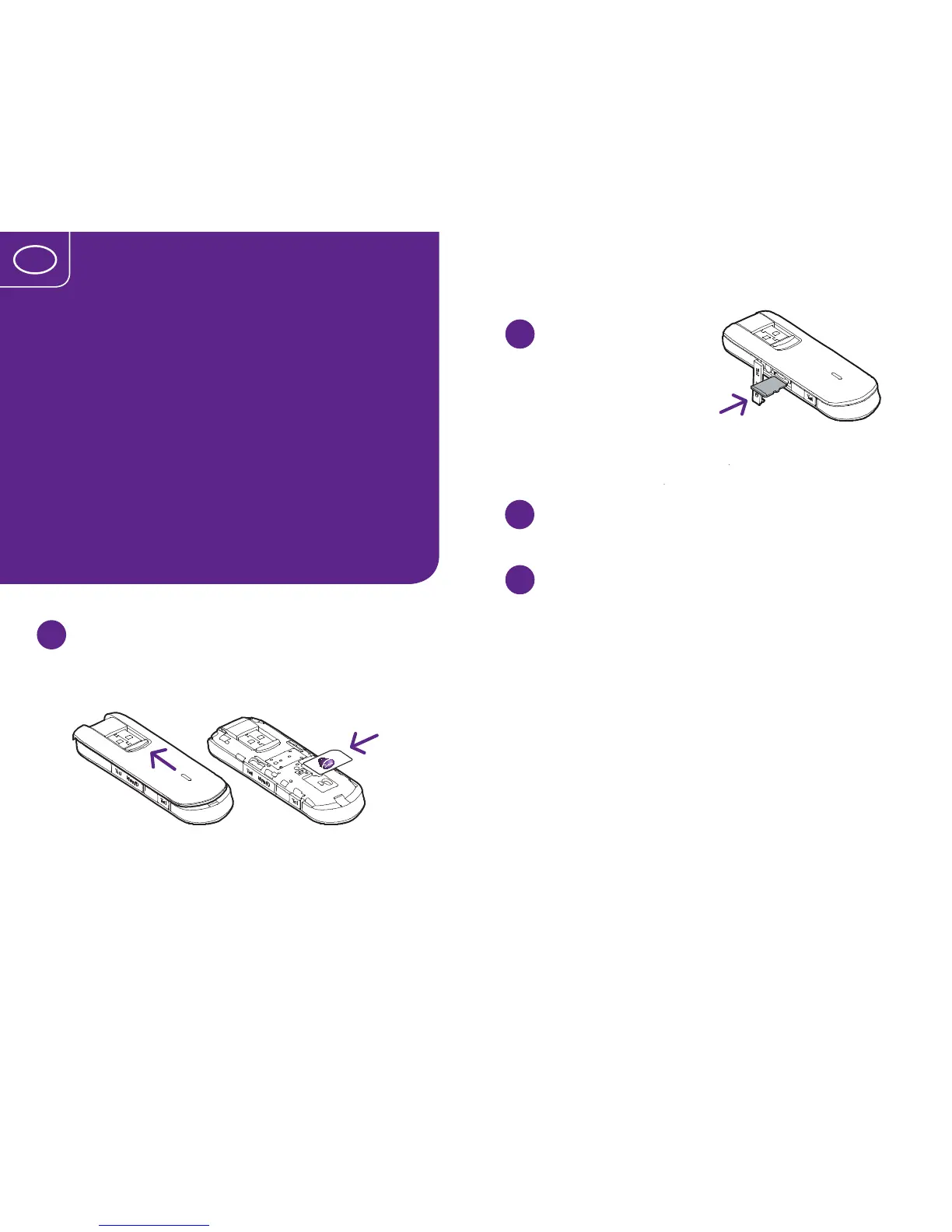
Insert your
MicroSD card
(if you have chosen
to use one)
A memory card is not
necessary for the modem to function,
and no card is included in the package.
3
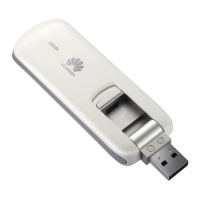
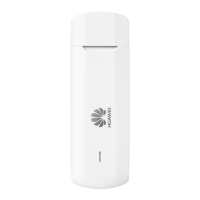
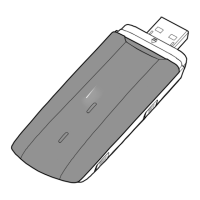
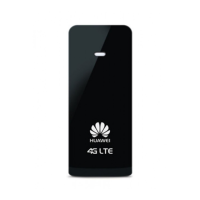
Connect the 4G modem to your computer
Insert it in a USB port on your computer.
4
Install the 4G modem
If you have previously installed any other
modem on your computer you should
uninstall it. Go to the Troubleshooting
page for instructions on how to do this.
a) For Windows XP, Windows Vista
and Windows 7
When you have connected the 4G modem
to your computer it will appear as a hard
drive or mass storage unit. An installation
program will start automatically. If the
installation program does not start auto-
matically you can start it by double-clicking
Mobile Broadband under My Computer
(click the Start Menu and then
82 83
An extra gear for your
mobile broadband
Simply follow the instructions in the
Quick Start Guide, and you will soon be
up and running with your mobile broadband
– super-fast and secure via 4G. Here you will
find some useful tips that will enable you to
make the most of your modem as well as
a smart guide for troubleshooting.
UK
1
Insert your SIM card*
Make sure you insert your SIM card in
the right direction. See the illustration.
* If you didn’t receive your SIM card together with
the modem, you will receive it in a separate letter.
If you already have a SIM card for mobile broadband
in use, you can transfer it to your new modem.
SIM
MicroSD


 To Next Page
 Loading...