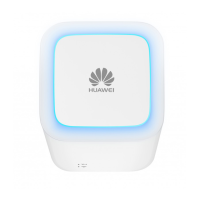
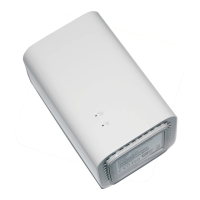
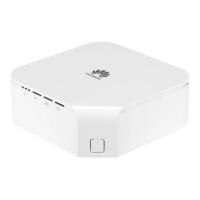
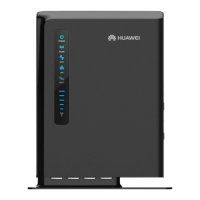
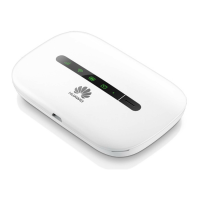
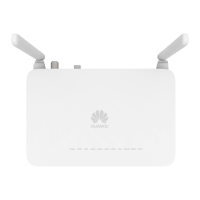
The Huawei WiFi Cube 4G is a device designed to provide Internet access and expand local area network (LAN) coverage. It offers Wi-Fi connectivity for compatible devices and can be integrated with a hub or switch to extend your existing LAN.
Getting Started and Device Overview
The device features several key components for its operation and management:
- External antenna port: Located under a cover, this port allows you to connect an external antenna (not included) to enhance signal strength, particularly in areas with poor reception.
- Power button: This button serves a dual purpose. Press and hold it to turn the device on or off. A quick press will toggle the indicator light on or off.
- Indicator Light: This light provides visual feedback on the device's status. It illuminates when the WiFi Cube is powering on and when it's successfully connected to the Vodafone mobile network.
- Signal indicator: This indicator uses different colors to represent signal strength:
- Steady blue: Strong signal strength.
- Steady yellow: Weak signal strength.
- Steady red: No signal.
- Wi-Fi indicator: This light shows the status of the Wi-Fi function:
- On: Wi-Fi is enabled.
- Off: Wi-Fi is disabled. You can manually enable or disable Wi-Fi through the Wireless LAN (WLAN) settings in the device's web user interface (UI).
- Network port indicator: This indicator provides information about data transmission over the LAN port:
- Steady green and yellow off: The WiFi Cube is connected to a Wi-Fi enabled device, but no data is being transmitted.
- Steady green and blinking yellow: Data is currently being transmitted.
- Both green and yellow off: The WiFi Cube is not connected to a Wi-Fi enabled device.
- LAN port (RJ45): This port allows you to connect the WiFi Cube to a computer, switch, or other network device using the included LAN cable.
- Power port: This is where you connect the WiFi Cube's power adapter.
- Reset button: Press and hold this button to restore the device to its original factory settings. Be aware that this action will override all custom settings made since the first use.
- SIM card slot: This slot is for inserting your micro SIM card, which enables connection to the Vodafone mobile network.
Installation and Setup
- Installing the micro SIM card: When installing the micro SIM card, ensure you follow the provided diagram for correct insertion. To remove the card, gently press it in and release; it will automatically pop out. It's crucial not to remove the SIM card while the WiFi Cube is turning on, as this can affect device performance and potentially lead to data loss.
- Using an external antenna: For improved signal strength in areas with poor reception, an external antenna (not included) can be connected to the dedicated port. Before connecting, ensure the WiFi Cube is turned off and unplugged. Only use antennas approved for the device, and restrict their use to indoors. Avoid using external antennas during thunderstorms. For optimal performance, position the external antenna at least 1 meter away from the WiFi Cube. If using two external antennas, maintain a distance greater than 1 meter between them.
- Connecting the power adapter: Always use the provided power adapter. Using an unapproved adapter can cause malfunction, failure, or even fire, and will void all warranties. The device may not function during a mains power failure.
Logging in to the Web UI
The web UI is a browser-based utility for advanced device configuration and function management.
- Ensure the WiFi Cube is connected to your computer, smartphone, or tablet.
- Open a web browser and enter
http://192.168.8.1 in the address bar. The default IP address is 192.168.8.1 with a subnet mask of 255.255.255.0. It is recommended to use automatically obtained IP addresses and DNS server settings to ensure proper access to the web UI.
- Enter the username and password to log in. The default credentials are printed on the label located under the WiFi Cube.
Adhering to safety guidelines is crucial for the proper and safe operation of your device.
- Electronic device usage: Do not use the device where prohibited or if it causes danger or interference with other electronic devices.
- Medical equipment interference: Follow all rules and regulations in hospitals and healthcare facilities. Avoid using the device where prohibited. Some wireless devices can affect hearing aids or pacemakers. Consult your service provider for more information. Maintain a minimum distance of 15 cm between the device and a pacemaker to prevent interference. If you have a pacemaker, hold the device on the side opposite the pacemaker and avoid carrying it in your front pocket.
- Flammables and explosives: Do not use the device in areas where flammables or explosives are stored (e.g., gas stations, oil depots, chemical plants) to avoid explosion or fire risks. Do not store or transport the device with flammable liquids, gases, or explosives.
- Traffic security: Observe local laws and regulations. Do not use your wireless device while driving to reduce accident risks. Concentrate on driving. RF signals may affect vehicle electronic systems; consult the vehicle manufacturer for details. Do not place the device over an airbag or in its deployment area, as inflation force can cause injury. Do not use the device in an aircraft or immediately before boarding, as it can disrupt wireless networks, pose a hazard, or be illegal.
- Operating environment: Avoid dusty, damp, or dirty environments, and magnetic fields, as these can cause circuit malfunctions. Before connecting or disconnecting cables, stop using the device and disconnect it from the power supply, ensuring your hands are dry. Place the device on a stable surface. Keep it away from strong magnetic or electric fields generated by other electronic appliances (e.g., microwave ovens, refrigerators). During thunderstorms, power off the device and remove all cables to protect against lightning strikes. Ideal operating temperatures are 0°C to +40°C, and storage temperatures are -20°C to +70°C. Extreme temperatures can damage the device. Keep the device and accessories in a well-ventilated, cool area away from direct sunlight. Do not cover or enclose the device with towels or other objects, or place it in containers with poor heat dissipation. To prevent fire or electrical shock, avoid exposing the device to rain and moisture. Keep it away from heat and fire sources (e.g., heaters, stoves, candles). Do not place objects like candles or water containers on the device. If any foreign object or liquid enters the device, immediately power it off, remove all cables, and contact an authorized service center. Observe local laws and regulations, and respect privacy. Do not block device openings; ensure a minimum of 10 cm clearance around the device for heat dissipation.
- Overheating: If the device overheats, stop using it or its applications for a while. Prolonged skin exposure to an overheated device can cause low-temperature burns.
- Antenna: Do not touch the device's antenna, as this can reduce communication quality.
- Children and pets: Do not allow children or pets to bite or suck the device or accessories, as this can cause damage or explosion.
- Installation distance: The device should be installed and operated with a minimum distance of 20 cm between the radiator and your body. Maintain good reception by keeping the device away from other metal materials (e.g., metal brackets, doors, windows) by more than 25 cm.
- Child safety: Comply with all child safety precautions. Detachable parts can be a choking hazard. The device and its accessories are not intended for use by children, who should only use it under adult supervision.
- Accessories: Only use approved accessories for this model. Using unapproved or incompatible power adapters, chargers, or batteries can cause fire, explosion, or other hazards, and will void the warranty and violate local regulations.
Power Adapter Safety
- The power plug acts as a disconnect device.
- For pluggable devices, the socket-outlet should be installed near the device and be easily accessible.
- Unplug the power adapter from electrical outlets and the device when not in use.
- Do not drop or impact the power adapter. If damaged, take it to an authorized service center.
- If the power cable is damaged (exposed or broken) or the plug loosens, stop using it immediately to prevent electric shocks, short circuits, or fire.
- Do not touch the power cord or the device/power adapter with wet hands, or pull the power cord to disconnect the adapter, as this can cause short circuits, malfunctions, or electric shocks.
- If the power adapter has been exposed to water or excessive moisture, take it to an authorized service center.
- Ensure the power adapter meets IEC60950-1/EN60950-1 requirements and is approved by national or local standards.
Cleaning and Maintenance
- Keep the device dry during storage, transportation, and operation, and protect it from collision.
- Do not attempt to dry the device with external heat sources like microwave ovens or hair dryers.
- Avoid exposing the device or accessories to extreme heat or cold, as this can interfere with function, cause fire, or explosion.
- Avoid collisions, which can lead to malfunctions, overheating, fire, or explosion.
- If the device will not be used for an extended period, power it off and remove all cables.
- If any unusual occurrences (smoke, unusual sound, smell) happen, immediately stop using the device, power it off, remove all cables, and contact an authorized service center.
- Do not trample, pull, or excessively bend any cable, as this can cause damage and device malfunction.
- Before cleaning or maintaining the device, stop using it, close all applications, and disconnect all cables.
- Do not use chemical detergents, powders, or agents (alcohol, benzene) to clean the device or accessories, as these can cause damage or fire hazards. Use a clean, soft, dry cloth instead.
- Do not place magnetic stripe cards (credit cards, phone cards) near the device for extended periods, as they may be damaged.
- Do not dismantle or remanufacture the device or its accessories, as this voids the warranty and releases the manufacturer from liability for damage. In case of damage, contact an authorized service center.
The symbol (with or without a solid bar) on the device, batteries, and/or packaging indicates that these items should not be disposed of as household garbage. They should be taken to a certified collection point for recycling or proper disposal. For more details on device or battery recycling, contact your local city office, household waste disposal service, or retail store. Disposal is subject to WEEE Directive Recast (2012/19/EU) and Battery Directive (2006/66/EC) to minimize environmental impacts and health risks from hazardous substances.
Reduction of Hazardous Substances
This device complies with REACH Regulation (EC) No 1907/2006 and RoHS Directive Recast (2011/65/EU). Batteries (if included) comply with Battery Directive (2006/66/EC). For up-to-date compliance information, visit http://consumer.huawei.com/certification.

 Need help?
 General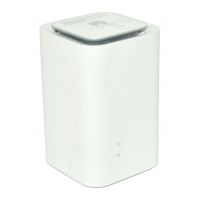

 To Next Page