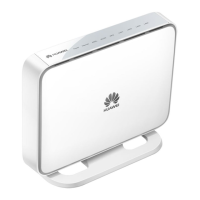
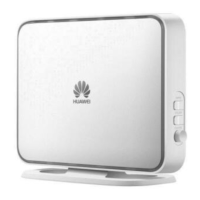
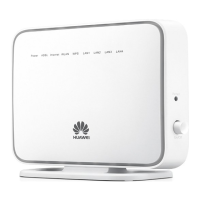
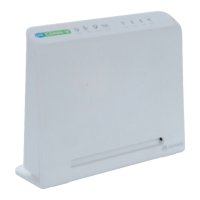
The HUAWEI HG530 Home Gateway is a device designed to provide broadband network access and wireless connectivity within a home environment. It acts as a central point for connecting to the internet and distributing that connection to various devices, both wired and wirelessly.
Function Description
The HG530 serves as a home gateway, integrating several key functions to facilitate internet access and local network management. Its primary role is to establish a broadband connection, typically through an ADSL line, and then allow multiple devices to share this connection.
One of its core functionalities is network access through a dial-up connection. Users can choose between two methods:
- Embedded PPP Dial-Up Software on the Device: In this mode, the HG530 itself handles the dial-up connection automatically upon startup. This means that once the device is powered on and configured, connected computers can access the internet without needing to install special dial-up software or perform manual dial-up operations on each computer. This simplifies the user experience by making the internet connection always-on from the perspective of the connected devices.
- PPP Dial-Up Software on Your Computer: Alternatively, the HG530 can be set to a "Bridge" mode. In this configuration, the device acts as a bridge, and the dial-up connection is managed by software installed on the user's computer. This requires the user to manually initiate the dial-up process from their computer each time they want to access the internet. This method offers more control over the dial-up process from the computer side but adds an extra step for the user.
Beyond internet access, the HG530 also provides wireless network capabilities. If a wireless network adapter is installed on a computer, it can connect to the HG530 wirelessly, enabling flexible placement of devices within the home. The device supports various wireless standards, allowing for compatibility with a wide range of wireless devices.
The HG530 also includes a DHCP server function, which automatically assigns IP addresses to devices connected to the local area network (LAN). This simplifies network setup for users, as they don't need to manually configure IP addresses for each device.
Usage Features
The HG530 is designed with user convenience in mind, offering several features to manage and customize the network.
- Web-Based Configuration Utility: The device is managed through a web-based configuration utility, accessible via a standard web browser (like Internet Explorer). Users can log in to this utility using a default administrator username and password (admin/admin). This interface allows for comprehensive control over the device's settings.
- Password Management: For security, users can change the default administrator password used to log in to the web-based configuration utility. This is a crucial step to protect the network from unauthorized access.
- Wireless Network Configuration: Users can configure the wireless network name (SSID) and set an access password for security. The device supports different authentication types and encryption methods (e.g., WPA-PSK with AES encryption) to secure the wireless connection.
- Quick Wireless Function Control: The HG530 features a dedicated WLAN button, allowing users to quickly enable or disable the wireless network function by pressing and holding it for over one second. The WLAN indicator provides visual feedback on the status of the wireless function.
- IP Address Customization: The login IP address of the web-based configuration utility can be changed. This allows users to set an IP address that is easier to remember or to fit within a specific network scheme. When changing the IP address, it's important to ensure that the computer's IP address is in the same network segment to maintain access to the utility.
- Default Settings Restoration: The device offers two ways to restore default settings:
- Hardware Reset Button: By pressing and holding the Reset button on the rear panel for over six seconds after the HG530 is powered on, users can quickly revert the device to its factory default settings. This is useful for troubleshooting or when forgetting customized login credentials.
- Software Reset: Within the web-based configuration utility, there's an option under "Tools > Reboot" to select "Factory Default Settings" and then click "Restart." This performs the same function as the hardware button.
It's important to note that restoring default settings will erase all customized configurations, requiring the user to reconfigure the device from scratch.
Maintenance Features
Proper maintenance ensures the longevity and optimal performance of the HG530.
- Environmental Considerations:
- The device should be kept dry and protected from physical impact during storage, transportation, and operation.
- It must be placed in a cool, well-ventilated indoor area, away from direct sunlight and sources of heat or fire (e.g., heaters, candles).
- Strong magnetic or electric fields from other electronic appliances (like microwave ovens or refrigerators) should be avoided to prevent interference.
- A minimum space of 10 cm around the device should be reserved for proper heat dissipation, and its openings should not be blocked.
- No objects, especially liquids, should be placed on the device. In case of foreign object or liquid entry, the device should be immediately powered off, all cables removed, and an authorized service center contacted.
- The operating temperature range is 0°C to 40°C.
- Power Management:
- If the device is not used for an extended period, it should be powered off, and all cables disconnected.
- During thunderstorms, the device should be powered off, and all cables removed to prevent lightning damage.
- Only the supplied or authorized power adapter should be used. The power adapter's cable should be checked for damage, and it must meet the specifications on the device nameplate and relevant safety standards (IEC60950-1/EN60950-1).
- Troubleshooting and Support:
- In case of any unusual behavior (smoke, sound, smell), the device should be immediately powered off, cables removed, and an authorized service center contacted.
- Cables should not be trampled, pulled, or overbent to prevent damage and malfunction.
- For issues like inability to visit websites or unsteady WLAN connections, the manual provides a comprehensive FAQ section with step-by-step troubleshooting guides, including checking indicator lights, cable connections, network adapter drivers, and proxy server settings.
- If problems persist after troubleshooting, users are advised to contact their network service provider or an authorized maintenance center.
- Cleaning: Before cleaning, the device must be powered off, and all cables removed. A clean, soft, and dry cloth should be used to clean the device shell; cleaning agents or sprays are not recommended.
- Child Safety: The device and its accessories should be kept out of reach of children to prevent accidental damage or ingestion of small components.
- Environmental Protection: The device and its accessories should not be disposed of in regular garbage. Instead, they should be disposed of according to local regulations for recycling electronic waste and batteries.
- Wireless Device Precautions: When using the wireless function, the device's antenna should be at least 20 cm away from all persons. It should not be used in areas where wireless devices are prohibited or may cause interference, especially near electronic medical devices. It is also prohibited in operating rooms, ICUs, or CCUs.
- Inflammable and Explosive Areas: The device should not be used or stored in areas with inflammables or explosives (e.g., gas stations, oil depots, chemical plants) to prevent explosions or fires.

 Need help?
 General



 To Next Page
