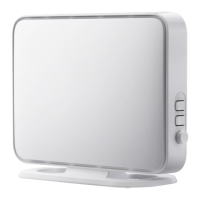
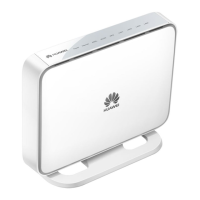
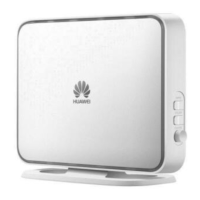
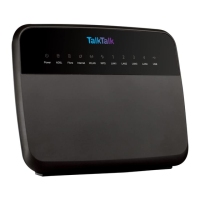
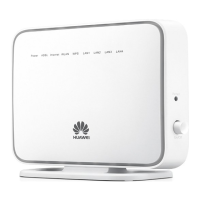
The HG532f Home Gateway is a versatile device designed to provide Internet access and network connectivity for homes and small offices. It functions as a DSL modem and a wireless router, allowing users to connect to the internet via a digital subscriber line (DSL) and share that connection wirelessly or through Ethernet cables.
Function Description
The HG532f serves as a central hub for your home network. Its primary function is to establish a DSL connection, which is then distributed to various devices. It features an ADSL port for connecting to a DSL filter or phone socket, enabling broadband internet access. For wired connections, it includes four LAN ports (LAN1-LAN4) to connect Ethernet devices such as computers, set-top boxes (STBs), and network switches. This allows for stable and high-speed data transfer for devices that require a wired connection.
In addition to wired connectivity, the HG532f provides wireless local area network (WLAN) functionality, enabling Wi-Fi access for compatible devices like laptops, tablets, and mobile phones. It supports various WLAN standards, including 802.11b, 802.11g, and 802.11n, ensuring broad compatibility and decent wireless speeds. The device also includes a USB port, which expands its functionality by allowing users to connect USB devices such as storage drives or printers, making them accessible across the network.
The HG532f is powered by a 12V DC, 1A power adapter, and its operation is indicated by a series of LED lights on the front panel. These indicators provide visual feedback on the device's status, including power, Internet connection, ADSL synchronization, WLAN activity, WPS status, and LAN port activity. For instance, a steady green Power indicator means the device is on, while a blinking green Internet indicator signifies active data transmission.
Usage Features
The HG532f offers several features to enhance its usability and network management:
Internet Connectivity:
- DSL Broadband Access: Connects to a DSL line for internet access, supporting various ADSL standards.
- Wired Ethernet Connections: Provides four LAN ports for connecting multiple wired devices, ensuring stable connections for bandwidth-intensive tasks.
- Wireless Connectivity (WLAN): Enables Wi-Fi for wireless devices, supporting common wireless standards for broad compatibility.
Network Configuration:
- Web Management Page: An intuitive web-based interface (accessible via 192.168.1.1) allows users to view and configure all HG532f parameters. This includes setting up the computer's IP address, logging in with default credentials (user/user), and changing network settings.
- Configuration Wizard: Simplifies the initial setup of wireless parameters, guiding users through the process of setting the SSID (WLAN name) and password.
- Dial-Up Connection Parameters: Users can configure Point-to-Point Protocol over Ethernet (PPPoE) connections, entering ISP-provided account names and passwords.
Wireless Connection Setup:
- WPS Button: A Wi-Fi Protected Setup (WPS) button allows for quick and secure wireless connections with WPS-capable devices. A single press initiates negotiation, and a steady WPS indicator confirms a successful connection.
- Manual Wireless Setup: Users can manually connect to the HG532f's WLAN by selecting the network from available wireless networks and entering the WLAN password, which is typically found on the device's label.
USB Device Support:
- USB Storage Device: Connects USB storage devices (FAT32/FAT file systems supported) to the HG532f, allowing network-connected computers to access and share data.
- FTP Access Permission: For connected USB storage, FTP access can be configured with user names and passwords, allowing authorized users to access files via an FTP server. Permissions can be set for read-only or read/write access to specific directories or all directories.
- USB Printer Sharing: Supports connecting a USB printer to the HG532f, making it accessible as a network printer for devices on the local network or even over the Internet. This involves adding a network printer on client computers and specifying the printer's address.
Network Security:
- WLAN Name and Password Change: Users are encouraged to regularly change the default WLAN name (SSID) and password to enhance network security and prevent unauthorized access.
- URL Filtering: Allows users to block access to specific websites by entering their URLs and setting a priority for filtering rules.
- MAC Address Filtering: Provides control over Internet access for specific computers based on their MAC addresses. This feature can be used to grant or deny Internet access and set time limits for usage.
- Time Synchronization: The device can synchronize with network time servers (SNTP) to ensure accurate timekeeping, which is crucial for time-based access control rules.
Maintenance Features
The HG532f includes several features to help users maintain its optimal performance and security:
WLAN Control:
- WLAN Button: A dedicated WLAN button on the device allows users to quickly enable or disable the wireless function. The WLAN indicator provides visual confirmation of its status.
Account Management:
- Web Management Page User Name and Password Change: Users can change the default login credentials for the web management page to prevent unauthorized access and protect sensitive network configurations. This is a critical security measure.
Restoring Default Settings:
- Configuration Tool Reset: If network parameters are incorrectly configured, users can log into the web management page and use the "Restore Default Settings" option under "Maintenance > Device" to revert the device to its factory settings. This will erase all custom configurations and restore default login credentials.
- Hardware Reset Button: For situations where the web management page is inaccessible (e.g., forgotten password), a physical RESET button on the rear panel can be pressed and held for 6 seconds or more while the device is powered on. This performs a hard reset, restoring the HG532f to its default factory settings. It's important to note that this action will cause temporary network interruptions and all custom data will be lost. After a hard reset, the computer's IP address may need to be reconfigured to match the default IP segment (192.168.1.x) to access the web management page again.
Troubleshooting and Diagnostics:
- Indicator Lights: The LED indicators provide immediate visual cues for troubleshooting. For example, if the ADSL indicator is off, it suggests a problem with the telephone line or splitter connection.
- Connectivity Checks: The manual provides guidance on checking cable connections, ensuring the device is powered on, and verifying network adapter drivers and settings on connected computers.
- Proxy Server Configuration: Instructions are provided to check and disable proxy server settings in web browsers, which can sometimes interfere with internet access.
- Interference Mitigation: Recommendations include placing the HG532f away from strong magnetic or electric fields (e.g., microwave ovens) and ensuring it's in an open area without physical obstacles to maintain stable wireless connections.
- DSL Filter Usage: Emphasizes the importance of using a DSL filter when connecting the HG532f to a plain old telephone service (POTS) line to prevent interference with other telephone devices.
- Lightning Protection: Advises against using the HG532f during thunderstorms to prevent potential damage from lightning strikes and signal instability.

 Need help?
 General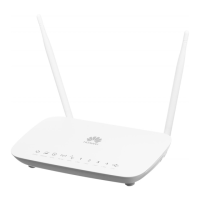

 To Next Page