
 Need help?
Do you have a question about the Huawei HG532e and is the answer not in the manual?
Illustrates how to connect the HG532e to a desktop computer, laptop, and telephone.
Explains how to power on and off the HG532e, and what the ADSL indicator means.
Provides steps to access the HG532e's web-based configuration interface using a browser.
Details setting up a dial-up connection using PPP mode with service provider credentials.
Explains how to set up a wireless account by configuring the network name and password.
Guides users on connecting a computer to the HG532e wirelessly using the WPS button.
Provides instructions for manually setting up a wireless connection on Windows XP.
Explains how to change the login username and password for the web-based configuration interface.
Describes two methods to enable or disable the wireless network function: using the WLAN button or the web utility.
Details how to change the wireless network name (SSID) and password.
Provides steps to update the username and password for internet access via PPP.
Explains how to restore the HG532e to its original factory default settings.
Guides users on how to restart the HG532e via the web-based configuration utility.
Provides troubleshooting steps for issues preventing internet access.
Details the status and meaning of various indicator lights on the HG532e.
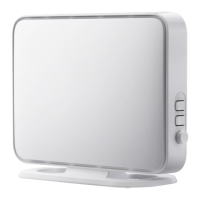
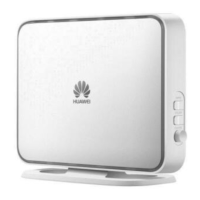
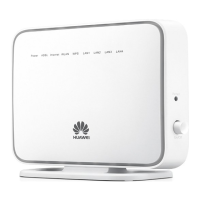
Identifies and describes the function of each port and button on the HG532e.
Lists the default configuration parameters for the HG532e, including IP address and login credentials.
Provides technical specifications for the HG532e, including operating conditions and dimensions.
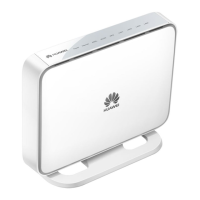
The HG532e Home Gateway is a versatile device designed to provide comprehensive network access and wireless connectivity for home users. It functions as an asymmetric digital subscriber line (ADSL) modem and a wireless router, enabling users to connect to the internet and establish a local area network (LAN) for their devices.
The primary function of the HG532e is to act as a gateway between your home network and the internet. It supports ADSL, ADSL2, and ADSL2+ standards, allowing it to connect to various types of digital subscriber lines provided by internet service providers. Once connected to the internet, it enables multiple devices within the home to share the connection, either through wired Ethernet ports or wirelessly via Wi-Fi.
The device operates in PPP (Point-to-Point Protocol) mode by default, which means it automatically establishes a dial-up connection to the internet upon startup. This eliminates the need for users to install separate dial-up software on their computers or perform manual dial-up operations. The HG532e also supports Wi-Fi Protected Setup (WPS) in Push Button Configuration (PBC) mode, simplifying the process of connecting WPS-enabled wireless devices to the network.
For wired connections, the HG532e features multiple Ethernet ports, allowing devices such as desktop computers, set-top boxes, and switches to be directly connected. This ensures stable and high-speed data transmission for devices that require a reliable wired link.
Setting up the HG532e involves a straightforward process of connecting cables and configuring network parameters. Users begin by connecting the power adapter, telephone line (via a splitter if necessary), and Ethernet cables to their computers or other network devices. Once powered on, the ADSL indicator will blink as it attempts to activate the ADSL port, eventually turning steady green when a connection is established.
Accessing the device's web-based configuration utility is done through a web browser, by entering its default IP address (http://192.168.1.1). The utility allows users to manage various network settings. For initial setup, a configuration wizard guides users through essential steps, such as entering the PPP account username and password provided by their internet service provider. This ensures the device can successfully connect to the internet.
Wireless connectivity is a key feature of the HG532e. The device comes with a default wireless network name (SSID) and password (WLAN Key) printed on its rear panel, offering a secure out-of-the-box experience. Users can easily set up a wireless connection using the WPS button, which simplifies the pairing process with WPS-enabled devices. Alternatively, a manual setup option is available for devices that do not support WPS, requiring users to select the network and enter the password. The wireless network function can be enabled or disabled using a dedicated WLAN button on the side panel or through the web-based configuration utility.
For enhanced security and personalization, the HG532e allows users to change the default wireless network name and password. This is done through the web-based configuration utility, where users can specify a new SSID and a strong WPA-PSK/WPA2-PSK pre-shared key. Similarly, the username and password for accessing the web-based configuration utility itself can be changed, adding an extra layer of security to prevent unauthorized access to the device's settings.
The device provides visual feedback through various indicators on its front panel. These indicators show the status of the power, internet connection, ADSL line, WLAN activity, WPS function, and individual LAN ports. For example, a steady green Internet indicator signifies an active internet connection in routing mode, while a blinking WLAN indicator indicates active data transmission over the wireless network.
The HG532e includes several features to facilitate maintenance and troubleshooting. If users forget their login credentials for the web-based configuration utility or their wireless network password, the device can be restored to its default factory settings. This is achieved by pressing and holding the Reset button on the rear panel for more than 6 seconds while the device is powered on. Restoring default settings will revert all customized user data, including network names, passwords, and other configurations, to their original values. This function should be used with caution and only when necessary.
Alternatively, the device can be restored to default settings through the web-based configuration utility by navigating to the "Maintenance > Device" section and selecting "Restore Default Settings." The utility also provides an option to reboot the HG532e, which can be useful for resolving minor network issues or applying certain configuration changes.
Troubleshooting common issues is made easier with the HG532e's design. If the internet connection fails, users can check the status of the Power, ADSL, and LAN indicators to pinpoint the problem. For instance, if the Power indicator is off, it suggests a power supply issue. If the ADSL indicator is off, it points to a problem with the telephone line or ADSL connection. The manual provides detailed steps for checking cable connections, power supply, and network adapter drivers to diagnose and resolve connectivity problems.
For wireless connection issues, users are advised to check if the WLAN indicator is on, verify the wireless network adapter's compatibility, and ensure the computer is receiving wireless signals properly. The manual also suggests optimizing the placement of the HG532e and connected devices to avoid interference from other electronic appliances and physical obstacles. In cases where the WPS function fails, users can check the security mode of the wireless network and ensure only one computer is attempting to connect via WPS at a time.
The HG532e is designed for ease of use and provides clear instructions for managing its functions and resolving potential issues, making it a user-friendly home gateway.
 General
| Wireless Standard | 802.11b/g/n |
|---|---|
| Frequency Band | 2.4 GHz |
| Ethernet Ports | 4 x 10/100 Mbps |
| ADSL Standard | ADSL2+ |
| Wireless Speed | Up to 300 Mbps |
| Operating Temperature | 0°C to 40°C |
| Storage Temperature | -40°C to 70°C |
| Power Supply | 12V DC, 1A |
| Security | WEP, WPA, WPA2 |
| Operating Humidity | 5% to 95% (non-condensing) |
| Ports | 1 x RJ11, 4 x RJ45 |


 To Next Page