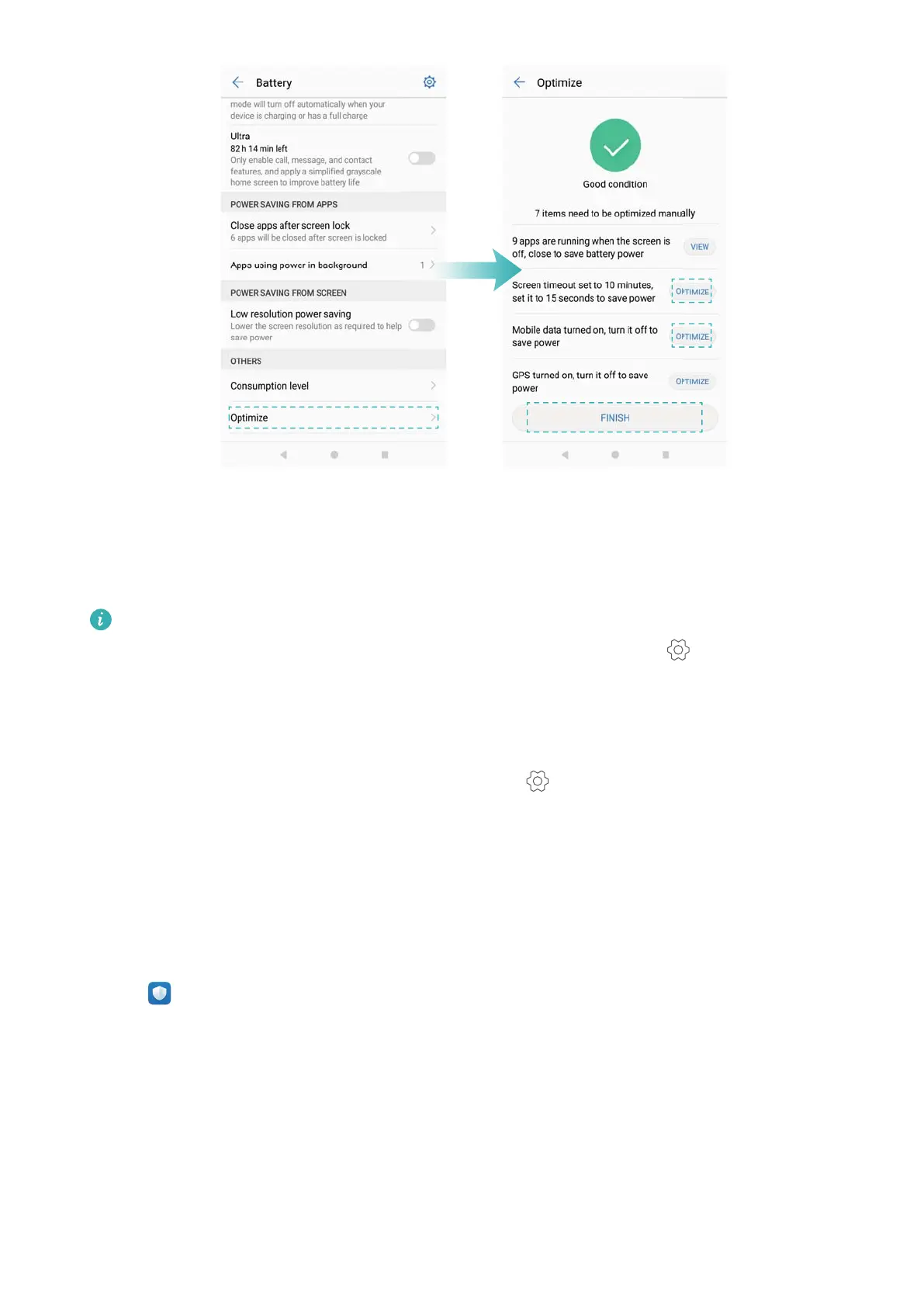
l Restrict background apps: Touch Close apps after screen lock and turn off the switches
next to the apps that you do not want to run in the background when the screen is locked.
l Close battery-draining apps: Touch Apps using power in background and select the apps
that you want to close.
A message will appear in the notification panel if battery-draining apps are running in the
background. If you don't want to receive these notifications, touch and switch off
Power-intensive prompt.
l Reduce the screen resolution: Switch on Low resolution power saving to reduce the
screen resolution and lower power consumption.
l Automatically close power-intensive apps: Touch and switch on Close excessively
power-intensive apps.
Managing app permissions
Phone Manager comes with a permission manager that you can use to restrict app permissions
and protect your personal data.
1 Open Phone Manager.
2 Touch Permissions and configure the desired permissions.
Phone Manager
155



 To Next Page