2 Touch .
3 Enter the screen lock password and touch Notification & status bar to configure the
settings.
Configuring the notification panel when the screen is unlocked
Open
Settings and touch Notification & status bar to configure the settings.
About notification and status icons
Status icons
Status icons are displayed on the right-hand side of the notification bar and tell you about your
phone's status, including network connections, signal strength, battery, and time.
Status icons may vary according to your region or carrier.
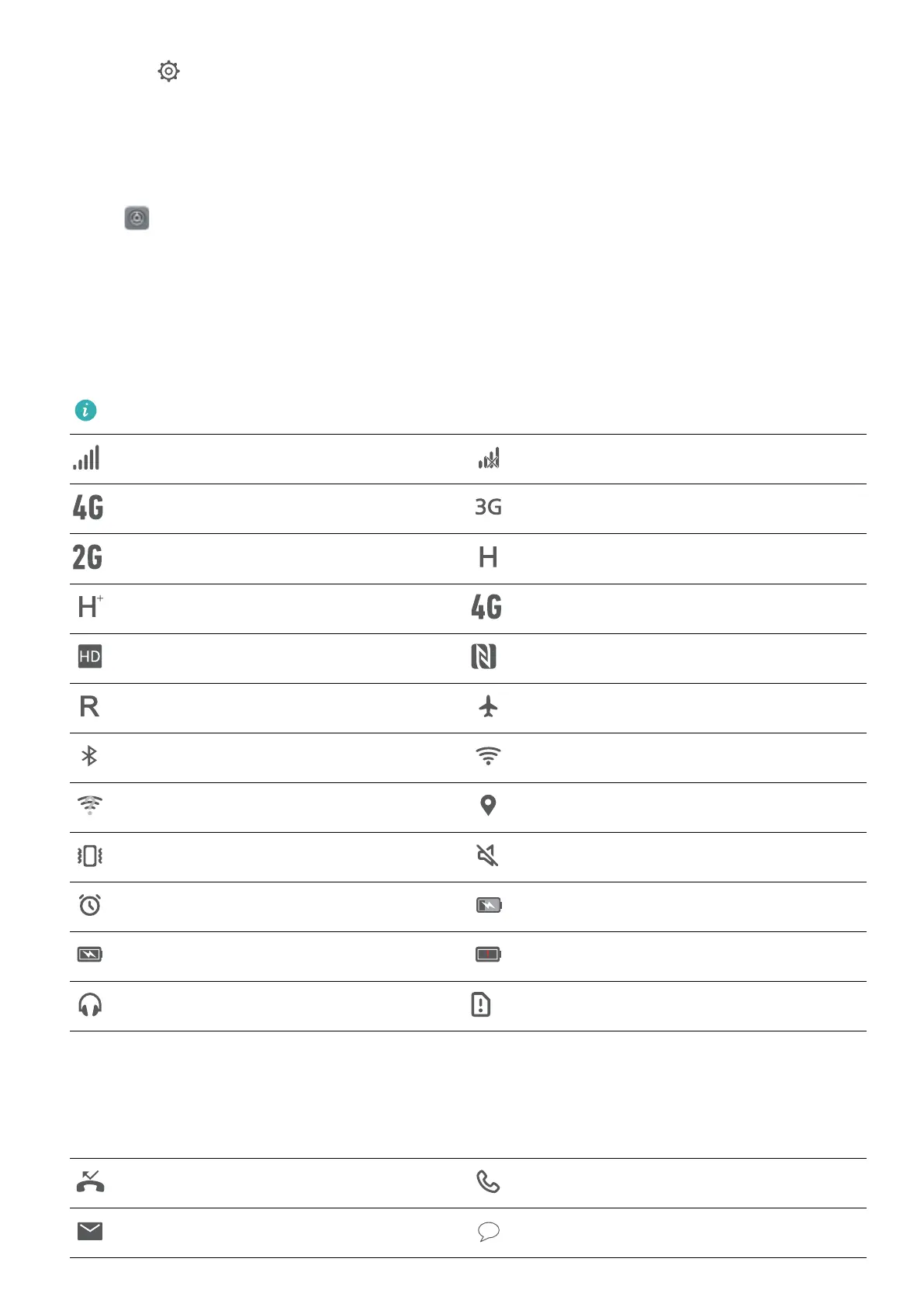
Signal strength No signal
Connected over 4G Connected over 3G
Connected over 2G Connected over HSPA
Connected over HSPA+ Connected over LTE
VoLTE enabled NFC enabled
Roaming Airplane mode enabled
Bluetooth enabled Connected over Wi-Fi
Wi-Fi network available Receiving location data from GPS
Vibration mode enabled Silent mode enabled
Alarm enabled Charging
Battery full Battery low
Headset inserted No SIM card found
Notification icons
Notification icons are displayed on the left-hand side of the status bar when you receive a new
message, notification, or reminder.
Missed calls Call in progress
New emails New messages
Screen and Display
33



 To Next Page