Use Your Phone as a Touchpad
Now that you've connected your Phone to an external display
, what happens if you don't have a
keyboard or mouse with you? You can turn your Phone into a touchpad in a few simple steps.
Swipe down from the status bar of your Phone and touch Virtual keyboard and mouse in the
notication panel. Use touch gestures to simulate mouse commands.
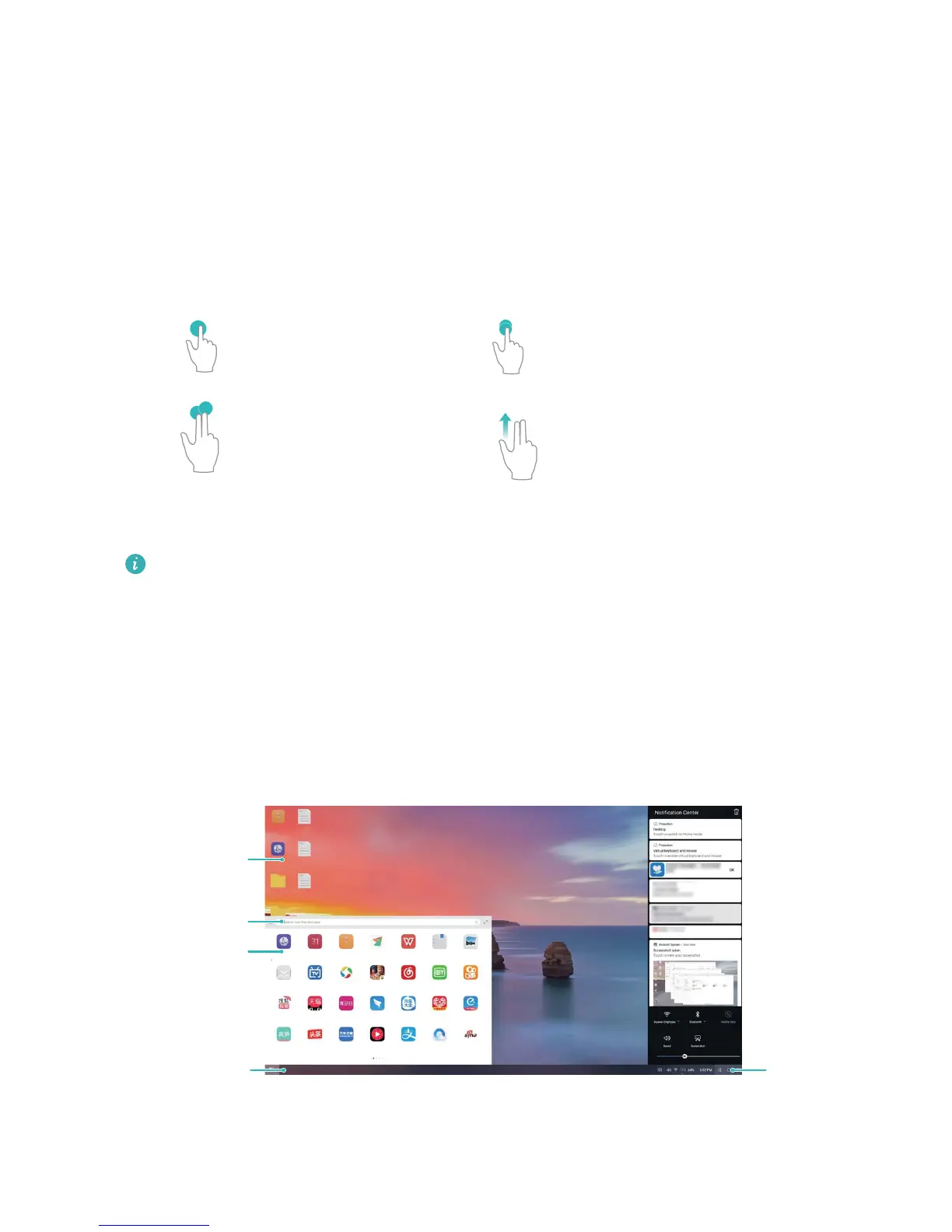
l Use touch gestures to simulate mouse commands.
One finger touch - left-click
Double touch - select text
Two finger swipe -
browse page
Two finger touch - right-click
l Enter text using a virtual keyboar
d when an external keyboard is not connected.
The virtual keyboard is unavailable when an external keyboard is connected.
Project Your Phone Screen onto an External Display
Desktop layout: View content on your Phone in a desktop layout. T
ouch the signal status icon in the
status bar to open the notication center; touch the time to open the calendar; or touch the onscreen
navigation icons as you would in the navigation bar.
Desktop
apps/documents
Task bar
Status
bar
Search bar
Start menu



 To Next Page