
 Need help?
Do you have a question about the Huawei MATEBOOK and is the answer not in the manual?
Identifies and describes the physical components of the MateBook, including ports and buttons.
Instructions for connecting the MateBook to a wireless network during initial setup.
Guidance on logging into the MateBook using a Microsoft account for services.
Steps to set a PIN for login and configure Windows Hello with a fingerprint.
How to access and use the Start Menu in PC and Tablet modes.
Guide on launching and utilizing the Action Center for quick access to settings.
Instructions for connecting and disconnecting the Portfolio Keyboard.
Demonstrates how to use the Portfolio Keyboard as a stand for the MateBook.
Explains how to use the Portfolio Keyboard as a protective cover.
Information on using the keyboard case's magnetic slot to store the MatePen.
Details the components and functions of the MatePen, including its stylus and presenter capabilities.
Steps to pair the MatePen with your MateBook for wireless presenter functionality.
Explains the functions of the Laser button and Right-click button on the MatePen.
Details the Erase button functionality and features requiring pairing.
Instructions on how to charge the MatePen using a micro USB cable.
Step-by-step guide on how to replace the tip of the MatePen stylus.
Details the ports available on the MateDock and its connection capabilities.
General precautions for safe use of the electronic device and avoiding interference.
Advice on using headsets safely to prevent hearing damage and distractions.
Precautions for using the device near flammables, explosives, or while driving.
Recommendations for optimal operating conditions and protection from environmental hazards.
Safety measures related to children, accessories, and chargers.
Critical safety instructions for handling, charging, and disposing of the battery.
Guidelines for cleaning, maintaining the device, and environmental disposal.
Information on proper disposal, recycling, and hazardous substances.
Details on EU regulatory conformance, body worn operation, and SAR certification.
Details on restrictions for using the 2.4 GHz and 5 GHz RF bands.
Information regarding FCC SAR certification for radio wave exposure limits.
FCC statement on equipment testing, compliance, and potential interference.
Measures and recommendations to protect personal information and data on the device.
Information on copyright, trademarks, and general notices for the product.
Statement on third-party software and warranty disclaimers for the product.
Information on export/import compliance and the product's privacy policy.
Resources for downloading the User Guide and finding support contact information.
This document describes the HUAWEI MateBook, a portable computing device designed for productivity and entertainment, along with its optional accessories: the Portfolio Keyboard, MatePen, and MateDock.
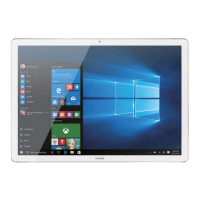
The HUAWEI MateBook is a versatile device that can operate in both PC mode and Tablet mode, offering flexibility for various tasks. It features a display, speakers, microphone, camera, and a USB Type-C port for connectivity and charging. The device is designed to be charged before its first use to activate the battery, and it powers on by pressing the power button.
The optional Portfolio Keyboard serves multiple functions. It can be attached to the MateBook to provide a full keyboard and trackpad experience, transforming the device into a laptop-like form factor. When not in use as a keyboard, it can be folded to act as a protective cover for the MateBook, safeguarding the screen and body. Additionally, the Portfolio Keyboard can be configured to serve as a stand, propping up the MateBook at an ergonomic angle for viewing or interaction. A magnetic pen slot is integrated into the keyboard case, providing a convenient and secure storage solution for the MatePen.
The optional MatePen is a multi-functional stylus designed to enhance interaction with the MateBook. It allows for precise writing and drawing on the screen, mimicking the feel of pen-and-paper. Beyond its stylus capabilities, the MatePen also functions as a laser pointer and a wireless presenter, making it suitable for presentations. It features an LED indicator, a right-click button, and an erase button, providing additional controls for various applications. The MatePen is specifically designed to be used only with the MateBook.
The optional MateDock is an expansion accessory that extends the connectivity options of the MateBook. It includes an Ethernet port, USB ports, an HDMI port, and a VGA port. This allows the MateBook to connect to a wide range of external devices and accessories, such as projectors, TVs, and USB flash drives, enhancing its utility in different environments.
MateBook Initial Setup: Upon first use, the MateBook guides the user through an initial setup process. This involves connecting to a wireless network, logging in with a Microsoft account (e.g., Outlook.com) to access Microsoft services, and setting up a PIN for login and app access. Users can also set up Windows Hello with a fingerprint, allowing for quick and secure unlocking of the screen, even when the device is off, by touching the fingerprint sensor.
Start Menu and Action Center: The home screen provides access to the start menu, which can be toggled between PC mode and Tablet mode. From the start menu, users can access "Settings" to configure MateBook options, use the "Power" option to turn off, restart, or enable Sleep mode, and view "All apps" to see installed applications. The Action Center, accessible by swiping left from the right edge of the screen or touching its icon, offers quick access to settings, VPN, projector screens, and frequently used settings like Tablet mode, Airplane mode, and screen brightness.
Portfolio Keyboard Usage: The Portfolio Keyboard is easily attached and removed from the MateBook. When used as a support, it allows the MateBook to be positioned at an angle, which is ideal for typing or viewing content. As a protective cover, it shields the MateBook from damage during transport or when not in use. The magnetic pen slot ensures the MatePen is securely stored and readily available.
MatePen Usage: To use the MatePen as a wireless presenter, it must be paired with the MateBook via Bluetooth. This involves opening the Action Center, navigating to "Devices > Bluetooth," enabling Bluetooth, holding down the Right-click and Erase buttons on the MatePen until its LED indicator flashes, and then selecting "MatePen" and touching "Pair" on the MateBook. The stylus features (writing, drawing, touch-sensitive functions) do not require pairing. The MatePen's buttons offer specific functionalities:
MateDock Usage: The MateDock connects to the MateBook, expanding its port selection. This allows users to connect to external displays (projectors, TVs) via HDMI or VGA, use wired network connections via the Ethernet port, and connect various USB devices (like flash drives) through the USB ports. The MateDock comes with a magnetic protective case, which should be aligned correctly to prevent it from falling off.
Battery Charging: The MateBook requires charging before its first use to activate the battery. The MatePen is also rechargeable. To charge the MatePen, pull off the cap, connect it to a 5V charger using a micro USB cable, and once charging is complete, replace the cap, aligning the laser button with the stylus body buttons.
MatePen Tip Replacement: The MatePen's tip can be replaced. To do this, unscrew the base in a clockwise direction, remove the old tip, insert the new tip into the base, and then turn the base counterclockwise to screw it back onto the stylus. It is crucial to handle the MatePen and its components with care during this process, as they are delicate. The tip and other small components are choking hazards and should be kept out of reach of children.
General Device Cleaning and Care: To ensure the longevity and proper functioning of the MateBook and its accessories, keep them dry and avoid exposure to extreme heat, cold, dust, damp, dirty environments, and magnetic fields. Do not use chemical detergents, powders, or other chemical agents (such as alcohol or benzene) for cleaning. Instead, use a clean, soft, and dry cloth. Avoid placing magnetic stripe cards near the device for extended periods, as this can damage them. Do not disassemble or remanufacture the device or its accessories, as this voids the warranty and can lead to damage. If the screen is broken, stop using the device immediately and contact an authorized service center.
Charger Safety: Always unplug the charger from electrical outlets and the device when not in use. Do not drop or impact the charger. If the power cable is damaged or the plug loosens, discontinue use immediately to prevent electric shocks, short circuits, or fire. Avoid touching the power cord, device, or charger with wet hands. If the charger has been exposed to water or other liquids, have it inspected by an authorized service center. Ensure the charger meets required safety standards.
Battery Safety: Do not connect battery poles with conductors (keys, jewelry, etc.) to prevent short-circuits, injuries, or burns. Keep the battery away from excessive heat and direct sunlight, and do not place it on or in heating devices, as batteries may explode if overheated. Do not modify, remanufacture, insert foreign objects into, or immerse the battery in liquids. If the battery leaks, avoid contact with electrolyte; if contact occurs, flush with clean water and consult a doctor. Do not dispose of batteries in fire. Dispose of used batteries according to local regulations. Do not allow children or pets to bite or suck the battery. Do not smash, pierce, or expose the battery to high external pressure. Do not drop the device or battery, especially on hard surfaces. The MateBook has a built-in, non-removable battery; for replacement, take the device to an authorized service center. Use only IEEE-Std-1725 standard qualified charging systems and replacement batteries.
 General
| Internal memory | 8 GB |
|---|---|
| Internal memory type | LPDDR3-SDRAM |
| Storage media | SSD |
| Card reader integrated | No |
| Compatible memory cards | Not supported |
| Internal storage capacity | 256 GB |
| LED backlight | Yes |
| Display diagonal | 12 \ |
| Touch technology | Multi-touch |
| Touchscreen type | Capacitive |
| Display resolution | 2160 x 1440 pixels |
| Graphics card | HD Graphics 515 |
| Graphics card family | Intel |
| On-board graphics card model | Intel® HD Graphics 515 |
| Maximum on-board graphics card memory | 16 GB |
| On-board graphics card OpenGL version | 4.4 |
| On-board graphics card base frequency | 300 MHz |
| On-board graphics card DirectX version | 12.0 |
| On-board graphics card dynamic frequency (max) | 900 MHz |
| Rear camera resolution (numeric) | 0 MP |
| Front camera resolution (numeric) | 5 MP |
| Number of built-in speakers | 2 |
| Wi-Fi standards | 802.11a, Wi-Fi 5 (802.11ac), 802.11b, 802.11g, Wi-Fi 4 (802.11n) |
| Bluetooth version | 4.1 |
| Top Wi-Fi standard | Wi-Fi 5 (802.11ac) |
| USB 2.0 ports quantity | 0 |
| USB 3.2 Gen 1 (3.1 Gen 1) Type-C ports quantity | 1 |
| GPS (satellite) | - |
| Platform | Windows |
| Operating system architecture | 64-bit |
| Device type | Tablet PC |
| Form factor | Slate |
| Product color | Black, Grey |
| Battery capacity | 4430 mAh |
| Battery life (max) | - h |
| AC adapter output current | 2 A |
| Cables included | USB |
| Processor ARK ID | 88202 |
| Processor socket | BGA 1515 |
| Tcase | - °C |
| Stepping | D1 |
| Tjunction | 100 °C |
| Processor code | SR2EM |
| Processor cache | 4 MB |
| Processor model | m5-6Y54 |
| Processor family | Intel® Core™ M |
| Processor series | Intel Core m5-6Y Series |
| Processor threads | 4 |
| Processor codename | Skylake |
| Processor frequency | 1.1 GHz |
| Processor cache type | Smart Cache |
| Configurable TDP-down | 3.5 W |
| Processor lithography | 14 nm |
| Processor package size | 20 X 16.5 mm |
| PCI Express slots version | 3.0 |
| Processor boost frequency | 2.7 GHz |
| PCI Express configurations | 1x2+2x1, 1x4, 2x2, 4x1 |
| Supported instruction sets | SSE4.1, SSE4.2, AVX 2.0 |
| Thermal Design Power (TDP) | 4.5 W |
| Maximum number of PCI Express lanes | 10 |
| Intel Secure Key Technology version | 1.00 |
| Intel Stable Image Platform Program (SIPP) version | 0.00 |
 Weight and Dimensions
| Depth | 6.9 mm |
|---|---|
| Width | 278.8 mm |
| Height | 194.1 mm |
| Weight | 640 g |





 To Next Page
