EasyManua.ls Logo

Huawei UPS2000-G-6KRTL - User Manual

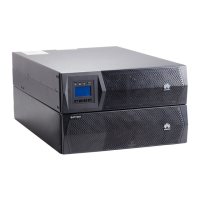
Huawei UPS2000-G-6KRTL
194 pages
Print Icon
To Next Page IconTo Next Page
Loading...
UPS2000-G- (6 kVA-20 kVA)
User Manual
Issue 18
Date 2021-07-16
HUAWEI TECHNOLOGIES CO., LTD.

Table of Contents

Other manuals for Huawei UPS2000-G-6KRTL

Questions and Answers

  • R
    Robert HamiltonSep 7, 2025
    How to troubleshoot a Huawei UPS with a blank LCD screen?
    • E
      Elizabeth SanchezSep 7, 2025
      If the mains switch is ON, but the LCD of your Huawei UPS does not display anything and the system does not perform self-tests, check the input power cable connection. Also, use a multimeter to check that the UPS input voltage meets specifications, as the input voltage may exceed the limit.
  • C
    Caitlin SkinnerAug 22, 2025
    Why is my Huawei UPS2000-G-6KRTL UPS battery discharge time so short?
    • D
      daisy72Aug 22, 2025
      The battery discharge time may be shorter than expected because the batteries are not fully charged. To resolve this, charge the batteries for at least 8 hours when the mains is normal, and then test the discharge time again. Alternatively, the battery performance might have deteriorated, in which case you should contact local technical support to replace the batteries.
  • R
    Rhonda SparksSep 4, 2025
    Why is my Huawei UPS running on battery even when the mains is normal?
    • R
      Robert EstradaSep 4, 2025
      If the mains is normal but the AC input indicator is off, and your Huawei UPS runs in battery mode, first ensure that the mains switch is turned on. Also, check the input power cable connection to make sure it is securely connected.
  • J
    jeffreyryanSep 3, 2025
    What to do if the battery indicator is blinking yellow on my Huawei UPS?
    • E
      Elijah MercadoSep 3, 2025
      If the battery indicator is blinking yellow, the buzzer buzzes for 1 second and then stops for 1 second, and the UPS is shutting down due to insufficient battery capacity, immediately save load data and power off critical loads. It may also be caused by incorrect parameter settings for the battery number or capacity, so ensure these parameters are set correctly.
  • C
    Clarence CabreraSep 2, 2025
    What to do if my Huawei UPS makes abnormal noise?
    • B
      boltonbarbaraSep 2, 2025
      If you notice abnormal noise or smell coming from the UPS cabinet, shut down the UPS and cut off the power input immediately. Contact local technical support for assistance.
  • K
    Kevin ParksAug 31, 2025
    How to reset the password on a Huawei UPS2000-G-6KRTL?
    • H
      halldavidAug 31, 2025
      If you forgot only the LCD password (the preset password is 000001), use the feature code (the preset feature code is 999999) to activate the LCD password. If you forgot both the LCD password and feature code, contact local technical support.
  • D
    Debra CalhounAug 30, 2025
    What to do if Huawei UPS2000-G-6KRTL UPS has no output voltage?
    • C
      Corey SimpsonAug 30, 2025
      If the UPS has no output voltage but does not report a fault, check the output power cable connection to ensure it is properly connected.
  • S
    Susan JonesAug 28, 2025
    What to do if Huawei UPS does not start?
    • M
      Melanie JordanAug 29, 2025
      If the UPS does not start after pressing the power button, ensure that you press it for more than 5 seconds until you hear a beep sound.
  • A
    Anthony ChangAug 27, 2025
    How to fix a Huawei UPS2000-G-6KRTL UPS when the LCD displays nothing?
    • J
      Jacob GarciaAug 27, 2025
      If the LCD displays nothing and the system doesn't perform self-tests, first check the UPS input power cable connection to ensure the input power supply is properly connected. Also, use a voltmeter to check whether the UPS input voltage meets the required specifications, as it may be less than the lower threshold or greater than the upper threshold.
  • D
    Daniel HarmonAug 27, 2025
    Why is the mains indicator off on my Huawei UPS2000-G-6KRTL UPS?
    • T
      Travis WelchAug 27, 2025
      The mains indicator might be off because the mains voltage or frequency exceeds the UPS input range. Use a multimeter to verify that the input voltage and frequency meet the specified requirements.

Summary

About This Document

Purpose

Describes the UPS2000-G features, performance, and operation.

Intended Audience

Lists the professionals for whom this document is intended.

Symbol Conventions

Defines the symbols used in the document for hazards and notes.

Change History

Safety Information

General Safety

Provides general safety statements and precautions for operating the UPS.

Personnel Requirements

Specifies the qualifications and training required for personnel handling the UPS.

Electrical Safety

Covers safety procedures related to grounding, AC/DC power, and cabling.

Installation Environment Requirements

Outlines the necessary environmental conditions for safe UPS installation.

Mechanical Safety

Details safety precautions when moving heavy objects and handling the UPS.

Equipment Operating Environment

Specifies the intended commercial and industrial use of the UPS.

Battery Safety

Provides critical safety guidelines for handling and installing UPS batteries.

Quick Introduction

Model Description

Describes the different UPS models covered in this manual.

Working Principle

Explains the conceptual diagram and working modes of the UPS.

Appearance

Describes the physical layout and connection points of the UPS.

Optional Components

Lists and describes the available optional components for the UPS.

Installation

Preparations

Covers essential preparations before installing the UPS, including site and tools.

Installation Procedure

Provides a general overview of the UPS installation process.

Installing a Backfeed Protection Device

Explains how to install a backfeed protection device for safety.

Verifying the Installation

Lists check items to verify correct installation of the UPS.

Control Panel

Introduction

Introduces the UPS control panel and its functions.

Indicators

Describes the meaning of each indicator light on the control panel.

Functional Buttons

Explains the function of each button on the UPS control panel.

LCD

Describes the functionality of the LCD display for UPS operation.

LCD Startup Screen

Details the appearance and meaning of the UPS LCD startup screen.

LCD Menu Hierarchy

Presents the hierarchical structure of the UPS LCD menus.

Status Screen

Explains how to access and interpret the UPS status screens.

Alarms Screen

Details how to view and handle active and historical alarms on the UPS.

Settings Screen

Guides users through accessing and modifying UPS settings.

Control Screen

Outlines the control options for starting, shutting down, and maintenance.

About Screen

Provides information about the UPS model, ESN, and software version.

Operations

Checking Before Powering On the UPS

Lists critical checks before powering on the UPS for safe operation.

Single UPS Operations

Describes operations for a single UPS unit.

Parallel System Operations

Covers operations for UPS units connected in a parallel system.

Communications

Optional Communications Components

Lists optional communication components for UPS management.

SNMP Card

Details the functions and features of the SNMP card.

Modbus Card

Explains the functions of the Modbus card and its DIP switch settings.

Dry Contact Card

Describes the dry contact card's capabilities for alarm output and control input.

Routine Maintenance

UPS Maintenance

Provides guidelines and intervals for routine UPS maintenance tasks.

Battery Maintenance

Provides guidelines for battery maintenance and precautions.

Troubleshooting

Solutions to common faults

Lists common UPS faults, causes, and suggested measures for resolution.

Technical Specifications

Physical Specifications

Provides physical dimensions and weight for different UPS models.

Environmental Specifications

Lists environmental operating conditions for the UPS.

Mains Input Electrical Specifications

Details electrical input specifications for mains power.

Bypass Input Electrical Specifications

Specifies electrical input parameters for bypass power.

Output Electrical Specifications

Details the electrical output specifications of the UPS.

Battery Electrical Specifications

Provides electrical specifications related to the UPS batteries.

ECO Specifications

Outlines voltage and frequency tolerance for ECO mode.

Parallel System Specifications

Details specifications for UPS units operating in parallel.

Safety Regulations and EMC

Lists safety regulations and EMC compliance standards.

Parallel Parameter List

UPS Differences

LCD Menus and Parameters

Status Screen

Details the data displayed on the UPS status screens.

Alarms Screen

Explains how to navigate and view alarm information.

Settings Screen

Outlines the structure and options within the settings menu.

Control Screen

Describes the control options for starting, shutting down, and maintenance.

About Screen

Provides information about the UPS model, ESN, and software version.

Alarm Handling

Alarm Handling

Lists alarms, their causes, impact, and handling suggestions.

Cleaning or Replacing the Air Filter (6 kVA and 10 kVA)

Alarm Handling of Battery Maintenance Notification

Battery Shallow Discharge Test

Battery Capacity Test

Transferring the UPS That Has Generated an Alarm to Normal Mode and Clearing the Alarm Tone

Acronyms and Abbreviations

Huawei UPS2000-G-6KRTL Specifications

General IconGeneral
ModelUPS2000-G-6KRTL
Nominal Output Power6 kW
Input Frequency50/60 Hz
Input Frequency Range40-70 Hz
WaveformPure Sine Wave
Operating Temperature0°C to 40°C
Relative Humidity0-95% (non-condensing)
TopologyDouble Conversion Online
Form FactorTower
Rated Capacity6 kVA
Input Voltage220/230/240 VAC
Output Voltage220/230/240 VAC
Output Frequency50/60 Hz
Efficiency (AC-AC)≥ 95%
Battery TypeLead-acid battery
Typical Backup TimeDepends on load
Communication InterfaceRS232, USB

Related product manuals