2
Cabling
•TheUSG6310S-WL-OVSsupports4GLTE,3GUMTS,and2GGSMSIMcards.TheUSG6510-WLsupports4G
FDDLTE/TDDLTE,3GTD-SCDMA/WCDMA,and2GGSMSIMcards.
•SIMcardsarenothotswappable.
•YouareadvisedtoplacetheLTEantennaatleast1.2mawayfromtheWiFiantenna.
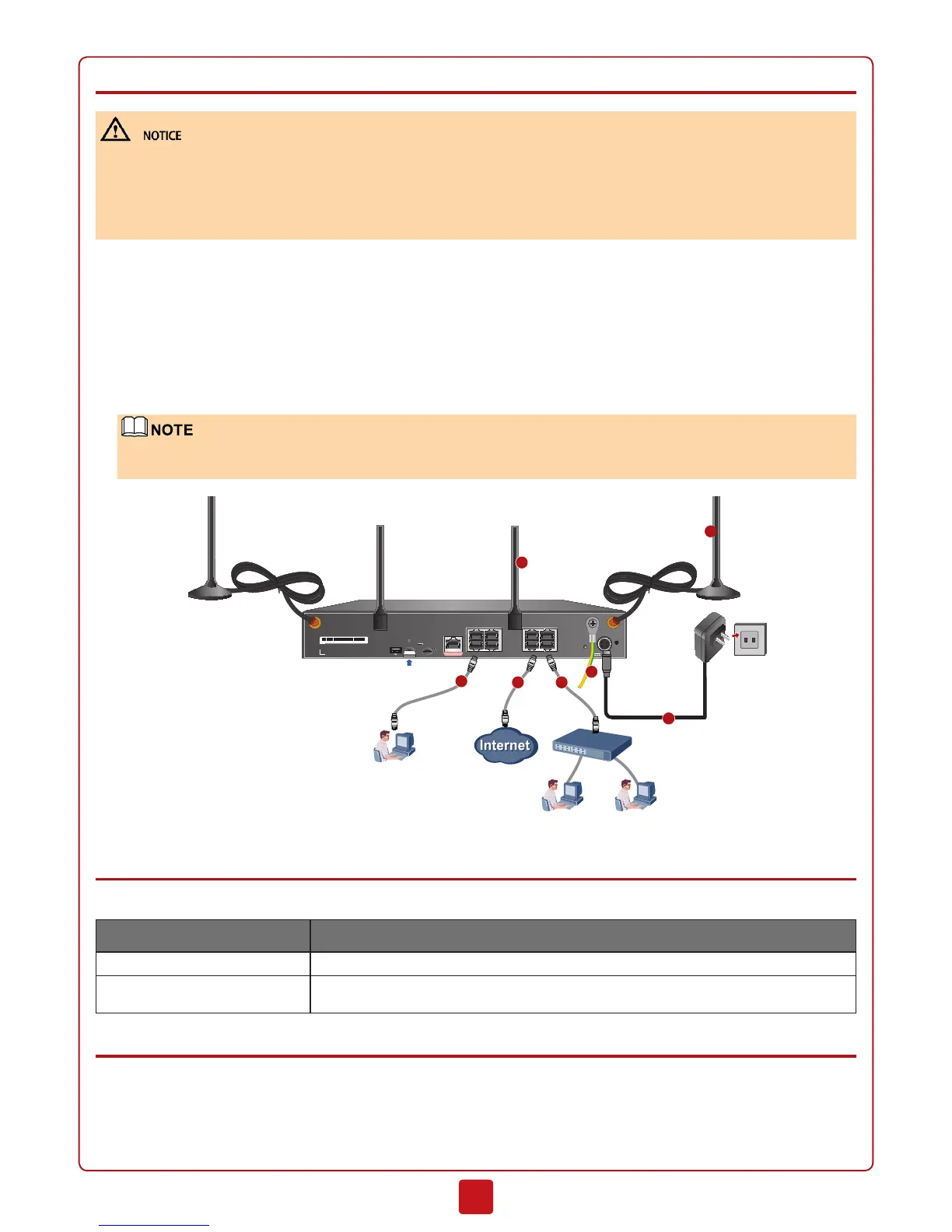
1. Connect the ground terminal on the device to the ground bar using a PGND cable.
2. Internet connection: Connect GE0/0/4 to the Internet using a network cable, or install a SIM card and LTE antennas to
connect to the Internet in 4G mode.
3. LAN connection: Connect GE0/0/6 to the wired LAN using a network cable, or install WiFi antennas to connect to the
wireless LAN.
4. Connect the device' interface GE0/0/0 to the administrator PC using a network cable.
5. Insert the cable retention clip into the hole close to the power socket. Insert the 4-pin self-locking plug of the power adapt-
er into the power socket on the device. Then round the clip over the power cable and fix it using the clip. Plug the other
end of the power adapter to the power supply socket.
AsUSGdoesnotprovideapowerswitch,itstartsupimmediatelyafterreceivingpower.
WhentheSYSindicatoron
theSPUApanelisblinking(onceeverytwoseconds),thedeviceisrunningandreadyforconfiguration.
Administrator
GE0/0/4
GE0/0/6
GE0/0/0
4
2
Secospace USG6000
0 2
1 3
4 6
5 7
RST
micro
SD
12V ; 2A
CONSOLE
LTE DIV
WiFi 0 LTE MAIN
WiFi 1
XXXXXXXXXXXXXXXXXXXXXXXXXXX
1
Intranet
3
5
SIM card
3
2
Switch
Rear panel
Default Configuration
The following table lists the default configuration.
Item Description
GE0/0/0 The IP address is 192.168.0.1.
Administrator account/password You can use the default account/password (admin/Admin@123) to log in through web or
console.
Connecting to the Internet
Collect the information in the following table based on the WAN mode you use and the IP address plan for the LAN. The un-
derlined red texts in the table are examples for reference only.


 To Next Page