5
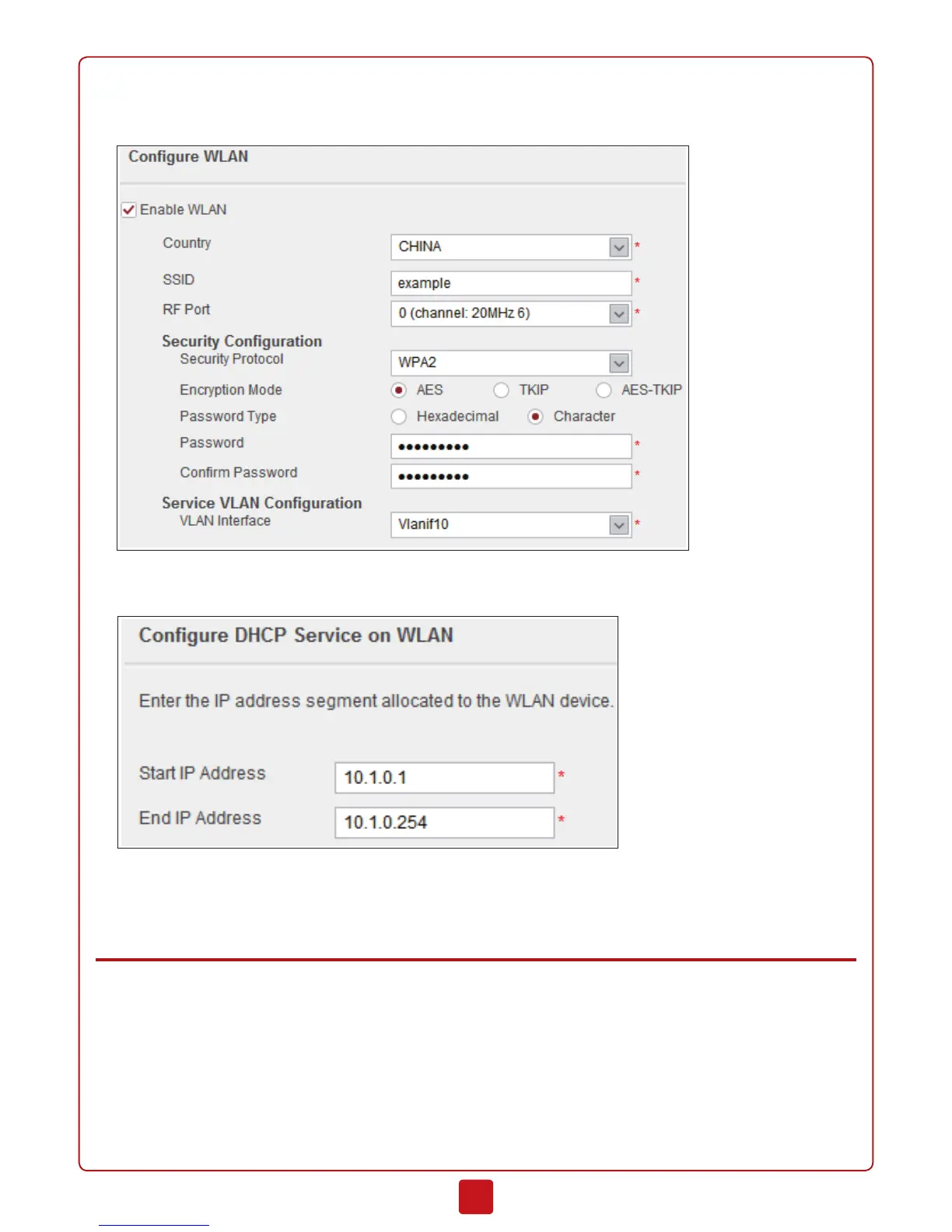
10. (Optional) In the Configure WLAN step, set the parameters and click Next.
Click New interface in VLAN Interface, create interface VLANIF10, set the interface IP address to 10.1.0.1, and set the
security zone to trust.
11. (Optional) In the Configure DHCP Service on WLAN step, set the parameters and click Next.
12. In the Summary step, confirm the previous settings and click Apply.
13. Click Finish in the Startup Wizard Complete page to complete Internet access configurations. For other settings, refer to
the
Administrator Guide
.
Appendix
• Activating Licenses
More functions of the device will be available after a license is activated. Activate a license as follows:
1. Click the System tab on the web UI, and click License Management in the navigation tree.
2. Select Automatic Online Activation in License Activation Mode.
3. Fill the domain name of the license authorization server in the License Center Domain Name field. You can also
leave the field as default.
4. Find the license authorization code in the license certificate, which is delivered with the device, and enter it in the
License Authorization Code field.


 To Next Page