EasyManua.ls Logo

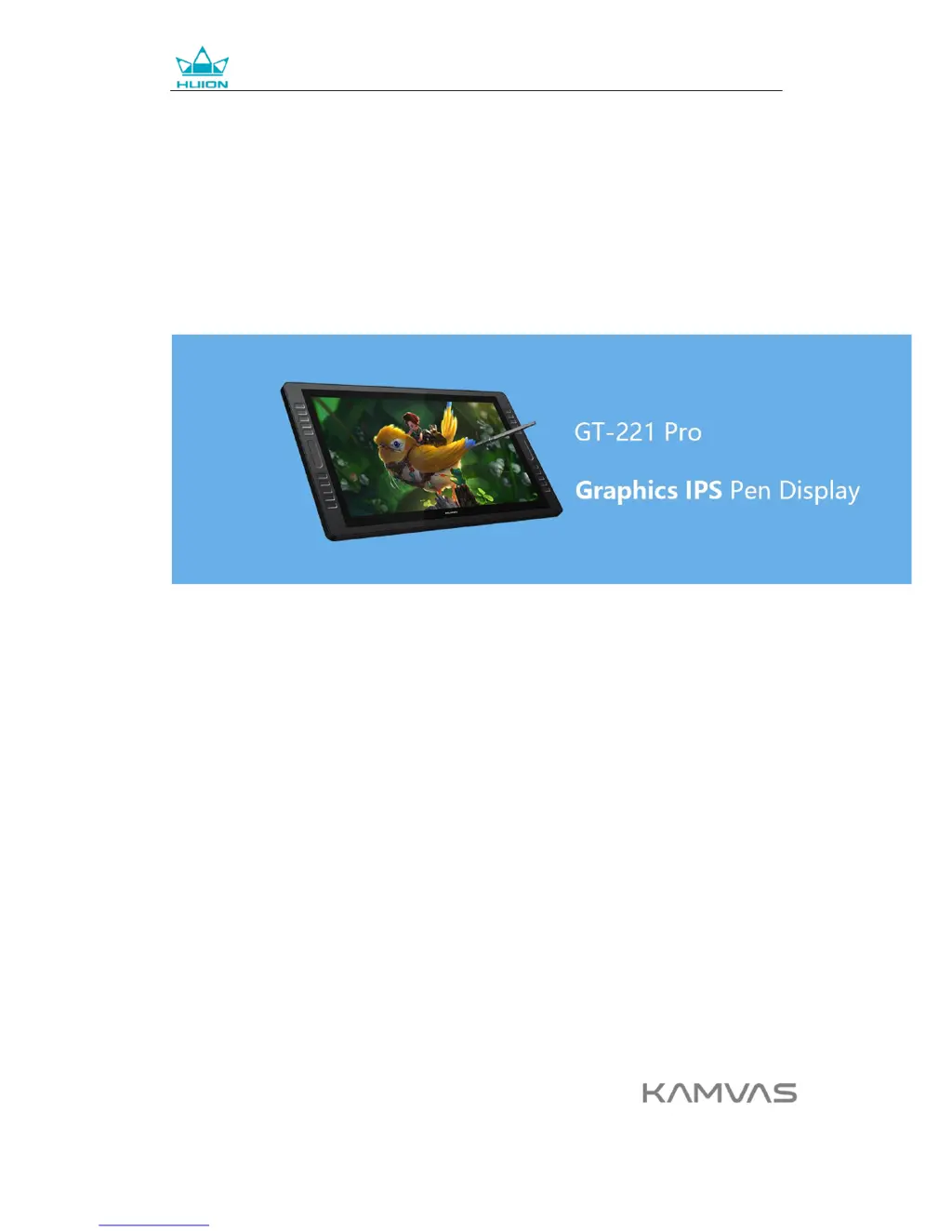
Huion GT-221 Pro - User Manual

Huion GT-221 Pro
22 pages
Print Icon
To Next Page IconTo Next Page
Loading...
GT-221 Pro Graphics Display
User Manual
For Windows and Macintosh OS

Questions and Answers

  • N
    Nicholas PerezAug 15, 2025
    Why doesn't the pen work and there's no pressure in the graphics software on my Huion GT-221 Pro?
    • J
      Jacob RodgersAug 15, 2025
      If your Huion pen isn’t working and there's no pressure in the graphics software, the driver might be damaged or improperly installed, so please uninstall and reinstall it. Also, check whether the pen's power is depleted and recharge it if necessary. Try restarting your computer and re-inserting the USB cable.
  • Y
    ysmithAug 18, 2025
    What to do if there is no display on the Huion Monitor screen?
    • E
      Elizabeth MarshallAug 18, 2025
      If your Huion monitor screen shows no display, ensure the power is on and the cable is correctly connected. If using a laptop, verify the display mode is set to extend or duplicate. Check if the side indicator shows green; if not, reboot your computer or reconnect the cable. Also, inspect the signal wire for any damage and replace it if necessary.
  • J
    John AlvaradoAug 21, 2025
    What to do if images are blurred on my Huion Monitor?
    • M
      Melissa LoweAug 22, 2025
      If the images on your Huion monitor appear blurred, set the display resolution to 1920 x 1080.
  • B
    Brian JacksonAug 25, 2025
    What to do if the cursor movement is abnormal on Huion GT-221 Pro?
    • B
      berryjeanAug 25, 2025
      If the cursor movement is abnormal on your Huion Monitor, try re-inserting the USB cable or restarting your computer.
  • D
    Devin Jensen IIIAug 28, 2025
    How to fix a deviation between the tip and the cursor on a Huion GT-221 Pro?
    • J
      juarezsarahAug 28, 2025
      To correct the deviation between the pen tip and the cursor on your Huion monitor, try calibrating the device.
  • M
    mistylangAug 31, 2025
    What to do if the side button of the pen doesn’t work on my Huion Monitor?
    • Z
      zachary58Sep 1, 2025
      If the side button of your Huion pen isn’t working, make sure that when pressing the side button, the nib isn’t touching the glass surface and the distance between the nib and surface is within 10mm.
  • D
    dorothywilliamsSep 3, 2025
    Why is there a lack of colors on my Huion GT-221 Pro?
    • P
      Priscilla RodriguezSep 3, 2025
      If your Huion monitor displays a lack of colors, check the pins of the signal wire to ensure they are not bent or fractured.
  • T
    Traci AdkinsSep 7, 2025
    Why doesn't the power indicator flash on my Huion GT-221 Pro?
    • A
      Anthony BradySep 7, 2025
      If the power indicator on your Huion monitor does not flash, make sure the power is on. Also, check the socket and power cable.
  • M
    marykingSep 12, 2025
    Why is there chromatic aberration on my Huion GT-221 Pro Monitor?
    • K
      Kaitlin GarciaSep 12, 2025
      Minor chromatic aberration is a normal phenomenon on Huion monitors due to different regional color temperatures.

Summary

Precautions

Product Overview

Stylus Pen

Details about the rechargeable stylus pen, its features, and battery life.

Setting up Display

Installing the Driver

Product Basic Operation

Using The Pen

Guidance on how to hold and use the pen for cursor control.

OSD Setting

On-Screen Display settings for display adjustments and configurations.

Function Setting

Working Area Setting

Setting the active screen area for the display, especially with multiple monitors.

Working Area Settings Details

Defining the display area mapped to the screen area (Full, Ratio, Custom).

Press Keys Function Setting

Customizing the function of the press keys and touch bar.

Specifications

Trouble Shooting

Display Breakdowns

Solutions for common display issues like no power or no display.

Function Breakdowns

Solutions for issues with pen functionality and cursor movement.

Huion GT-221 Pro Specifications

General IconGeneral
Screen Size21.5 inches
Display TypeIPS
Color Gamut72% NTSC
Pen Pressure Levels8192 levels
Active Area476.64 x 268.11 mm
Response Time14 ms
Report Rate233 PPS
Viewing Angle178 degrees
Contrast Ratio1000:1
Brightness250 cd/m²
Display Colors16.7 million
OS SupportWindows, macOS
Aspect Ratio16:9
Pen Resolution5080 LPI
Resolution1920 x 1080
ConnectivityHDMI, USB
Tilt Support60 degrees

Related product manuals