EasyManua.ls Logo

Huion KAMVAS Pro 16 Plus - User Manual

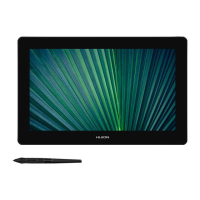
Huion KAMVAS Pro 16 Plus
37 pages
Print Icon
To Next Page IconTo Next Page
Loading...
Kamvas Pro 16 Plus (4K)
Contents
Product Overview
...................................................... 2
Display Introduction
................................................... 2
Product and Accessories
................................................ 2
Product Connection
.................................................... 4
Driver and Setting
..................................................... 6
Install Driver
........................................................ 6
Driver Interface Preview
................................................. 8
Pen Display Setting
.................................................... 9
Digital Pen Setting
.................................................... 12
Driver Setting
....................................................... 21
Pen-enabled OSD Menu
................................................ 26
Digital Pen Basic Operation
.............................................. 28
Specifications
........................................................ 32
Troubleshooting Solutions
.............................................. 34
1 / 37

Other manuals for Huion KAMVAS Pro 16 Plus

Questions and Answers

  • V
    vazquezmitchellAug 18, 2025
    What to do if there is no signal on my Huion Graphics Tablet?
    • R
      raymond11Aug 19, 2025
      First, ensure all cables are securely connected. If you're using a desktop computer, verify that the HDMI port is plugged into the graphics card on the tower, not the motherboard. For Windows OS, press 'Windows+P' on your keyboard and select 'Duplicate' or 'Extend', avoiding 'Computer Only' or 'Projector Only'. If your computer lacks an HDMI port, you'll need an HDMI adapter, but a USB to HDMI adapter is not recommended. Alternatives like DVI/VGA/Display Port/Type-C/Thunderbolt to HDMI adapters are preferable, and using a USB hub is also not recommended.
  • M
    mosesmaryAug 21, 2025
    How to fix the pen if it does not work with my Huion Graphics Tablet?
    • M
      Michael JamesAug 21, 2025
      Ensure you are using the pen that originally came with your display and that you have installed the driver correctly.
  • K
    Kelsey AllenAug 23, 2025
    Why does my Huion Graphics Tablet display wallpaper & task bar of computer monitor only?
    • D
      dixonmichelleAug 23, 2025
      This usually happens in extended mode, which is normal. If you're unfamiliar with extended mode, duplicate/mirror mode is recommended. To switch modes: * **Windows OS:** Press Windows+P and choose Duplicate. * **Mac OS:** Go to System Preferences, then Displays, then Arrangement, and check "Mirror Displays". If you prefer extended mode, ensure the pen display is set as the Work Area in the driver, typically "Display 2".
  • T
    Tracy HensleyAug 26, 2025
    What to do if there is no display on the screen of my Huion Graphics Tablet?
    • C
      cbatesAug 26, 2025
      First, ensure the power is on and the cables are correctly connected. If using a laptop, ensure the display mode is set to 'extend' or 'duplicate'. Check if the side indicator is green, indicating a signal. If not, reboot your computer or reconnect the cable. Also, inspect the signal wire for any damage; if broken or bent, replace it.
  • A
    alicefrazierAug 27, 2025
    What to do if there is no pressure in the graphics software but the cursor moves on my Huion Graphics Tablet?
    • D
      Donald AlvarezAug 28, 2025
      This issue may arise if other display drivers were installed or the drawing software was open during the driver installation. To resolve this, uninstall all drivers, close the drawing software, and then reinstall the Huion driver. Restarting your computer after installation is also recommended.
  • N
    Nicole BentleyAug 30, 2025
    Why does my computer can't recognize the Huion Graphics Tablet display?
    • T
      Tristan WoodAug 30, 2025
      Check that the USB port is functioning correctly. If there's an issue, try using another USB port.
  • K
    Katie JacksonSep 1, 2025
    Why does my Huion Graphics Tablet display images that are blurred?
    • G
      gonzalezpamelaSep 1, 2025
      Set the display resolution to 3840 x 2160.
  • D
    David LopezSep 4, 2025
    How to fix if press keys does not work on Huion Graphics Tablet?
    • C
      Courtney PhillipsSep 4, 2025
      Ensure the Press Keys function is enabled in the driver, and that you have correctly defined the Press Keys. Also, check if the press lock switch is in the unlock position.
  • J
    Jesse MartinezSep 6, 2025
    What to do if my computer can't enter sleep mode when using Huion Graphics Tablet?
    • C
      Cynthia CaseySep 6, 2025
      When you are not using the display, avoid placing the pen on the display surface, as this can prevent the computer from going to sleep.
  • Q
    qburgessSep 8, 2025
    Why is there a lack of colors on my Huion Graphics Tablet?
    • T
      Timothy ChungSep 8, 2025
      Check that the pins of the signal wire are not bent or fractured.

Summary

Product Connection

3-in-1 Type-C Cable Connection

Steps to connect using the 3-in-1 Type-C cable.

USB-C to USB-C Cable Connection

Steps to connect using the USB-C to USB-C cable.

Driver and Setting

Install Driver

Instructions for downloading and installing the device driver.

Driver Interface Preview

Working Area Mapping

Defining the relationship between pen movement and cursor movement.

Monitor Calibration

Calibrating the display cursor for accuracy.

Digital Pen Settings

Press Key Customization

Assigning functions to the pen's express keys.

Pressure Sensitivity Adjustment

Adjusting pen pressure sensitivity levels.

Driver Setting

OSD Menu Settings

Adjusting display settings like Scene Mode, Brightness, Contrast.

Driver Interface Preferences

Configuring language, driver color, start menu options, and hotkeys.

Digital Pen Basic Operation

Pen Holding Technique

Proper grip technique for using the pen.

Troubleshooting Display Issues

No Display on Screen

Troubleshooting steps for a blank screen.

No Signal Detected

Solutions for when the device is not recognized or shows no signal.

Troubleshooting Functional Issues

No Pen Pressure Input

Solutions for missing pen pressure in software.

Pen Not Working

Troubleshooting steps when the pen is not detected or functioning.

Press Keys Not Working

Troubleshooting pen button functionality.

Computer Not Recognizing Display

Solutions for the computer not detecting the pen display.

Huion KAMVAS Pro 16 Plus Specifications

General IconGeneral
Display Size15.6 inches
Pen Pressure Levels8192 levels
ConnectivityUSB-C, HDMI
Weight1.5 kg
Contrast Ratio1000:1
Report Rate266 PPS
Accuracy±0.5 mm
Response Time25 ms
OS SupportWindows, macOS
Pen TechnologyBattery-free Electromagnetic Resonance
Tilt Support±60 degrees
Viewing Angle178°
Resolution1920 x 1080 (16:9)

Related product manuals