
 To Next Page

L
Laurie MunozSep 23, 2025
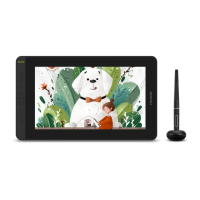
Why there is chromatic aberration on Huion KAMVAS 13?
- OolambertSep 23, 2025
Minor chromatic aberration is a normal phenomenon due to different regional color temperatures.

Why there is chromatic aberration on Huion KAMVAS 13?
Minor chromatic aberration is a normal phenomenon due to different regional color temperatures.
What to do if there is no display on my Huion Monitor screen?
First, ensure the power is on. Next, check the 3-in-1 cable is correctly connected. If connected to a laptop, ensure the display mode is set to extend or duplicate. Check if the side indicator is green; if not, reboot your computer or reconnect the cable. Finally, inspect the signal wire for breaks or bends; replace if necessary.
Why doesn't my Huion Monitor pen work?
Make sure you are using the pen that originally came with your Huion display. Also, verify that you have installed the driver correctly.
How to resolve lack of colors on Huion Monitor?
Check the pins of the signal wire are not bent or fractured on your Huion Monitor.
Why pen doesn’t work and no pressure in the Huion KAMVAS 13 software?
If the driver is damaged or not properly installed, please uninstall and reinstall it. Additionally, try restarting your computer or re-inserting the USB cable.
What to do if there is no display on the Huion KAMVAS 13 Graphics Tablet screen?
First, ensure the power is on and the 3-in-1 cable is correctly connected. If using a laptop, verify the display mode is set to extend or duplicate. Check if the side indicator shows green; if not, reboot your computer or reconnect the cable. Finally, inspect the signal wire for any damage and replace it if necessary.
Why do images jitter or ripple on my Huion Monitor?
It is likely that there is electric equipment nearby that brings about electronic interference with your Huion Monitor.
Why is there chromatic aberration on my Huion Monitor?
As the regional color temperature is different, so minor chromatic aberration is a normal phenomenon on your Huion Monitor.
Why can’t my computer enter sleep mode with Huion Monitor?
When you are not using your Huion Monitor display, do not leave the pen on the display surface, as this will prevent the computer from going to sleep.
Why are the press keys not working on my Huion Monitor?
First, confirm that the Press Keys function is enabled in the driver. Next, ensure you have correctly defined the Press Keys. Finally, check if the press lock switch is in the unlock position on your Huion Monitor.
Guides users through downloading and installing the necessary tablet driver software.
Manages device preferences, including language, color themes, auto-start options, and driver updates.
Lists detailed performance metrics and technical data for the digital pen and the device.
Solutions for resolving problems where the pen display shows no image or connection.
Solutions for when pressure sensitivity is not detected in drawing software.
Provides steps to resolve issues where the digital pen is unresponsive or not functioning.
Troubleshooting guide for when the device's programmable press keys fail to operate.
Solutions for when the computer fails to detect or recognize the connected pen display.
 General
| Resolution | 5080 lpi |
|---|---|
| Working area | 293.76 x 165.24 mm |
| Device interface | USB |
| Connectivity technology | Wired |
| Number of programmable keys | 8 |
| Pen included | Yes |
| Pressure levels | 8192 |
| Pen report rate (points per second) | 266 |
| Pixel pitch | 0.213 x 0.213 mm |
| Aspect ratio | 16:9 |
| Response time | 25 ms |
| Display diagonal | 13.3 \ |
| Display number of colors | 16.78 million colors |
| USB Type-C ports quantity | 1 |
| Product color | Black |
| Mac operating systems supported | Mac OS X 10.12 Sierra |
| Windows operating systems supported | Windows 10, Windows 7, Windows 8 |
| Input voltage | 100 - 240 V |
| AC input frequency | 50 - 60 Hz |
| AC adapter output current | 1 A |
| AC adapter output voltage | 12 V |