EasyManua.ls Logo

Huion KAMVAS GT-191 - User Manual

Huion KAMVAS GT-191
22 pages
Print Icon
To Next Page IconTo Next Page
Loading...
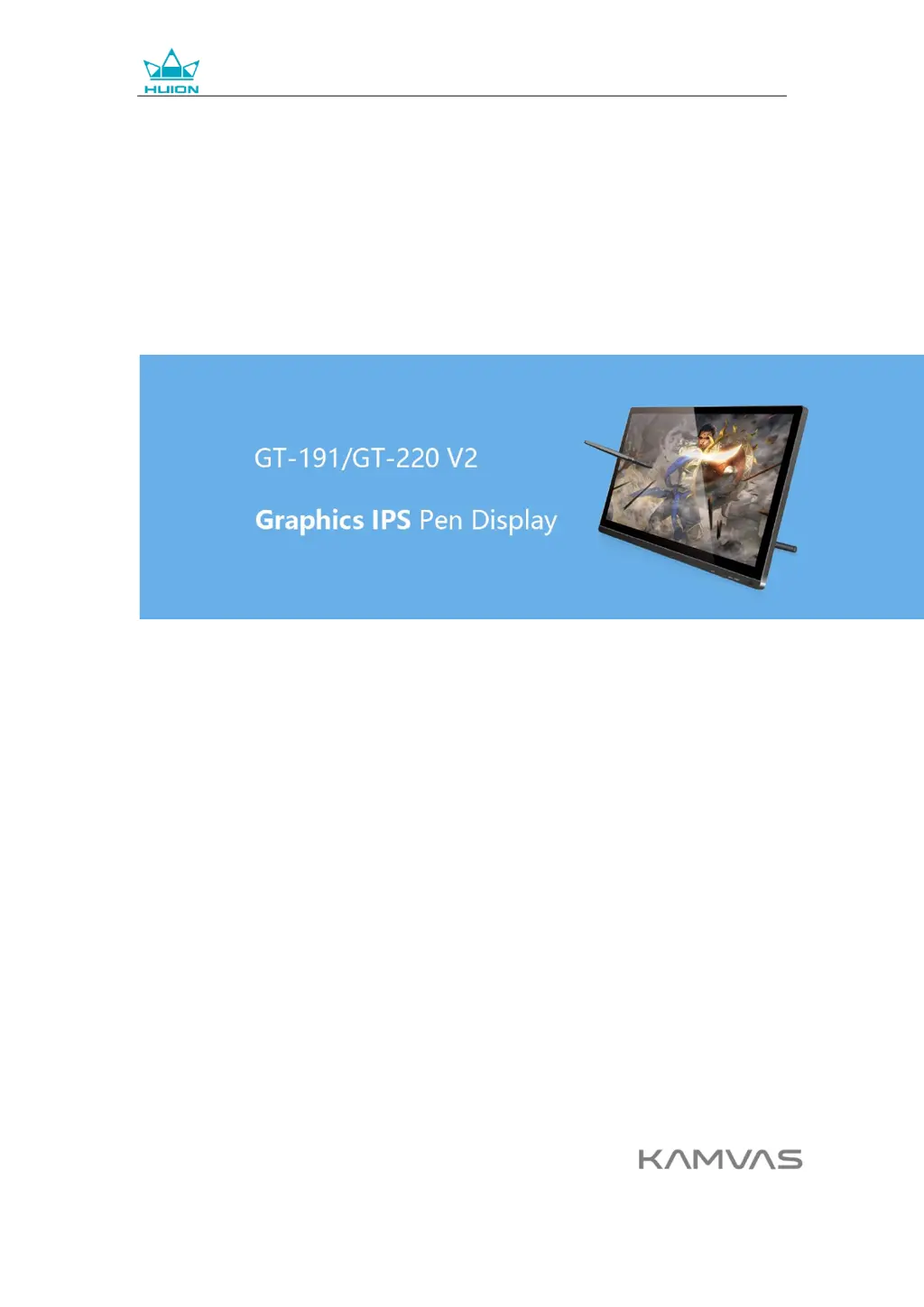
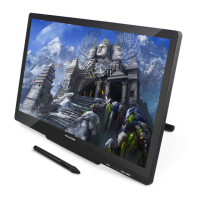
GT-191/GT-220 V2 Graphics Display
User Manual
For Windows and Macintosh OS

Questions and Answers

  • A
    Anthony WilsonAug 15, 2025
    What to do if there is no display on the Huion KAMVAS GT-191 Monitor screen?
    • K
      kylegreenAug 15, 2025
      If you're experiencing a lack of display on your Huion Monitor screen, ensure the power is on. Also, check that the cable is correctly connected. If you're using a laptop, verify that the display mode is set to either extend or duplicate. Check if the side indicator shows green; if not, reboot your computer or reconnect the cable. Finally, inspect the signal wire for any damage and replace it if necessary.
  • J
    Jonathan GeorgeAug 18, 2025
    How to fix Huion KAMVAS GT-191 Monitor pen when it doesn’t work and there is no pressure?
    • E
      evan66Aug 19, 2025
      If the pen doesn't work and there's no pressure in the graphics software on your Huion Monitor, first, uninstall and then reinstall the driver. If that doesn't work, recharge the pen, restart your computer, or try re-inserting the USB cable.
  • L
    Laurie SotoAug 21, 2025
    How to fix abnormal cursor movement on Huion Monitor?
    • C
      Chase WilliamsAug 22, 2025
      If the cursor movement is abnormal on your Huion Monitor, try re-inserting the USB cable or restarting your computer.
  • X
    xpriceAug 25, 2025
    What to do if the Huion Monitor power indicator does not flash?
    • B
      Brian MooreAug 26, 2025
      If the power indicator on your Huion Monitor does not flash, ensure the power is on and check both the socket and the power cable.
  • C
    Christopher BonillaAug 28, 2025
    How to fix blurred images on Huion Monitor?
    • D
      Dorothy DavidAug 28, 2025
      If images appear blurred on your Huion Monitor, set the display resolution to 1920 x 1080.
  • P
    Paul HawkinsSep 1, 2025
    Why the side button of the Huion Monitor pen doesn’t work?
    • J
      John StevensonSep 1, 2025
      If the side button of the pen is not working on your Huion Monitor, ensure that when pressing the side button, the nib doesn't touch the glass surface and the distance between the nib and the surface is within 10mm.
  • D
    Daniel GriffithSep 4, 2025
    What to check if there is a lack of colors on Huion Monitor?
    • M
      Michelle GonzalezSep 4, 2025
      If you notice a lack of colors on your Huion Monitor, check the pins of the signal wire to ensure they are not bent or fractured.
  • R
    Ryan RamirezSep 7, 2025
    Why there is chromatic aberration on Huion KAMVAS GT-191 Monitor?
    • M
      Mr. Michael AlvarezSep 8, 2025
      Minor chromatic aberration is normal on Huion Monitor due to regional color temperature differences.
  • D
    donaldcareySep 12, 2025
    Why do images jitter or ripple on Huion KAMVAS GT-191 Monitor?
    • J
      Jeffrey WilliamsSep 12, 2025
      Images jitter or ripple images appear on the Huion Monitor likely because of nearby electric equipment causing electronic interference.

Summary

Precautions

Product Overview and Components

Display Introduction and Overview

Welcome message and visual guide to the graphics display.

Product and Accessories

Details the display, stylus pen, adjustable stand, and other included accessories.

Setup and Installation

Setting Up the Graphics Display

Step-by-step instructions for connecting and setting up the display.

Installing the Device Driver and OS Support

Guide on downloading, installing the driver, and supported OS.

Pen Usage and Maintenance

Replacing the Pen Nib

Procedure for replacing worn-out pen nibs.

Charging the Stylus Pen

How to charge the rechargeable stylus pen and indicator meanings.

Basic Pen Operation

Basic Pen Operations

Covers holding the pen, cursor positioning, clicking, moving, and using side buttons.

Display Settings (OSD)

OSD Buttons and Basic Settings

Explains OSD buttons and adjusting brightness, contrast, ECO, and DCR.

Image and Color Configuration

Adjusting image position, aspect ratio, and color temperature. Also OSD configuration.

Reset and Miscellaneous Settings

Resetting display settings to default and viewing miscellaneous information.

Advanced Function Settings

Device Connection and Working Area Setup

Checking connection status and configuring the pen-to-screen mapping area.

Rotating the Working Area

How to rotate the tablet's orientation for different hand usage.

Pen Function Customization and Calibration

Setting pen button functions, adjusting pressure sensitivity, and calibrating the screen.

Windows Ink and Data Management

Enabling Windows Ink and managing configuration data via export/import.

Specifications

Troubleshooting and Support

Display Troubleshooting

Solutions for common display issues like no image or blurred images.

Pen Function Troubleshooting

Solutions for issues with pen functionality or cursor movement.

After-service Contact and Support

Contact information and support resources for after-sales service.

Huion KAMVAS GT-191 Specifications

General IconGeneral
BrandHuion
ModelKAMVAS GT-191
CategoryMonitor
LanguageEnglish

Related product manuals