M|Connect Troubleshooting Guide
Humanscale: M|Connect Troubleshooting Guide – Revision 4, March 7, 2018
13
HDCP Content Does Not Display.
M|Connect does not support HDCP.
Laptop Does Not Boot With Dock Attached.
Remove all USB devices attached to the dock.
Boot without the dock attached.
If there is still a problem with M|Connect, it needs to be
reported to DisplayLink, so they can help solve it:
DisplayLink provides a support tool that can check for common issues and gather up system information to help
diagnose the problem. Follow the steps below to provide the right information.
1. Download the DisplayLink Windows Support Tool http://www.displaylink.com/downloads/file?d=65 or the DisplayLink Mac
Support Tool http://www.displaylink.com/downloads/file?id=129
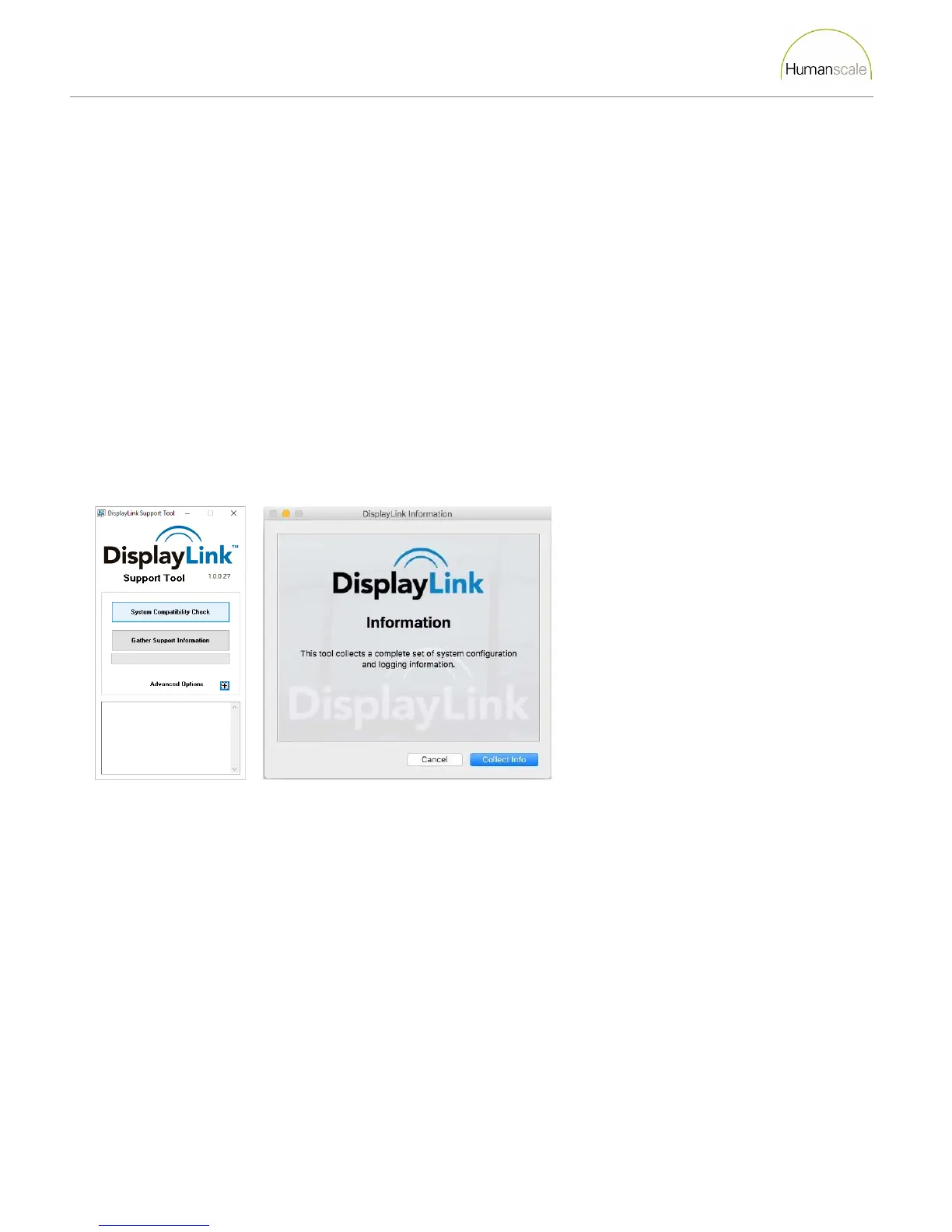
2. Open the downloaded file and the following window will appear. (Windows Left, Mac OS X Right)
3. Windows Only: Make sure your laptop is connected to the M|Connect and run the “System Compatibility Check” (the first
box) to ensure that there are not any known compatibility issues. If this does not help resolve the issue go to the next step.
4. Click Gather Support Information (Windows) or Collect Info (Mac OS X) to gather the system information DisplayLink
requires.
5. The tool creates a “DisplayLink Support Files” folder on the customer’s desktop.
6. Send the .zip file in the folder to cssupport@humanscale.com along with a description of the issue and close the tool.
7. Humanscale Customer Support will get back to you with a solution within 48 hours.



 To Previous Page