M|Connect Troubleshooting Guide
Humanscale: M|Connect Troubleshooting Guide – Revision 4, March 7, 2018
8
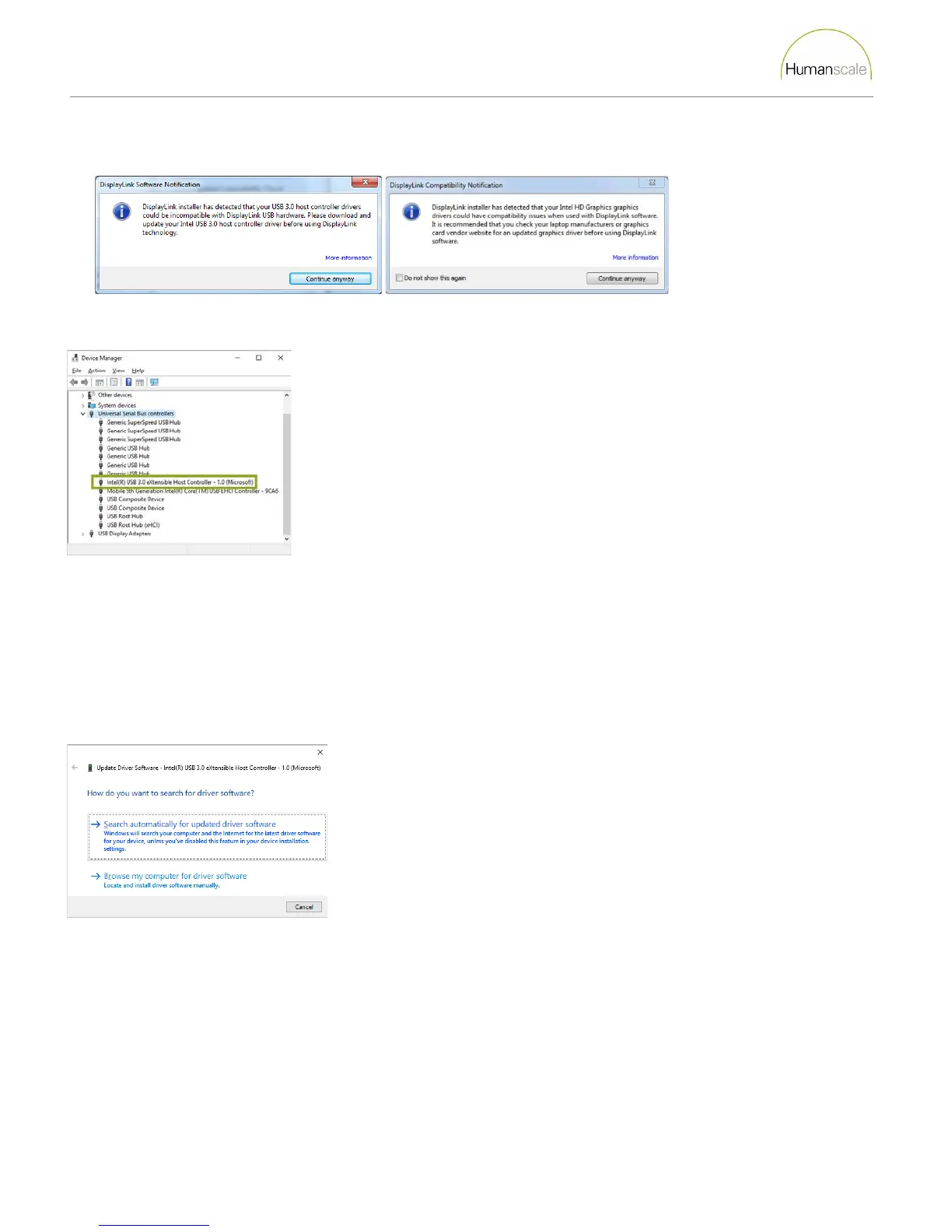
Error Message During DisplayLink Driver Installation
Question 1: Is the error message about USB Host Controller drivers, or Graphics drivers?
1. Press the Windows key + R and type devmgmt.msc and press Enter to open the Device Manager.
2. Expand the Universal Serial Bus Controller section.
3. If the manufacturer is any of the below, right click and select Properties. This opens the USB eXtensible Host Controller
properties.
a. AS Media
b. Fresno Logic
c. Intel
d. Renesas/NEC
e. TI
f. VIA
4. Select the Driver tab and click Update Driver. The following dialog box will open.
5. Click Search automatically… to determine if the driver software is up to date. If not, follow the prompts to download and
install the latest driver software.
6. Similar to step 2, expand the Display Adapter section. The video card manufacturer(s) will be listed. There may be more than
one.
7. Double click on each video card adapter listed and then go to the Driver tab.
8. Click the Update Driver button similar to steps 4 and 5.
9. Restart computer then plug the USB cable into the computer.


 To Next Page