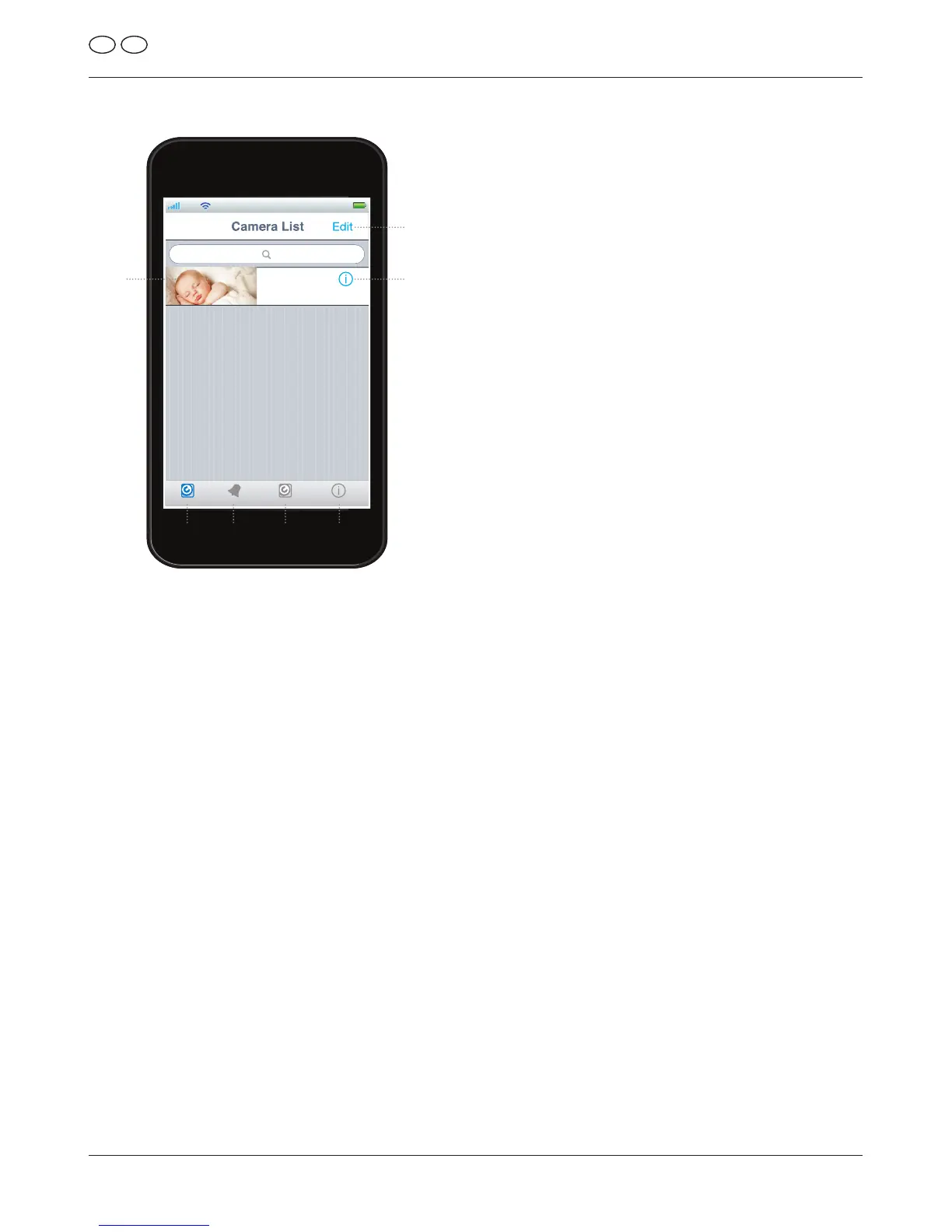
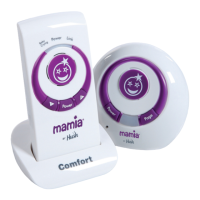
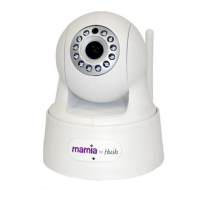
App Overview
• With the app loaded up you will need
to setup your new Baby Monitor
to work with your app, go to Add
Camera [C] – and from there you can
then add the Mamia by Hush Baby
Monitor to your App via the QR Code
supplied on the bottom of the camera
or by selecting the camera that is
found within the list (when
searched for).
• The next stage will setup the Mamia
by Hush Baby Monitor based on the
UID[uniqueidentier]ofthecamera,
and you can also enter your own
name if you would prefer.
• With the camera added to the
Camera List [A] you can then simply
tap on the Camera [F] that you have
just added can begin to view, listen
and talk back to your baby.
Setting Up WiFi
• Within the App, having added the
camera, go to Camera Settings
[E] →AdvancedSettings
→WiFi.
• The Mamia by Hush Baby Monitor
will then begin scanning for available
networks.
• Oncescanninghasnishedplease
then select your preferred wireless
network.
• You should be asked to enter
the password to connect to your
network. Please ensure that you
enter the password correctly, and if
in doubt please check for the correct
password, often found on your Router
or via your ISP.
• Once the camera has accepted your
password it should put a P against
your network. Wait for about 30
seconds and then then go to your
camera and unplug both the Network
Cable 5 and the 5V DC Power Supply
Adaptor 4.
• After waiting for approximately
30 seconds, plug in the 5V DC Power
6 Hush, Agecroft Road, Pendlebury, Manchester M27 8SB
Instructions for use
IREGB
A = Camera List
B = Event Log
C = Add Camera
D = App Information
E = Camera Settings
F = Camera
G = Edit Camera List


 To Next Page