Helpline: UK - 0845 340 3880 IRE - 1890 944 542 Email: support@myhush.co.uk 7
Instructions for use
IREGB
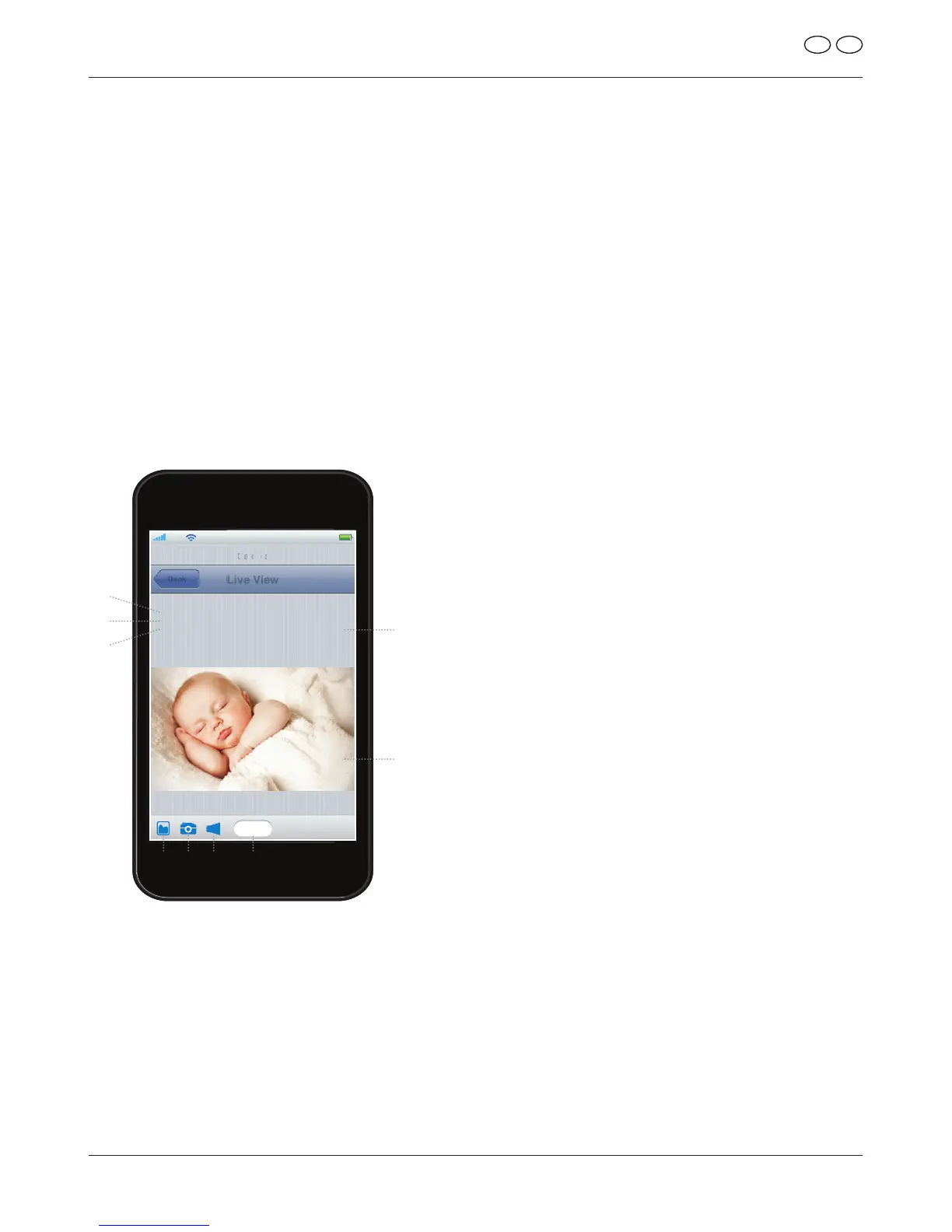
• When the camera is online you can
tap to view the camera. From here
you take a snapshot [B] which will
capture an image on your camera.
Touching the Snapshot Viewer [A]
icon will show the snapshots you
have taken. From here you can select
the snapshot and choose to Delete,
Email or Save Photo.
PLEASE NOTE: Saving the photo
will save as an image directly to your
Smartphone or Tablet.
• By selecting the Sound [C] option you
can Mute the camera, you can turn
ontheListenfunctionornallyyou
have the option to speak to your baby.
The Current Sound Mode [D] is then
displayed towards the bottom of
the screen.
• The Camera View [E] will display
what the camera can see, and
you can swipe Left, Right, Up or
Down to move the camera in your
chosen direction. If you want to view
the Camera as full screen, rotate
your Smartphone or Tablet to be
horizontal, at which point the video
should rotate through to offer a Full
Screen view. In Full Screen view you
can use the same swipe motions as
described previously.
A = Snapshot Viewer
B = Take Snapshot
C = Sound
D = Current
Sound Mode
E = Camera View
F = Camera Quality
G = Number of
Connection
H = Camera
Resolution
I = Camera Status
Supply Adaptor 4 and allow a further
30 seconds for the camera to turn
itself on.
• Connect to the camera via the App.
PLEASE NOTE: If the camera is
listedasOfineyoumayneedtogo
toEditCamera→Reconnecttoforce
the Mamia by Hush Baby Monitor to
refresh itself within the App.
Using Your Camera


 To Next Page