Need help?
Do you have a question about the Hyper HyperDrive Thunderbolt 3 and is the answer not in the manual?
Equipment tested to comply with Part 15 Class B of FCC Rules.
Equipment in compliance with EN 55032/EN 55024: CLASS B.
Disposal information for waste electrical and electronic equipment.
List of items included with the Thunderbolt™ 3 Mobile Dock.
Operating system and hardware requirements for the dock.
Key capabilities and specifications of the mobile dock.
Description of the DisplayPort, HDMI, and RJ45 ports.
Description of the Audio Combo Jack and USB-A ports.
Description of the USB-C PD power input port.
Guide for connecting and approving the Thunderbolt device on Windows 10.
The HyperDrive Thunderbolt™ 3 Mobile Dock is a versatile Dual Powered Device (DPD) designed to expand the connectivity of your computer, supporting both bus-powered and self-powered dual-mode usage. This mobile dock allows you to extend your computer's capabilities by adding more USB peripherals, connecting to an Ethernet network, and providing audio input/output for speakers and microphones, all through a single Thunderbolt™ 3 USB-C interface. The USB-C plug is reversible, offering convenience in connection. A key feature of this dock is its upstream charging capability, which can deliver up to 60W of power to the host device via USB-C Power Delivery (PD). The Thunderbolt™ ports facilitate blazing-fast data transmission between connected USB peripherals.
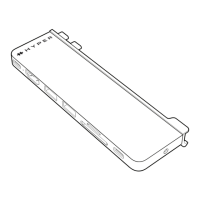
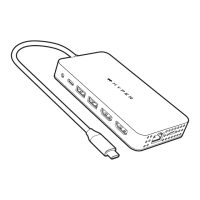
The HyperDrive Thunderbolt™ 3 Mobile Dock offers a comprehensive set of ports for various connectivity needs.
To connect peripherals, Ethernet, speaker, and microphone, simply plug them into the corresponding ports on the dock. The dock then connects to your computer via its integrated Thunderbolt™ 3 USB-C cable.
For Windows® 10 users, the setup involves approving the device. When connected, a prompt will appear to "Approve Thunderbolt™ Devices." Select "Always Connect" and click OK. To verify the connection, open the Thunderbolt™ Software from the desktop's bottom corner. The software will display attached devices, including the "Good Way Technology, Thunderbolt 3 Gen2 Docking Station," along with its connection status and power mode.
By default, when the docking station is connected, the audio configuration may automatically switch to "USB (Multimedia) Audio Device." If this doesn't happen or if you encounter issues, you can manually configure the audio settings. Navigate to your device's Control Panel, select "Hardware & Sound," then "Sound," and finally "Manage Audio Devices." From there, select "USB Audio Device" as your preferred playback device.
Before operating or adjusting the product, it is crucial to read and save the User's Manual. Keep the equipment away from humid locations. If the product has been exposed to moisture, dropped, damaged, shows obvious signs of breakage, or is not working as expected, have it checked by a service technician.
While the manual does not explicitly detail maintenance features, general best practices for electronic devices apply. Keep the device in its specified operating environment (0°C to 35°C) and storage environment (-20°C to 70°C) to ensure longevity. Avoid exposing it to extreme temperatures or humidity. Regular software updates for your operating system and Thunderbolt™ drivers are recommended to ensure optimal performance and compatibility.
The HyperDrive Thunderbolt™ 3 Mobile Dock (Model: HDTB3TD) is a robust and essential accessory for users looking to maximize their computer's connectivity and charging capabilities, offering a streamlined solution for various professional and personal needs.
 General
| Brand | Hyper |
|---|---|
| Model | HyperDrive Thunderbolt 3 |
| Category | Docking Station |
| Language | English |


 To Next Page