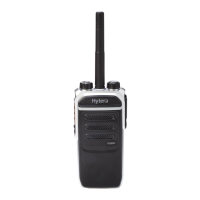
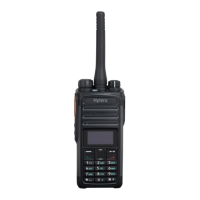
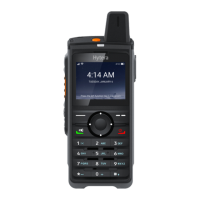
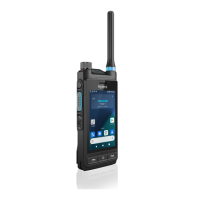
This document serves as an upgrade guide for the Hytera PD3 Series Commercial Radio, providing comprehensive instructions for updating the device's firmware. The primary function of this guide is to ensure a successful and smooth upgrade process for users, allowing them to keep their radios up-to-date with the latest software versions and functionalities.
Function Description
The Hytera PD3 Series Commercial Radio is a communication device designed for commercial use. While the manual itself is an upgrade guide rather than a product description, it implicitly describes the radio's function through the context of its upgrade process. The radio's core function is communication, and the upgrade process is designed to enhance or maintain this function by addressing software-related issues, adding new features, or improving existing ones. The guide details the steps required to update the radio's internal software, which includes the "Radio," "RCDB" (Radio Configuration Database), and "Baseband" components. These components are crucial for the radio's operation, covering aspects from basic radio functions to data management and underlying communication protocols. The upgrade ensures that the radio operates with optimal performance, reliability, and security, adapting to evolving technological standards and user needs. The various firmware versions listed in the "Applicable Models and Versions" section, such as those addressing "TDMA feature is not supported," "Mixed Receiving feature is not supported," "CTCSS unexpected enabling/Tail tone issue is not solved," and "Noise issue upon releasing the PTT key is not solved," highlight the radio's capabilities in digital communication (TDMA), signal reception (Mixed Receiving), and audio quality (CTCSS, Noise issue). These issues, when resolved through upgrades, directly improve the radio's primary function of clear and reliable voice and data transmission.
Usage Features
The upgrade guide outlines several usage features implicitly related to the radio's operation and the upgrade process itself:
- Firmware Version Confirmation: Before initiating an upgrade, users are instructed to confirm the current firmware version of their radio using the CPS (Customer Programming Software). This step is crucial for ensuring compatibility with the upgrade package and preventing potential damage to the radio. This feature emphasizes the importance of proper pre-upgrade checks for safe operation.
- Programming Cable Connection: The upgrade process requires connecting the radio to a computer using a programming cable. This indicates that the radio is designed to be configurable and upgradable via a wired connection, ensuring a stable data transfer environment during critical operations.
- Download Mode Activation: Users must hold down the SK1 key to power up the radio and enter "download mode." This specific key combination suggests a dedicated mode for software updates, separate from normal operation, to prevent accidental modifications and ensure a controlled upgrade environment.
- Software-Based Upgrade Tool: The upgrade is performed using a dedicated "UpgradeKit" software on a computer. This tool provides a user interface with a "COM Port" selection and an "Upgrade" button, simplifying the process for users. The progress bar and success messages ("Updating, please wait...", "All upgrade completed successfully!") offer real-time feedback, making the process transparent and manageable.
- Post-Upgrade Verification: After the upgrade, users are advised to check the new firmware version through the radio's menu interface ("Menu -> Settings -> Device Info.") and confirm it matches the expected version. This step is vital for verifying the success of the upgrade and ensuring the radio is operating with the intended software.
- CPS Reprogramming: The guide explicitly states that after a successful upgrade, users must use V2.05.02.001 or later CPS to reprogram the radio. This indicates that firmware upgrades might reset or alter certain radio configurations, necessitating a re-upload of the user's customized settings. This highlights the radio's flexibility in configuration and the need for users to manage their programming files.
- Error Handling and Troubleshooting: The guide includes a "Upgrade Failure" section, addressing common issues like "Failed to connections radio" or interrupted download procedures. It provides troubleshooting steps, such as checking cable connections, port settings, and repeating the download mode activation. This feature demonstrates a user-centric approach, anticipating potential problems and offering solutions to ensure a successful outcome.
Maintenance Features
The upgrade guide, while focused on a single maintenance operation, reveals several aspects related to the radio's maintainability:
- Regular Software Updates: The existence of an upgrade guide and a history of firmware versions (R1.1, R1.2, R1.4, R1.4.1, R1.4.2, R1.4.14, R2.02.11, R2.03.01, R2.05.05) indicates that Hytera provides ongoing software support for the PD3 Series radios. This commitment to regular updates is a key maintenance feature, ensuring the radios remain functional, secure, and compatible with evolving communication standards.
- Driver Installation Requirement: The instruction to "Make sure that USB to Uart driver is installed on the computer" before upgrading highlights the need for proper driver management. This is a common maintenance task for computer-connected devices, ensuring the radio can communicate effectively with the upgrade software.
- Controlled Upgrade Environment: The warnings against running "other applications of the Company during upgrade" and disconnecting "the power supply of the radio during upgrade" emphasize the importance of maintaining a stable and undisturbed environment during maintenance. This minimizes the risk of data corruption or device damage, which are critical considerations for any maintenance procedure.
- Restart and Retry Mechanism: In case of upgrade interruption or errors like "Reading data error!" or "Writing data error!", the guide advises users to "restart the radio and try again." This simple yet effective troubleshooting step is a fundamental maintenance practice, allowing users to recover from transient issues without requiring specialized tools or expertise.
- Version Control and Compatibility: The detailed "Revision History" and "Applicable Models and Versions" sections are crucial for maintenance. They allow users to identify the correct firmware for their specific radio model and understand the changes or fixes included in each update. This systematic approach to version control helps prevent incompatible upgrades that could render the radio inoperable.
- Dedicated Upgrade Tool: The "UpgradeKit" software is a specialized tool for firmware updates, streamlining the maintenance process. Its user-friendly interface and automated steps reduce the complexity of manual firmware flashing, making maintenance more accessible to a wider range of users.
- Impact of Firmware on Features: The descriptions of issues resolved or features affected by different firmware versions (e.g., "TDMA feature is not supported," "Mixed Receiving feature is not supported") provide valuable insights for maintenance. This information helps users understand the benefits of upgrading and diagnose potential feature-related problems that might be resolved by a software update.
- Importance of CPS for Configuration: The requirement to reprogram the radio with CPS after an upgrade underscores that firmware updates primarily deal with the radio's core operating system, while user-specific settings are managed separately. This separation allows for more flexible maintenance, where firmware can be updated without necessarily losing all user configurations, provided they are backed up and reloaded.

 Need help?
 General

 To Next Page