EasyManua.ls Logo

Hytera PNC380 - User Manual

Hytera PNC380
48 pages
Print Icon
To Next Page IconTo Next Page
Loading...
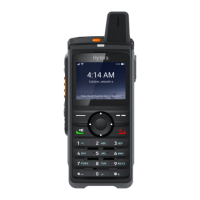
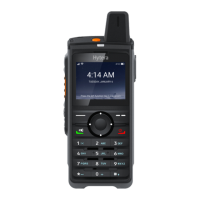
PNC380 PoC Radio
User Manual
Hytera Communications Corporation Limited

Table of Contents

Other manuals for Hytera PNC380

Questions and Answers

  • A
    Alex GarciaSep 9, 2025
    Why can't my Hytera Radio access the mobile network?
    • T
      Timothy Robinson IIISep 9, 2025
      If your Hytera Radio can't access the mobile network, ensure the SIM card functions properly and that all charges are paid, then restart the radio. The mobile data feature may not be enabled for the SIM card; contact the carrier to enable data connection. The signal might also be weak; make sure the radio is within network coverage.
  • T
    Tricia GreeneAug 23, 2025
    What to do if Hytera PNC380 fails to be unlocked?
    • P
      Patrick HarrisAug 23, 2025
      If your Hytera Radio fails to be unlocked, it could be because the keypad may fail to function temporarily (restart the radio). For other issues, you should contact the dealer or our Company for customer service.
  • D
    Debra Taylor PhDAug 25, 2025
    How to fix a Hytera Radio that won't turn on?
    • E
      Emily BradshawAug 25, 2025
      If your Hytera Radio won't turn on, the battery may be improperly installed. Try removing and reattaching the battery. Also, the battery power may be depleted, so recharge or replace the battery. Finally, the battery contacts might be dirty or damaged; try cleaning them.
  • B
    Brandon GilbertAug 26, 2025
    What to do if Hytera Radio fails to connect to the cellular network?
    • D
      Diane BartonAug 26, 2025
      If your Hytera Radio isn't connecting to the cellular network, it could be due to a few reasons: the SIM card may not be functioning properly or is out of service (make sure the SIM card functions properly or pay the charges); the cellular network may not be enabled for the SIM card (contact the carrier to enable the cellular network); the communication signal strength may be weak (make sure the radio is within the network coverage); or if both cellular network and WLAN are on, the WLAN connection may be unstable (turn the WLAN off).
  • S
    sarahcastroAug 27, 2025
    What to do if Hytera PNC380 Radio fails to respond to any operations?
    • J
      Jesus CoxAug 27, 2025
      If your Hytera Radio is not responding, it might be because too many applications are running. Try forcibly stopping some running apps or restart the radio.
  • J
    jgriffithAug 29, 2025
    Why is the voice weak or intermittent during receiving on my Hytera PNC380?
    • S
      Scott EdwardsAug 29, 2025
      If the voice is weak or intermittent during receiving on your Hytera Radio, it could be due to a weak communication signal strength (make sure the radio is within the network coverage); the volume level may be low (increase the volume); or the speaker is blocked (clean the surface of the speaker).
  • C
    crystal73Sep 17, 2025
    Why GPS cannot locate position on Hytera Radio?
    • W
      William WilliamsSep 18, 2025
      If the GPS on your Hytera Radio cannot locate your position, move to an open and flat area. High buildings or underground areas may block the signal.
  • M
    Marilyn WhiteSep 19, 2025
    What to do if Hytera PNC380 battery fails to charge?
    • S
      Sean JimenezSep 22, 2025
      If the battery fails to charge on your Hytera Radio, remove and reinsert the data cable. Also, remove and reinsert the power adapter plug.
  • C
    Caitlin ParsonsSep 8, 2025
    What to do if the LCD does not display any information on Hytera Radio?
    • D
      Daniel TuckerSep 8, 2025
      If the LCD on your Hytera Radio isn't displaying any information, it could be because the LCD may fail to function temporarily (restart the radio). For other issues, you should contact the dealer or our Company for customer service.
  • Q
    qfoxSep 4, 2025
    Why the keys do not work normally on Hytera PNC380?
    • C
      christopher85Sep 4, 2025
      If the keys on your Hytera Radio aren't working normally, it could be because the keypad may fail to function temporarily (restart the radio). For other issues, you should contact the dealer or our Company for customer service.

Summary

Before Use

Packing List

Lists all items included in the radio's packaging.

Product Layout

Diagram and labels of the radio's physical components.

Installing SIM and Micro SD Card

Step-by-step guide for inserting SIM and Micro SD cards.

Attaching the Battery

Instructions for securely connecting the battery to the radio.

Attaching the Belt Clip

Procedure for attaching the belt clip for convenient carrying.

Attaching the Audio Accessory

Guide for connecting audio accessories to the radio's port.

Charging the Battery

Steps for charging the radio's battery using a data cable.

Basic Operations

Turning Radio On or Off

Instructions for powering the radio on and off.

Restarting the Radio

Procedure for rebooting the radio to resolve issues.

Adjusting the Volume

How to control the audio volume levels on the device.

Understanding the Screen

Explanation of the radio's display elements and icons.

Status Indication

Details the meaning of various icons shown on the radio's screen.

Screen Operations

Guide to interacting with the radio's screen interface.

Operating the Flashlight

How to turn the radio's built-in flashlight on and off.

Setting the Programmable Key

Instructions for configuring the radio's programmable key.

Switching Input Method

How to change input methods for text entry on the keypad.

Checking Radio Information

Steps to view the radio's status, model, and version details.

PoC Service

Initiating a PoC Call

Steps to start a Push-to-Talk over Cellular call.

Phone Call

Initiating a Phone Call

Guide to making phone calls using the device.

Receiving a Phone Call

Instructions for answering or rejecting incoming calls.

Messages

Sending a Message

Steps to compose and send text messages.

Replying a Message

How to respond to received text messages.

Forwarding or Deleting a Message

Procedure for managing existing text messages.

Contacts

Creating a Contact

Steps to add new contacts to the device's address book.

Editing or Deleting a Contact

How to modify or remove existing contacts.

Network and Data Sharing

Mobile Network

Configuration and management of cellular network connections.

Checking Data Usage

How to monitor mobile data consumption.

Managing Data Roaming

Steps to enable or disable international data roaming.

Selecting Network Type

How to choose between 2G, 3G, 4G, or other network types.

WLAN Connection

Instructions for connecting to Wi-Fi networks.

Bluetooth (BT) Features

Overview of Bluetooth connectivity and operations.

Pairing with a BT Device

Steps to connect with Bluetooth devices.

Disconnecting from a BT Device

How to unpair Bluetooth devices.

BT Positioning Feature

Guide to activating/deactivating Bluetooth location services.

Modifying BT Device Name

How to change the radio's Bluetooth device name.

Hotspot

Creating a Wi-Fi hotspot from the radio.

WLAN Hotspot Setup

Configuration guide for enabling and setting up the Wi-Fi hotspot.

Airplane Mode

How to enable or disable Airplane mode.

NFC Feature

Guide to using Near Field Communication features.

USB Connection

Instructions for connecting the device via USB for charging or data.

Settings

Radio Settings

Configuration options for radio-specific functions.

Display Settings

Adjustments for screen brightness, sleep time, and font size.

Sound Settings

Settings for profiles, volumes, and alert sounds.

Storage Settings

Management and viewing of device storage space.

Battery Settings

Information on battery power status and saver mode.

System Settings

Configuration options for the overall system.

Location Settings

Settings for location services and scanning modes.

Language Settings

How to change the device's display language.

Factory Data Reset

Procedure to reset the radio to factory default settings.

Date and Time Settings

Settings for automatic or manual date and time configuration.

System Upgrade

Instructions for performing system software updates.

Camera

Taking a Photo

Steps to capture still images using the camera.

Recording a Video

Instructions for recording video clips with the camera.

Viewing Pictures or Videos

How to access and view captured photos and videos.

Gallery

Photos

Managing and viewing still images.

Viewing a Photo

Steps to display individual photos.

Managing a Photo

Options for sharing, viewing details, or deleting photos.

Videos

Managing and playing video clips.

Playing a Video

Steps to play recorded video files.

Managing a Video

Options for sharing, viewing details, or deleting videos.

Sound Recorder

Recording an Audio File

Steps to record voice memos or audio.

Playing an Audio File

How to play back recorded audio files.

Managing an Audio File

Options for managing recorded audio files.

Applications

Installing an Application

Guide to downloading and installing apps on the device.

Uninstalling an Application

Steps to remove installed applications from the device.

Force Stopping an Application

How to stop unresponsive applications.

Clearing Data or Cache

Procedure to clear app data or cache to resolve issues.

Setting Access Permissions

Managing app permissions for privacy and security.

Troubleshooting

Radio Not Turning On

Solutions for issues when the radio fails to power on.

Radio Unresponsive

Troubleshooting steps for an unresponsive device.

Key;Display;Indicator Issues

Fixes for problems with buttons, screen, or LED indicators.

Radio Lock Issues

Solutions for problems related to unlocking the device.

Mobile Network Access Problems

Troubleshooting steps for mobile network connectivity issues.

Unstable WLAN Connection

Solutions for unstable Wi-Fi connections.

Audio Noise and Hiss

Troubleshooting audio quality issues like noise and hiss.

SIM;SD Card Detection Issues

Fixes for problems with SIM or SD card recognition.

GPS Location Problems

Solutions for issues with GPS positioning accuracy.

Battery Charging Issues

Troubleshooting steps for battery charging failures.

Care and Cleaning

Product Care

Guidelines for maintaining the radio's physical condition and longevity.

Product Cleaning

Instructions for safely cleaning the radio's exterior and components.

Optional Accessories

Accessory Usage Caution

Important safety warnings regarding the use of accessories.

Abbreviations

Technical Abbreviations

List of common abbreviations used in the manual with their full names.

Hytera PNC380 Specifications

General IconGeneral
Battery Capacity4000 mAh
GPSYes
Frequency Range400-470 MHz
Channels16
IP RatingIP67
Operating SystemAndroid
CategoryRadio
Display Size2.4 inch
Wi-Fi802.11 b/g/n

Related product manuals