INFOTAINMENT
Quick Reference Guide I 2423 I Quick Reference Guide
KONA
HYUNDAI
RADIO MODE
Display Audio
Setting the custom button
*SiriusXM® is only available on Display Audio Light and Navigation
SEEK
RADIO
MEDIA
TUNE
FILE
ENTER
SETUP
NAV
MAP
TRACK
VOL
PWR
PUSH
NOTE :
A clear view of the southern sky helps to ensure SiriusXM®* radio reception.
• SETTING PRESET BUTTONS (FM/AM/SXM)
Six preset frequencies for each radio modes can be stored manually.
1. Select the radio mode you want to store a station into.
2. Select the desired station.
3. Touch and hold one of the preset
buttons until audible beep is heard.
•
ADJUSTING THE SOUND CONTROL
1. Press SETUP button and press the
sound button on the display.
2. To adjust the Fader/Balance, select the
on-screen tab. Touch the on-screen
arrows to adjust the desired setting for
front, rear, left, or right balance.
3. To adjust the Bass/Midrange/Treble, select the on-screen tab. Touch
the on-screen arrows to adjust the tonal sound settings to the desired
level.
Press POWER button
to turn radio on.
•
TUNING/LISTENING TO
CHANNELS
1. Press RADIO button .
2. Rotate TUNE knob to
desired channel.
NAVIGATION
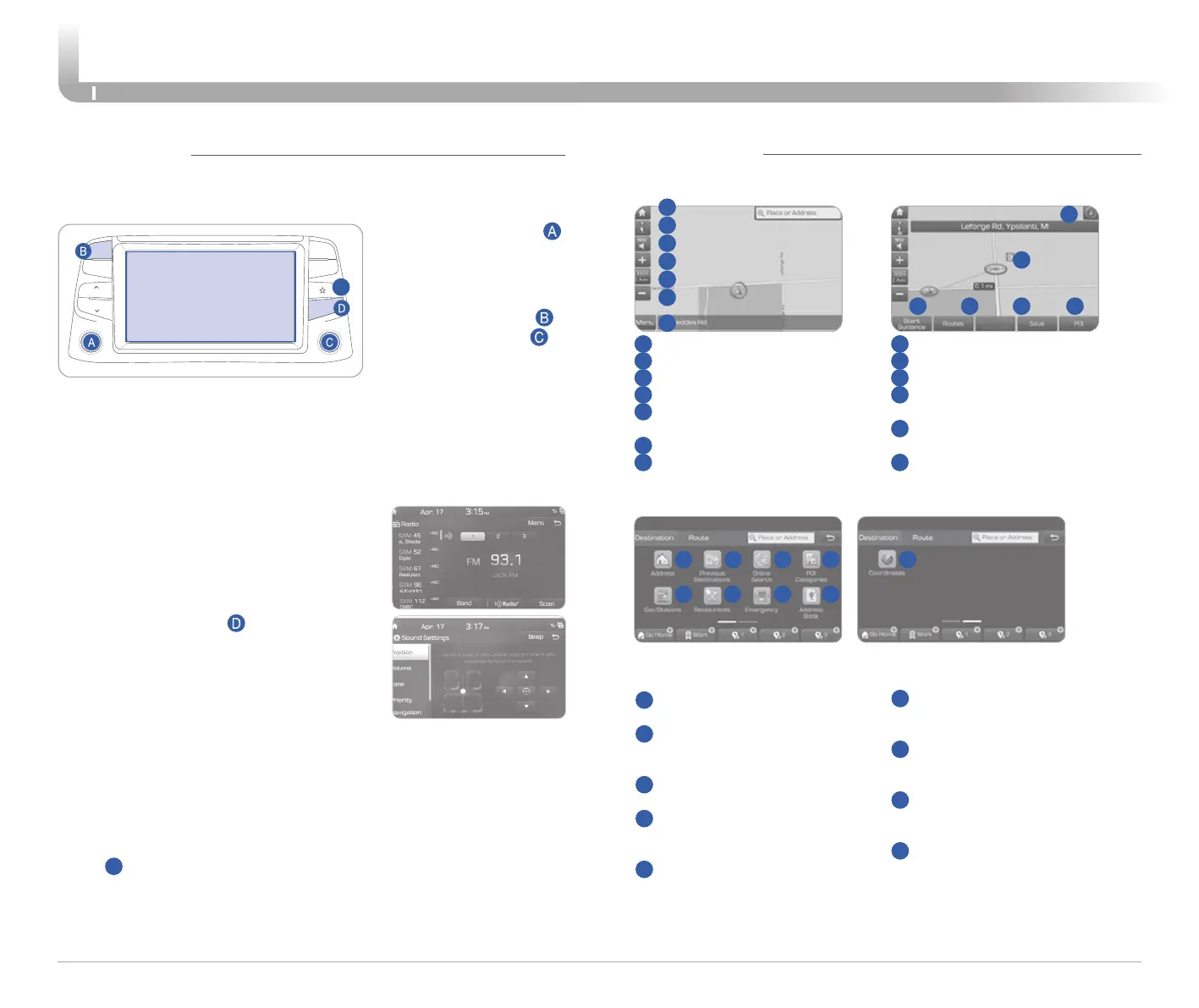
Basic features on the map screen
1
Move to the Home Screen
2
Change the map view mode
3
Voice Guidance On/Off
4
Zoom in the map
5
Set the zoom level automatically
according to the guidance
6
Zoom out the map
7
Quick and easy selection of a
destination and options
8
Touch to scroll the map
9
Start Guidance
10
Route Options
11
Save frequently used address to
address book
12
Find a POI (Point of Interest)
around the current position
13
View the vehicle’s current position
on the map screen
1
13
8
9 10 11 12
2
3
4
5
6
7
Destination search screen
1
Address : Set destination by
address search.
2
Previous destinations : Select
from previously inputted
addresses and POIs.
3
Online Search: Runs online
search.
4
POI categories : Select the
desired item in the sub-
categories.
5
Gas stations : Select the desired
destinations among the
searched gas stations.
Press [NAV] button in the navigation head unit, and finds a destination
by using the [Destination] menu.
2 3 41
5 6 7 8
9
6
Restaurants : Select the desired
destination among the searched
restaurants.
7
Emergency : Select the desired
destination among the searched
emergency facilities.
8
Address Book : Search the
destination with the address
book.
9
Coordinates : You can find a
destination by entering the
coordinates of latitude and
longitude.
E
You can choose a specific feature to be accessed when the Custom
button
E
is pressed.
To set the feature associated with the Custom Button, choose the feature
in the Setup Menu.
NOTE : Multimedia features and functions are subject to change due
to updates, please check the update website for detailed changes.















 To Next Page