14
EN
Quick Start / C31SMARTDOCKPD/ English
USING THE DOCK IN MAC OS
WARNING!
Before installing, make sure you have the latest macOS for your device installed on
your Mac.
macOS does not support MST technology (2 or more monitors in extended mode). No dock
using USB-C DisplayPort Alt Mode supports connecting two or more monitors in macOS,
only Thunderbolt 3 docks and DisplayLink docks do.
Driver installation on macOS is automatic.
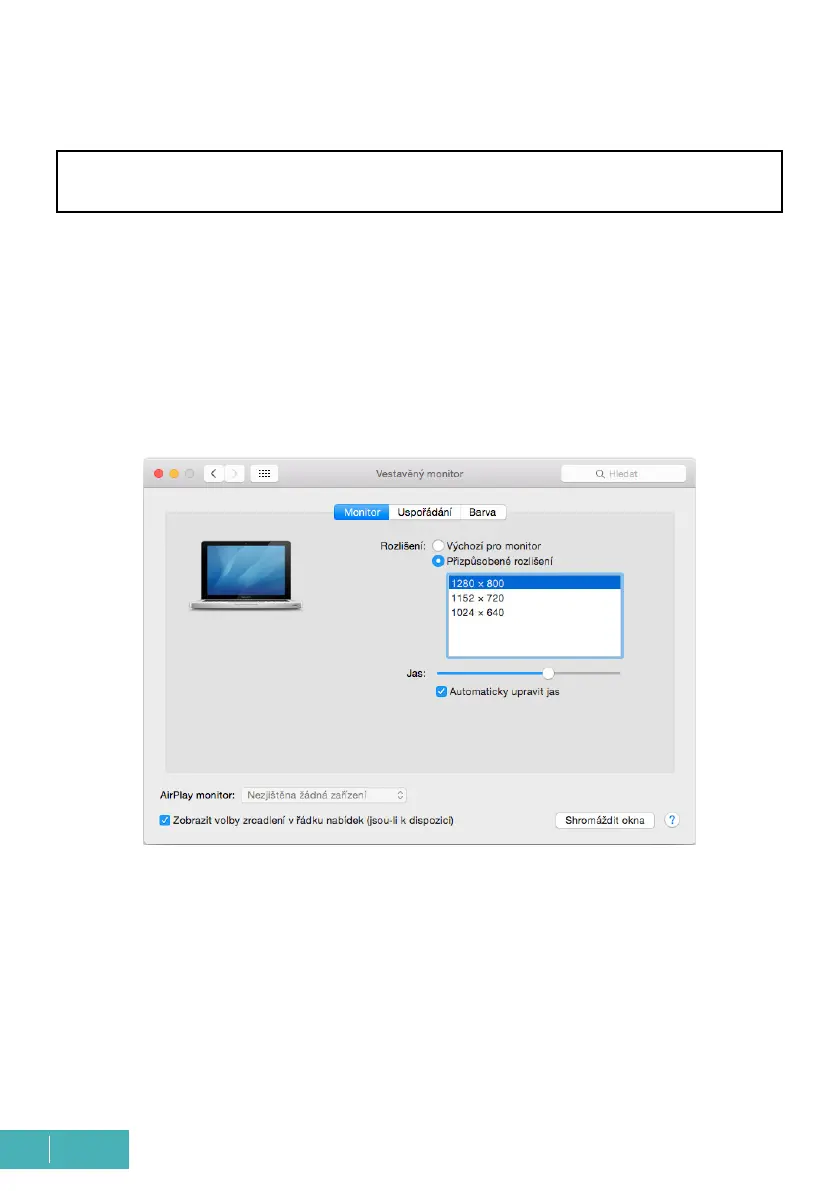
A: When the monitor is connected, the screen on your Mac will icker, which is the
default state, and once it has settled down, you can make the standard settings here:
System Preferences-Monitors.
Click Arrange, and in the default mode (Expand), click and drag the new monitor as needed
relative to the Mac monitor. Selecting Mirror Monitors will change the mode to Mirror (the
resolution of the monitors will automatically adjust to their parameters, setting the high-
est possible resolution on both monitors). Deselect Mirror Monitors to restore the Expand
mode.



 To Next Page