EasyManua.ls Logo

i-tec Thunderbolt 3 - User Manual

i-tec Thunderbolt 3
12 pages
Print Icon
To Next Page IconTo Next Page
Loading...
User’s guide
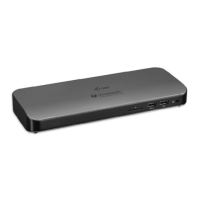
Thunderbolt™ 3 Docking Station
1x 4K HDMI / 1x Gigabit LAN / 2x Thunderbolt™ 3 / 5x USB-A 3.0 / 1x SD Card Reader /
1x Combo Audio Jack
Question and Answer IconNeed help?

Do you have a question about the i-tec Thunderbolt 3 and is the answer not in the manual?

Summary

Description of Docking Station

Front panel

Details the components on the front of the docking station, including LEDs, card reader, USB ports, and audio jack.

Rear panel

Details the components on the rear of the docking station, including USB ports, Ethernet, Thunderbolt ports, HDMI, and power jack.

Introduction, Package Contents, and Specifications

Introduction

Welcomes the user and briefly describes the docking station's purpose and features.

Package Contents

Lists the items included in the product package, such as the docking station, cable, and power adapter.

Specifications

Provides detailed technical specifications of the docking station's ports and capabilities.

System Requirements

Outlines the necessary hardware and operating system requirements for the docking station.

Setup and Connectivity

Driver Installation

Explains how drivers are automatically installed for Windows and Mac OS X systems.

Connecting a Monitor

Describes how to connect monitors via HDMI and Thunderbolt ports, including resolution support.

Connecting to the LAN

Details how to connect to a network using the Ethernet port and supported speeds.

Connecting USB Devices

Explains how to connect various USB devices to the docking station's ports.

Charging USB Devices

Describes the docking station's capability to charge USB mobile devices via its ports.

Charging Through Power Delivery

Explains the Power Delivery function for charging laptops up to 60W.

Audio and Multi-Monitor Configuration

Audio Configuration

Guides users on how to configure the audio output to the USB Audio Device in Windows.

Multi-Monitor Configuration

Introduces options for configuring connected monitors (Mirror, Extend, Primary).

Windows Display Settings

Windows OS Display Settings Access

Details how to access display settings in Windows by right-clicking the desktop.

Extending Displays in Windows

Extend Mode Configuration

Provides steps to configure the display to extend the desktop across multiple monitors in Windows.

Advanced Display and Mac OS Settings

Troubleshooting Display Issues

Addresses common issues like cursor disappearance and poor video playback in extended mode.

Mirror Mode Configuration

Provides steps to configure the display to mirror across multiple monitors in Windows.

Setting Primary Monitor

Guides on setting a specific monitor as the primary display in Windows.

Mac OS Display Setup

Instructions for rearranging displays and relocating the menu bar in macOS.

Safety Instructions

General Safety Precautions

Lists important safety precautions for using the docking station, including environmental and handling guidelines.

Frequently Asked Questions

Common User Questions

Addresses common user questions regarding connectivity, charging, and device compatibility.

Regulatory Compliance

European Union WEEE Compliance

Information regarding WEEE Directive compliance and proper disposal of the equipment.

FCC Compliance Statement

Details the FCC compliance statement for the device, ensuring it meets interference limits.

Summary

Description of Docking Station

Front panel

Details the components on the front of the docking station, including LEDs, card reader, USB ports, and audio jack.

Rear panel

Details the components on the rear of the docking station, including USB ports, Ethernet, Thunderbolt ports, HDMI, and power jack.

Introduction, Package Contents, and Specifications

Introduction

Welcomes the user and briefly describes the docking station's purpose and features.

Package Contents

Lists the items included in the product package, such as the docking station, cable, and power adapter.

Specifications

Provides detailed technical specifications of the docking station's ports and capabilities.

System Requirements

Outlines the necessary hardware and operating system requirements for the docking station.

Setup and Connectivity

Driver Installation

Explains how drivers are automatically installed for Windows and Mac OS X systems.

Connecting a Monitor

Describes how to connect monitors via HDMI and Thunderbolt ports, including resolution support.

Connecting to the LAN

Details how to connect to a network using the Ethernet port and supported speeds.

Connecting USB Devices

Explains how to connect various USB devices to the docking station's ports.

Charging USB Devices

Describes the docking station's capability to charge USB mobile devices via its ports.

Charging Through Power Delivery

Explains the Power Delivery function for charging laptops up to 60W.

Audio and Multi-Monitor Configuration

Audio Configuration

Guides users on how to configure the audio output to the USB Audio Device in Windows.

Multi-Monitor Configuration

Introduces options for configuring connected monitors (Mirror, Extend, Primary).

Windows Display Settings

Windows OS Display Settings Access

Details how to access display settings in Windows by right-clicking the desktop.

Extending Displays in Windows

Extend Mode Configuration

Provides steps to configure the display to extend the desktop across multiple monitors in Windows.

Advanced Display and Mac OS Settings

Troubleshooting Display Issues

Addresses common issues like cursor disappearance and poor video playback in extended mode.

Mirror Mode Configuration

Provides steps to configure the display to mirror across multiple monitors in Windows.

Setting Primary Monitor

Guides on setting a specific monitor as the primary display in Windows.

Mac OS Display Setup

Instructions for rearranging displays and relocating the menu bar in macOS.

Safety Instructions

General Safety Precautions

Lists important safety precautions for using the docking station, including environmental and handling guidelines.

Frequently Asked Questions

Common User Questions

Addresses common user questions regarding connectivity, charging, and device compatibility.

Regulatory Compliance

European Union WEEE Compliance

Information regarding WEEE Directive compliance and proper disposal of the equipment.

FCC Compliance Statement

Details the FCC compliance statement for the device, ensuring it meets interference limits.

i-tec Thunderbolt 3 Specifications

General IconGeneral
Brandi-tec
ModelThunderbolt 3
CategoryDocking Station
LanguageEnglish

Related product manuals