Procedure
1. Verify that you received all the boxes you ordered.
2. Unpack the server components as needed.
3. Complete a parts inventory before you install each server component by following these steps:
a. Locate the inventory list for your server.
b. Ensure that you received all the parts that you ordered.
Note: Your order information is included with your product. You can also obtain the order
information from your marketing representative or the IBM Business Partner.
Cabling the server and setting up a console
Your console, monitor, or interface choices are guided by whether you create logical partitions, which
operating system you install in your primary partition, and whether you install a Virtual I/O Server (VIOS)
in one of your logical partitions.
Determining which console to use
Your console, monitor, or interface choices are guided by whether you create logical partitions, which
operating system you install in your primary partition, and whether you install a Virtual I/O Server (VIOS)
in one of your logical partitions.
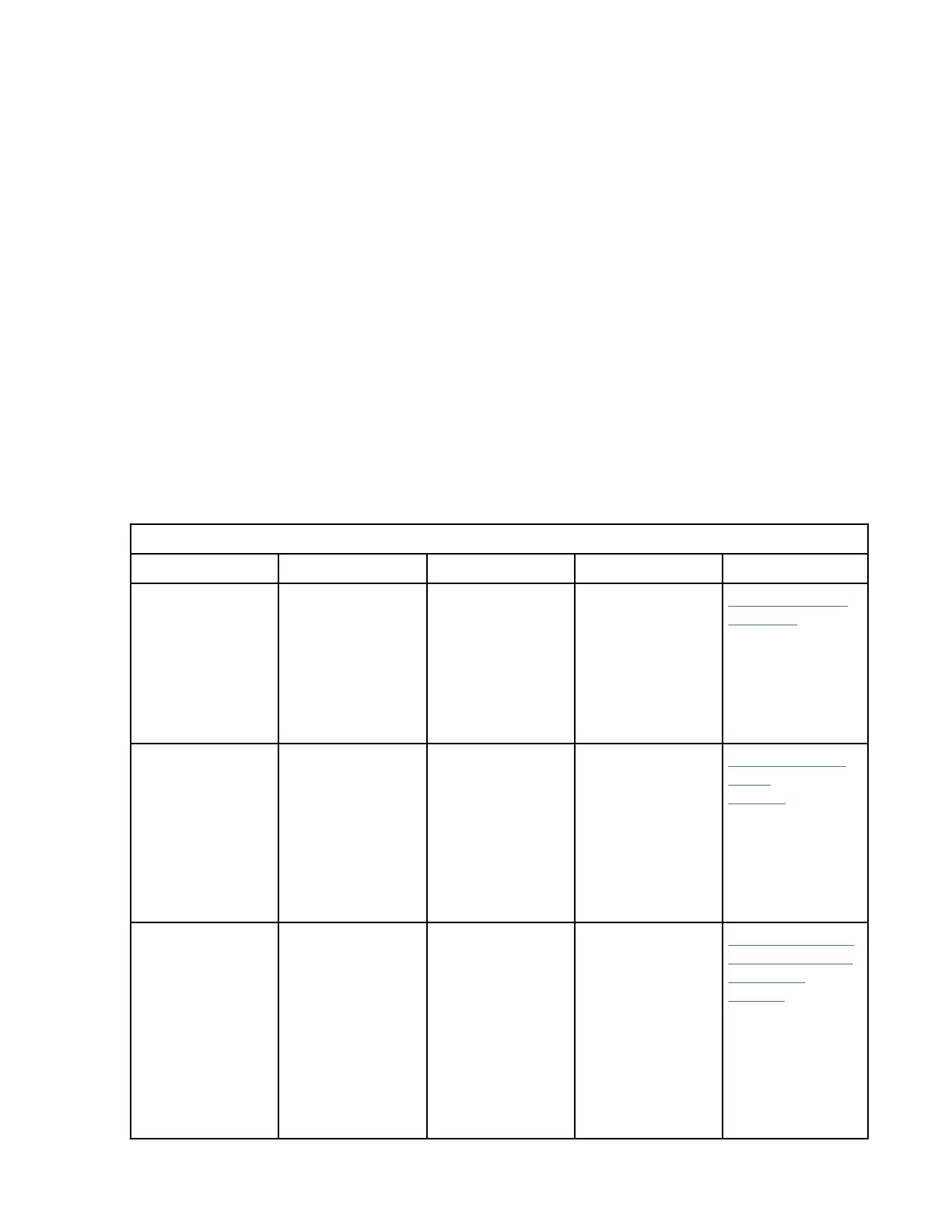
Go to the instructions for the applicable console, interface, or terminal in the following table.
Table 2. Available console types
Console type Operating system Logical partitions Cable required Setup instructions
ASMI AIX, Linux, or VIOS Yes Serial cable
equipped with a
null modem
Logging on to the
ASMI GUI (http://
www.ibm.com/
support/
knowledgecenter/
POWER10/p10eih/
p10eih_gui_loggin
gon.htm
Hardware
Management
Console (HMC)
AIX, IBM i, Linux,
or VIOS
Yes Ethernet (or cross-
over cable)
Managing eBMC-
based
systems(http://
www.ibm.com/
support/
knowledgecenter/
POWER10/p10eih/
p10eih_ebmc_hm
c.htm)
Operations Console IBM i Yes
Use your
Operations Console
to manage existing
IBM i partitions.
Ethernet cable for
LAN connection
Cabling the server
and accessing the
Operations
Console (http://
www.ibm.com/
support/
knowledgecenter/
POWER10/
p10ka9/
p10ka9_cable_ops
_standalone.htm).
22Power Systems: Installing the IBM Power S1012 (9028-21B)



 To Next Page