Completing the server setup
Learn about the tasks you must complete to set up your managed system.
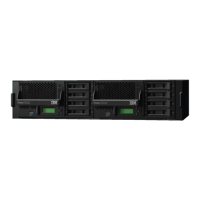
Install the front door onto the front of the system chassis. To install the front door, complete the following
tasks:
1. Align the door with the system chassis so that it is open 90 degrees.
2. Align the hinges on the door with the posts on the chassis.
3. Using your nger, push each hinge onto each pin, one at a time.
Completing the server setup by using an HMC
Perform these tasks to complete the server setup by using a Hardware Management Console (HMC). You
can also begin to use virtualization to consolidate multiple workloads onto fewer systems to increase
server use, and to reduce cost.
Before you begin
To manage POWER10 processor-based systems, the HMC must be at version 10 release 1.0, or later.
About this task
If your system was preinstalled with an operating system, you must exit manufacturing default
conguration (MDC) mode so that you can open a console and access your operating system. To exit
MDC mode, complete the following steps:
1. Select Resources > All Systems.
2. Select System > Actions > View System Partitions.
3. Under Properties, select General Settings
4. Select Power On Parameters and set the Partition Start Policy to User-Initiated.
To complete the server setup by using an HMC, complete the following steps:
Procedure
1. Change the managed system passwords by completing the following steps:
For more information about setting passwords for the managed system by using the HMC,
see Setting passwords for the managed system
(http://www.ibm.com/support/knowledgecenter/
POWER10/p10hai/p10hai_setpassword_enh.htm).
2. Update the time of day on the managed system by using the Advanced System Management Interface
(ASMI).
To connect to the Advanced System Management Interface, complete the following steps:
a. In the navigation area, click System resources, and then select Systems.
b. In the content area, select one or more managed systems, and then click Connections and
operations > Launch advanced system management (ASMI).
3. Check the rmware level on the managed system and update it as needed.
To view and update the system rmware, complete the following steps:
a. In the navigation area, click System resources, and then select Systems.
b. To view the rmware information of the system, select the server for which you want to view the
rmware information and click Firmware > View current system rmware levels.
c. Compare your installed rmware level with available rmware levels. For more information, see the
Fix Central website (http://www.ibm.com/support/xcentral).
d. If necessary, update your managed system rmware levels. Click Firmware > Update system
rmware.
26
Power Systems: Installing the IBM Power S1012 (9028-21B)



 To Next Page