3. USER SET-UP
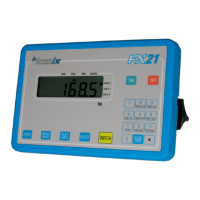
NOTE: The FX21 system has been factory-configured to optimum settings for the majority of applications.
It is strongly recommended that these settings are left as is, unless there is a good reason for making
a change. Please contact your dealer, distributor or Iconix for advice if necessary.
NOTE: Ensure that the correct set of loadbars or platform is connected to the FX21 indicator before
attempting to change any set-up parameters. There are three possible scale types that are automatically
recognised when plugged in, as shown by the Scale 1,2,3 annunciators on the right of the display. All of
the set-up parameters are independently set and stored for each scale type.
Most FX21 settings apply only to the currently connected scale e.g. standard loadbars on Scale 1.
Changing these settings has no effect on the other two scales.
Some settings apply to all possible scales (1: standard loadbars, 2: vet or other scale base, 3: heavy-duty
loadbars). Changing these settings on one scale, will change the other two scales.
For access to set-up, press WEIGH and keep it held down while switching the FX21 ON. As soon as
’SEt’ is displayed, release WEIGH, then press ZERO. The parameters are accessed in the following
order:
1. AUTO-DRAFT drft.0f Off (default)
drft.0n for normal speed
drft.h5 for high speed
The auto-drafting feature allows use of the FX21 with sheep drafting units from Racewell Industries Ltd.
For new model Racewell crates (these have 4 infrared “eyes” fitted), select the high speed auto-draft
mode. The high speed mode should NOT be used for older model Racewell crates.
When auto-drafting is enabled, additional drafting functions are available via the FX21 keyboard.
To change the Auto-Draft setting, press ZERO.
To save this setting and step on to the next one, press WEIGH
2. ZERO-TRACKING 2Er0.0n On (default)
2Er0.0f Off
Zero-tracking automatically restores the scale to zero, by “tracking out” small amounts of dung and dirt
left on the scale. It should be ON for most weighing applications.
To change the Zero-Tracking setting, press ZERO.
To save this setting and step on to the next one, press WEIGH.
3. DUPLICATE TAG NUMBER CHECKING duPL.0f Off (default)
dupl.0n On
When Duplicate Checking is enabled, after entering a tag number, when WEIGH is pressed all records in
the selected Group are checked for previous use of the same (non-zero) tag number.
To change the Duplicate Checking setting, press ZERO.
To save this setting and step on to the next one, press WEIGH.
4. BAUD RATE
Select from the range 1200, 2400, 4800, 9600, 19200, 38400, 57600
b.19200 for example.
Baud rate is the rate of data transfer via the RS232 serial port. The FX21 is factory set to 19200 for high
speed data transfer when uploading records to a computer with the Iconix WinFX Linker programme. It
must be changed to 4800 for use with the Iconix FX Printer.
To change the Baud Rate setting, press ZERO.
To save this setting and step on to the next one, press WEIGH.
Page 10 FX21 Manual v5.01 28Feb24


 To Next Page