First time configuration
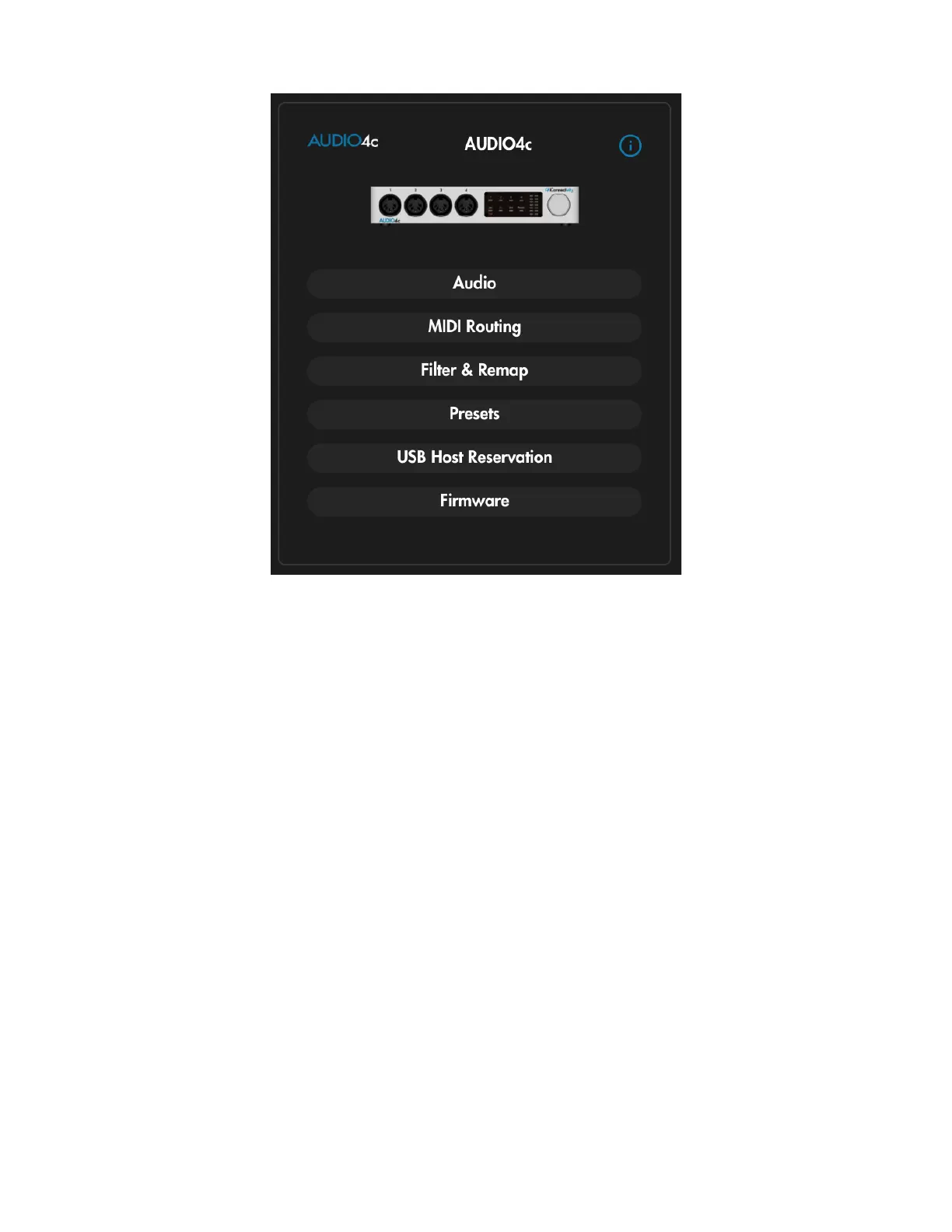
The AUDIO4c main menu in its natural habitat; populated in Auracle for X-Series software
Power on your AUDIO4c by attaching the appropriate attachment for your locale to the power supply,
and plug the power supply into a powered outlet. Plug the barrel end of the power supply into the
AUDIO4c. Using the included USB-C to USB-C cable (plus USB-C to USB-A adapter if necessary),
connect your computer to the AUDIO4c via an available USB device port.
Launch the Auracle for X-Series software. The AUDIO4c will appear on screen as a connected device
(as pictured above) along with any other iConnectivity interfaces you may have connected to your
computer.
A yellow hazard icon in the upper right corner of the AUDIO4c main menu indicates that a firmware
update is available. In this case, ensure that the USB-C cable is plugged into USB device jack 2
and follow the on-screen instructions to update the AUDIO4c firmware. If your computer is plugged
into USB device jack 1, simply remove the USB-Cable from USB device jack 1 and plug it in to device
jack 2. If you need device jack 2 to be available for charging a compatible device after firmware
installation, be sure to complete the firmware update process before unplugging the USB Cable from
USB device jack 2 and plugging the USB cable into USB device jack 1 again.
AUDIO4c User Guide v2021-0002 Page 5


 To Next Page