5. Volume control and gain
To increase volume, press the + button, and to decrease it, press the - button.
Volume level is briefly displayed on the GO bar Kensei while pressing one of
the volume buttons, shown by the number of white LEDs on at a time - from
none to 6 (K2HD to PCM LED).
The increase or decrease of volume can be synchronised with the volume of
the mobile phone/computer. The connected device will indicate a change of
volume on its display if synchronisation is on, and the device’s volume
controls can additionally be used to adjust volume. The GO bar Kensei’s
volume buttons are still operational.
By default, the synchronisation feature is off. To switch this on or off, press the
settings button (6) for > 8s. On is indicated by the 6 white LEDs switching on
in sequence from PCM LED and K2HD LED to the centre. Off is indicated by
the 6 white LEDs switching off in the opposite direction.
Turbo Mode increases the gain by 6dB. To switch this on or off, press the + and
- volume buttons together for ≥ 2s. Turbo Mode on is indicated by 2 white
LEDs (K2HD - DSD) increasing to 6 lighting up at the same time for 2s. Normal
gain is indicated by 6 white LEDs (K2HD - PCM) diminishing to 2 lighting up
for 2s.
Tip: For sensitive headphones and earphones, leave Turbo Mode off. For less sensitive headphones, it may be
appropriate to switch Turbo Mode on.
6. Settings and Digital filter mode and K2HD mode
This button cycles between:
Off > XSpace > XBass+ > XSpace and XBass+ (short click).
Please refer to item 1 for sound effects LED indications.
Digital filter setting mode (long press ≥3s). Please see below.
K2HD setting mode (long press ≥3s). Please see below.
Please refer to item 2 for K2HD LED indications.
Digital filter
To enter digital filter setting mode, press and hold the button for ≥3s. The
MQA LED will flash with the currently set digital filter colour (as shown in
item 2). Press the - buttons (5b) to change the filter selection. A short press
on the settings button (6) will select and exit the filter setting mode.
K2HD
Long press and hold the Setup button (6) for ≥ 3s, after the MQA LED (3)
starts to flash, press +(4a) and the K2HD LED lights up to indicate that K2HD
is enabled.
Tip: K2HD mode is only effective when the audio file format is PCM and the sampling frequency
needs to be ≤ PCM 192kHz; K2HD mode is not effective when it is greater than PCM 192kHz.
K2HD mode is invalid and cannot be enabled when the audio file format is DSD or MQA.
Tip: When both K2HD mode and GTO filter are enabled, the sampling frequency of GTO is
192kHz, and the sampling frequency of GTO is 384kHz when K2HD mode is not enabled.
Thank you for purchasing the bar from the GO series. The bar is a
balanced USB audio DAC amplifier.
1. Audio format, frequency and sound effects LED
The LED colour scheme indicates the current sampling frequency and
audio format received by the GO bar Kensei from the music source. Sound
effect modes are also indicated.
Different positions are lit to indicate the following corresponding
audio formats
LED 1 LED 2
- - PCM
- 256 - 384kHz
- 128 - 192kHz
- 64 - 192kHz
- DSD - 44kHz
Sound effects
LED Status
Blue XSpace*
+*
Orange XBass
*TheXSpaceMatrixrecreatesaholographicsoundfield.It isapureanaloguesignalprocessingcircuitde
signedforlisteningtoheadphonesasifonewaslisteningtospeakers.Thisaddressesthe'musicinsideth
ehead'sensation,whichmakesforunsettlinglistening.
••XBass+wasuniquelydesignedtoextendbassresponsetosuitdifferentheadphones.It isapureanaloguesignalcircuit.
Tip: Sonically-hindering DSP is NOT used for XBass+ nor XSpace systems. They use the highest-quality
discrete components and operate purely in the analogue domain. Hence all the clarity and resolution of
the original music is retained.
2. K2HD LED
Featuring JVCKENWOOD’s“K2HD Technology”. “K2HD”achieves high
sound quality by restoring altered or degraded digital sound sources to the
same quality as the original master.
••••••K2 TECHNOLOGY’ and “K2HD” are trademarks or registered trademarks of JVCKENWOOD Corporation.”
LED Status
White Opens
Off Close
3. MQA and Digital filter LED
MQA:
Green MQA
Blue MQA Studio
Magenta Original Sample Rate*
*MQB
Digital Filter for PCM Playback:
LED Mode
Cyan BP
White GTO
Red STD
Yellow MIN
Off DSD playback
The following 4 digital filters are available:
'BP' (Cyan) Bit-Perfect: no digital filtering, no pre or post ringing
'STD' (Red) Standard, modest filtering, modest pre and post ringing
'MIN' (Yellow) Minimum phase, slow roll-off, minimum pre and post ringing
'GTO' (White) Gibbs Transient-Optimised: upsampled to 352/384kHz, minimum
filtering, no pre ringing, minimum post ringing
Note: If the GTO filter is selected, the only sample rate indicator showing will be 352.8/384kHz, indicating
the upsampling operation of this filter.
4. iEMatch switch
iEMatch reduces the output level, so that even the most sensitive In-Ear-
Monitors (IEMs) can be matched to the GO bar Kensei.
= 3.5mm headphones
= off
= 4.4mm headphones
Tip: The GO bar Kensei and/or the headphone will not be damaged if the iEMatch switch is adjusted
incorrectly, but the attenuation level will not be correct.
iEMatch
off
3.5
4.4
1
3
2
4
5a
6
5b


 To Next Page
 Need help?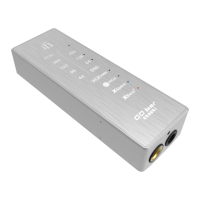

 General