EasyManua.ls Logo

iHealth BG1 - User Manual

iHealth BG1
24 pages
Print Icon
To Next Page IconTo Next Page
Loading...
For in vitro diagnostic use only
Read instructions before use for self-testing
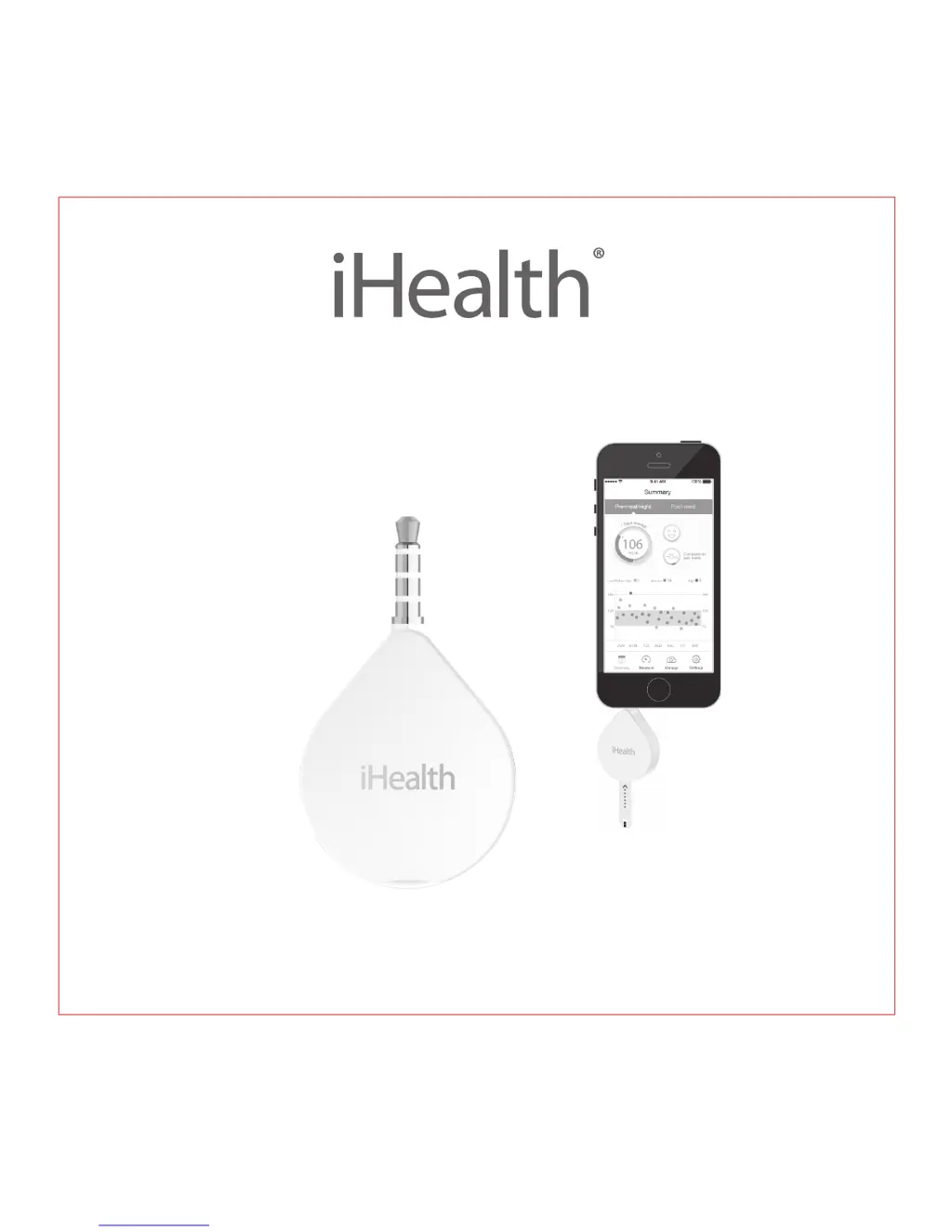
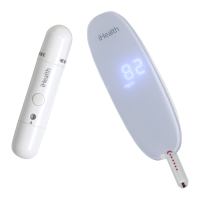
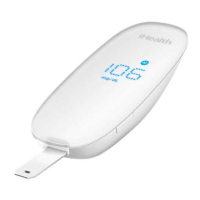
Align Gluco-Monitoring System (BG1)
OWNER’S MANUAL
• Download the App
Prior to first use, download the free iHealth Gluco-Smart App to your mobile device from the
Apple App Store or Google Play Store. Follow the on-screen instructions to create your iHealth
account.
• Access the iHealth Cloud Account
Your iHealth account also gives you access to the free and secure iHealth cloud service. Go to
www.ihealthlabs.com and click “Sign In” for access once your account has been created.
• Test blood glucose level
Step 1: Launch the App
Step 2: Connect the meter
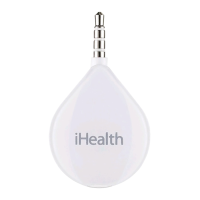
- Plug your meter into the headphone jack of your mobile device. The iHealth logo on
the meter should be facing the same direction as the screen of your mobile device.
- Allow microphone access when prompted.
Note:
Do not twist your meter during the measurement process.
You might need to remove the case on your mobile device before connecting the meter.
Step 3: Scan to Code the Test Strips
Please carefully read and follow the instructions below to avoid getting inaccurate readings:
Scan the QR code on the top of the iHealth test strip vial to calibrate the test strips
with the meter. You must scan the QR code ONLY when a new vial is opened for the
first time.
Step 4: Insert the test strip into the meter’s strip port
Make sure the red arrow marker on the test strip is facing the same direction as the
iHealth logo on the meter.

Other manuals for iHealth BG1

Questions and Answers

  • S
    Stacey HarperJul 26, 2025
    Why are my iHealth BG1 Blood Glucose Meter test results inconsistent?
    • I
      Isabel CardenasJul 26, 2025
      Inconsistent test results with the iHealth Blood Glucose Meter can occur for several reasons. It could be due to an insufficient blood sample on the test strip, so retest using a new strip, ensuring you apply enough blood. The test strip or control solution might be expired, in which case you should retest with a new one. Damage to the test strip from heat or humidity can also cause this; try a control solution test with a new strip, and if it's still out of range, use a new vial of strips. Finally, the iHealth System might not perform correctly if the environment is too hot or cold; bring the system to room temperature and wait about 30 minutes before testing again.
  • D
    Dr. Robert DuncanAug 6, 2025
    What to do if iHealth BG1 Blood Glucose Meter doesn't start after applying blood?
    • K
      Kathryn MartinAug 6, 2025
      If the iHealth Blood Glucose Meter doesn't start testing after you've applied a blood sample, it's likely that the test strip wasn't inserted properly. You should use a new test strip and redo the test, making sure it is fully inserted.
  • C
    Cody WardAug 15, 2025
    How to fix an iHealth BG1 that doesn't respond?
    • J
      jessicamorganAug 15, 2025
      If your iHealth Blood Glucose Meter isn't responding after inserting the test strip, there are a few potential reasons. First, the meter might not be correctly connected to your mobile device; try removing and reconnecting it. It's also possible that too much time has passed between inserting the test strip and starting the test; in this case, remove and reinsert the test strip. Finally, ensure the test strip is fully inserted into the glucose meter; if not, reinsert it completely.

Summary

Important Safety Instructions for iHealth System

Test Principle of iHealth Gluco-Monitoring System

Important Test Information for Accurate Results

How to Install the Battery in the iHealth Meter

Getting Started with the iHealth Align System

Download and Install the iHealth Gluco-Smart App

Instructions for downloading the iHealth Gluco-Smart app from app stores.

Scan Test Strips to Calibrate the Meter

Instructions for scanning the QR code on test strip vials to calibrate the meter.

Reference Value of the iHealth Align Gluco-Monitoring System

The iHealth System Care and Maintenance

Performing a Blood Glucose Test with Alternate Site

Important Information About Control Solution Tests

iHealth Align Gluco-Monitoring System Specifications

Limitations of Use for the iHealth System

System Troubleshooting Guide

iHealth BG1 Specifications

General IconGeneral
Product TypeBlood Glucose Meter
Model NumberBG1
DisplayLCD
Measurement Range20-600 mg/dL
Sample TypeCapillary whole blood
Test Time5 seconds
ConnectivityBluetooth
Operating Conditions10-40°C, 10-90% RH
Sample Size0.7 µL
Battery TypeCR2032
Memory Capacity300 tests

Related product manuals