EasyManua.ls Logo

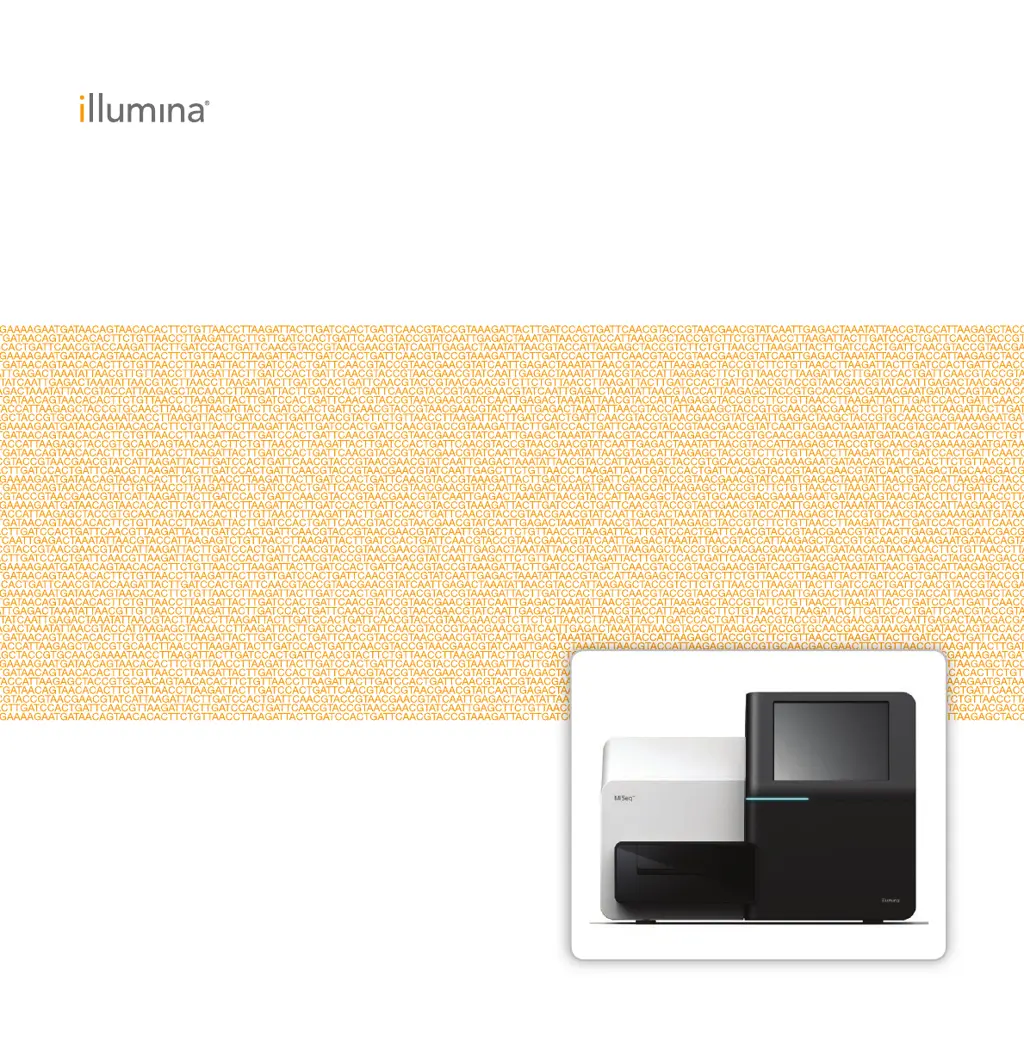
illumina MiSeq System - User Manual

illumina MiSeq System
116 pages
Print Icon
To Next Page IconTo Next Page
Loading...
FOR RESEARCH USE ONLY
ILLUMINA PROPRIETARY
Part # 15027617 Rev. H
March 2013
MiSeq
®
System
User Guide

Questions and Answers

  • H
    Heather JacobsonAug 13, 2025
    How to troubleshoot flow rate measurement issues on illumina Laboratory Equipment?
    • A
      Anita LarsonAug 13, 2025
      To address flow rate issues on the illumina Laboratory Equipment, use the flow rate check screen. Enter the following: Solution PR2, Volume 250 µl, Aspirate Rate 2500 µl/min, Dispense Rate 2500 µl/min. Select Pump. If the error persists, set the volume to pump 500 µl PR2 and repeat the process. After pumping fluids, select Restart Check. If the pre-run check is successful, the Start Run button becomes active. If the flow check fails again, reseat the flow cell and inspect the flow cell gasket.
  • H
    hunterantonioAug 17, 2025
    How to resolve flow rate error on illumina Laboratory Equipment?
    • T
      Tiffany OwensAug 17, 2025
      To fix a flow rate error on the illumina Laboratory Equipment, use the drop-down list or on-screen keyboard to enter the following information: Solution: PR2, Volume: 250 µl, Aspirate Rate: 2500 µl/min, Dispense Rate: 2500 µl/min. Select Pump. When the pump step is complete, select Restart Check. If the error persists, set the volume to pump 500 µl PR2 and repeat the process one more time. Contact Illumina Technical Support if the second attempt does not resolve the error.
  • E
    emilylawrenceAug 21, 2025
    What to do if there is an obstruction in the fluidics lines of illumina MiSeq System Laboratory Equipment?
    • J
      Jessica SmithAug 21, 2025
      If you suspect an obstruction in the fluidics lines of your illumina Laboratory Equipment, perform a volume test. Ensure the wash tray and wash bottle are loaded with laboratory-grade water and a used flow cell is in place. Then, follow the onscreen prompts to perform the test.
  • A
    Alexander SmithAug 25, 2025
    What to do if the sample sheet is not present in illumina MiSeq System?
    • T
      Taylor WalshAug 26, 2025
      If the illumina Laboratory Equipment does not automatically locate the sample sheet, it might be due to the sample sheet not being named with the reagent cartridge ID. To resolve this, browse to the sample sheet for your run. If the sample sheet is named correctly, ensure it is in the default sample sheet folder specified in Run Options on the Welcome screen and that the file extension is *.csv. If the sample sheet is missing, create one and copy it to the specified locations. Then, select Restart Check.
  • J
    Joseph StewartAug 28, 2025
    How to restore network connection on illumina Laboratory Equipment?
    • R
      rpayneAug 28, 2025
      If the network connection is not active on your illumina Laboratory Equipment, ensure the network cable is properly connected to the instrument. If the problem persists, reboot the software using the Reboot option on the Manage Instrument screen. As a last resort, shut down the instrument via the Manage Instrument screen, turn off the power switch, wait at least 60 seconds, and then power it back on.
  • C
    Carlos FinleySep 1, 2025
    What to do if the illumina MiSeq System Laboratory Equipment shows a 'low disk space' error?
    • M
      Michael BallSep 1, 2025
      If your illumina Laboratory Equipment is running low on disk space, a message will appear indicating the required space. Use the Manage Files feature on the instrument computer to clear the necessary space.
  • A
    Ashley LeeSep 5, 2025
    What to do if illumina MiSeq System Laboratory Equipment shows RFID Read Failure?
    • M
      Morgan FloresSep 5, 2025
      If the illumina Laboratory Equipment displays an RFID read failure, first select Retry. If it fails again, select Get Code. Then, from a computer with internet access, go to https://my.illumina.com and log in to your MyIllumina account. Navigate to Account, then MiSeq Self-Service in the Resources column. Enter the MiSeq serial number and select RFID Override from the Type of Override Code list to generate a code. Return to the MCS interface, select Enter Code, and input the temporary bypass code followed by Next. Enter the barcode number of the flow cell, PR2 bottle, or reagent cartridge. For reagent cartridges, also enter the kit version (Version 1 or Version 2). You may also select Enter Reagent Kit Barcode to manually enter the reagent cartridge barcode number and kit version number.
  • H
    Heidi MoralesSep 9, 2025
    Why does illumina Laboratory Equipment say 'Primary Analysis Not Ready'?
    • M
      Mark BurtonSep 9, 2025
      If primary analysis from the previous run is not complete on your illumina Laboratory Equipment, you must wait 1 hour, or select Terminate Analysis. Note that any incomplete cycles will not be available for secondary analysis.

Summary

Getting Started

Introduction to MiSeq

Overview of the MiSeq system's capabilities, features, and workflow.

MiSeq Instrument Components

Description of the MiSeq instrument's exterior parts and their functions.

MiSeq Reagent Kits

Details on available reagent kit types, flow cell compatibility, and sizes.

Starting the MiSeq

Instructions for powering on the instrument and logging into the operating system.

MiSeq Software

Welcome Screen Overview

Description of the MiSeq Control Software (MCS) Welcome screen and its options.

Manage Instrument Screen

Controls for system settings, troubleshooting, software updates, and shutdown.

Run Setup Screens

Steps for configuring and preparing a sequencing run via the MCS interface.

Sequencing Screen

Real-time monitoring of run progress, intensities, and quality scores.

Performing a Run

MiSeq Workflow Overview

Step-by-step guide to setting up and executing a sequencing run.

Preparing Reagents

Instructions for preparing kit components like HT1, reagent cartridge, and PR2 bottle.

Loading Sample Libraries onto Cartridge

Procedure for loading prepared libraries into the reagent cartridge.

Starting the Run

Final pre-run checks and initiating the sequencing process.

Maintenance Procedures

Performing a Post-Run Wash

Procedure for cleaning the instrument after a sequencing run is complete.

Performing a Maintenance Wash

Schedule and steps for performing a monthly system wash.

Shutting Down the Instrument

Safe procedure for shutting down the instrument's software and power.

Troubleshooting

Resolving Run Setup Errors

Common errors during run setup and steps to correct them.

Resolving RFID Read Failure

Steps to take when the system cannot read RFID tags on consumables.

Troubleshooting Flow Rate Error

Diagnosing and fixing issues with fluid flow rates in the system.

Technical Assistance

illumina MiSeq System Specifications

General IconGeneral
Sequencing TechnologySequencing by synthesis
Read Length2 x 300 bp
OutputUp to 15 Gb
Maximum Reads25 million reads
Data Output FormatFASTQ, BAM, VCF
ApplicationsSmall genome sequencing, targeted gene sequencing, metagenomics, 16S rRNA sequencing, amplicon sequencing
Data AnalysisMiSeq Reporter
Sample InputDNA, RNA
Power Requirements100-240 V, 50/60 Hz
Operating Humidity20-80% (non-condensing)

Related product manuals