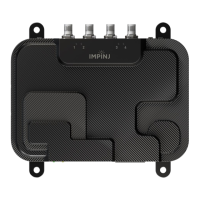
Impinj R705 Portal Gateway Reader Installation and Operations Guide
Version 0.1 11
The Gateway reboot process displays messages in the RShell console as it goes through each
stage of the process. The reboot completes, then the gateway login prompt displays on the
console. The Gateway status light displays solid green. The behavior details of the xArray reboot
LEDs are provided in xArray product Tour.
3.3 Upgrading the Firmware with a USB Drive
Obtain the firmware upgrade file from the Impinj support web site, http://support.impinj.com. This
upgrade process has two steps, preparing the USB drive for upgrade, and then using the USB drive to
upgrade the firmware.
3.3.1 To Prepare the USB Drive for Upgrade
• Insert a USB drive into your computer.
• Create an impinj directory in the root of the USB drive along with the subdirectories
revolution, upgrade, and images. The names of the directory are case sensitive and must all
be lower case.
• Copy the desired firmware upgrade “.upg file” into the
\\impinj\\revolution\\upgrade\\images\\ directory.
• Note: If multiple “.upgx files” exist in the images directory, the gateway will use the most
recently modified file.
• Remove the USB drive from your computer.
3.3.2 To Upgrade By Using the USB Drive
• Confirm that the Gateway is ready for upgrade, with both the Power and Status LEDs
illuminated.
• Insert the USB drive into the “USB Host” port. Within 5-10 seconds, the gateway will begin
upgrading the device and the Power LED will blink amber. If the Power LED remains solid
green, the Gateway likely cannot locate the images directory and .upgx file on the USB drive.
• The upgrade process completes in 20-60 seconds and then the Power LED will change to
solid green.
• Remove the USB drive from the USB Host port and reboot the gateway.
Note: during the upgrade process, the Gateway will attempt to append information to a status.log
file in the impinj\\revolution\\upgrade directory. The status.log file is intended to provide an audit
trail for the upgrade of one or more products. If the firmware upgrade process fails, the Power LED
will blink red. If this happens, remove the USB drive, reboot the Impinj R705 gateway, and check the
status.log file for the reason of the failure.



 To Next Page
 Loading...