• If there are additional Apps you would like included on your Infinity TV Box, please
contact your retailer/customer support and your request can be accommodated.
Attempting to install further apps may void the warranty of the Infinity TV Box.
5. Troubleshooting
My Infinity TV Box is frozen | I’ve clicked the Launch button but nothing happens,
OR it loops back to Home Page. What do I do?
If, as can sometimes happen with any computer-based technology, your Infinity TV Box
freezes or locks up, a soft reset should solve the problem.
Soft Reset
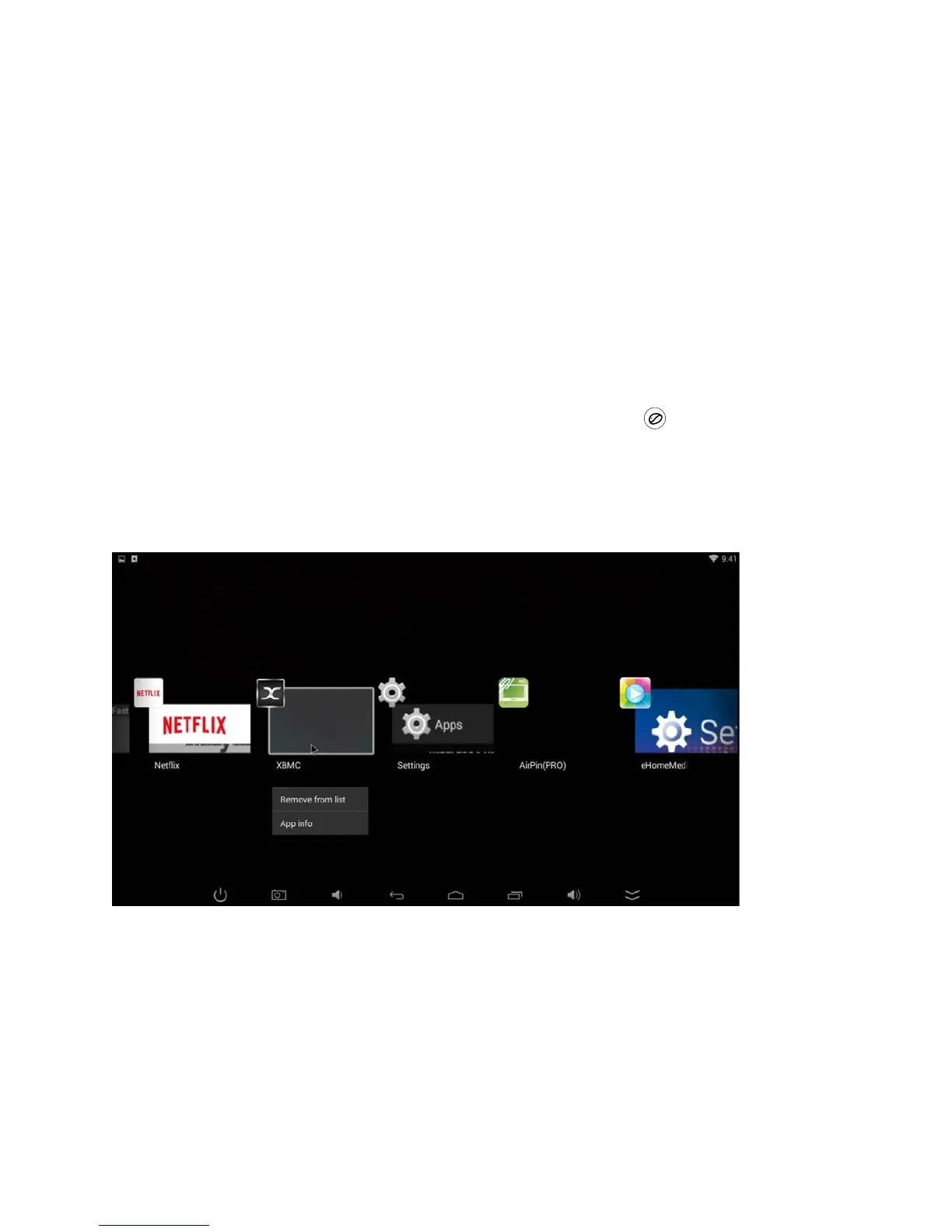
From your Home Page, use either your Infinity TV Remote “Mouse” option or your
external mouse to click the double rectangle icon at the bottom of your screen. This will
take you to a list of the apps currently running in the background. From this list, click and
hold the XBMC icon until a menu appears with the option to Remove from list. Don’t
worry, this doesn’t uninstall anything — it simply turns it off and lets you restart (by hitting
Launch again from your Home Page) the software that runs your Infinity TV Box.
If this doesn’t work, trying clearing your system cache (see below)
My system is running slowly/sluggish | I was watching something and was
suddenly kicked back to the Launch Screen. What do I do?
These problems can easily be solved by clearing your cache. Clear your cache.
Yes, just like you sometimes need to do with your computer. But this is MUCH simpler.
Simply go in to the Library section of your Infinity TV Box and select, from the menu,
Program Clear Cache. See? Simple!



 To Next Page