EasyManua.ls Logo

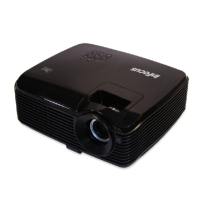
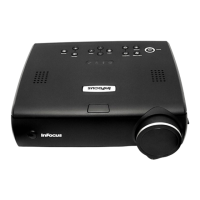
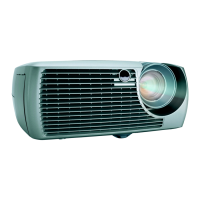
InFocus X2 - User Manual

InFocus X2
49 pages
Print Icon
To Next Page IconTo Next Page
Loading...
X2 MULTI-USE PERFORMANCE
USER’S GUIDE
X2 MULTI-USE PERFORMANCE
InFocus Corporation
27700B SW Parkway Avenue
Wilsonville, Oregon 97070-9215
1-800-294-6400
503-685-8888
Fax: 503-685-8887
http://www.infocus.com
In Europe:
InFocus International BV
Strawinskylaan 585
1077 XX Amsterdam
The Netherlands
Phone: +31 20 579 2000
Fax: +31 20 579 2999
In Asia:
238A Thomson Road
#18-01/04 Novena Square
Singapore 307684
Telephone: (65) 6334-9005
Fax: (65) 6333-4525
USER’S GUIDE
6489X2_UG.qxd 10/31/03 12:01 PM Page 2

Other manuals for InFocus X2

Questions and Answers

InFocus X2 Specifications

General IconGeneral
Number of colors16.78 million colors
Native aspect ratio-
Projection distance- m
Vertical scan range50 - 85 Hz
Projection technologyDLP
Contrast ratio (typical)2000:1
Screen size compatibility- \
Projector native resolutionSVGA (800x600)
Focal length range- mm
Number of built-in speakers1
Lamp typeSHP
Lamp power200 W
Service life of light source3000 h
Full HDNo
Analog signal format systemNTSC, PAL
USB 2.0 ports quantityUSB 2.0 ports have a data transmission speed of 480 Mbps, and are backwards compatible with USB 1.1 ports. You can connect all kinds of peripheral devices to them.
Noise level- dB
PlacementDesktop
Product typeStandard throw projector
Product colorGray
Power consumption (standby)- W
Harmonized System (HS) code85286200
Weight and Dimensions IconWeight and Dimensions
Weight3100 g

Summary

Important Safety Considerations

Projector Placement and Ventilation

Guidelines for safe projector placement, ensuring adequate ventilation.

Power, Mounting, and Lamp Safety

Using correct power cords, mounts, and precautions for lamp rupture.

Projector Connector Panel

Computer and Video Input Connectors

Details on M1, S-video, and composite RCA connectors for input.

Projector Positioning Guidelines

Placement and Distance Recommendations

Advice on positioning the projector relative to the screen and surroundings.

Projector and Device Connection Guide

Computer Connection Details

Connecting computers via VGA and USB for display and control.

Connecting Standard Video Devices

Connecting High-Definition and Progressive Sources

Connecting a Computer Source

Required Computer Connections

Steps for connecting the computer cable and power cord.

Displaying Computer Images

Initial Setup and Power On

Steps to prepare and power on the projector for computer display.

Adjusting the Projected Image

Height, Zoom, Focus, and Keystone

Physical and keypad adjustments for image shape and clarity.

Windows 98 Driver Installation

Add New Hardware Wizard Steps

Guide through the wizard to install the projector driver.

Connecting Video Devices

Video Connection Types

Advanced Video Input Connections

Displaying Video Content

Initial Power On and Video Device

Steps to power on projector and video source for display.

Image and Volume Adjustments

Zoom, Focus, Keystone, and Volume

Fine-tuning image shape and adjusting audio levels.

Projector Shutdown Procedures

Turning Off the Projector

Methods to power down the projector using the switch or remote.

Troubleshooting Projector Issues

LED Status Indicator Guide

Interpreting LED colors and patterns for error diagnosis.

Troubleshooting Display Problems

No Startup Screen Resolution

Solutions for when the projector fails to display a startup screen.

Startup Screen Only Issue

Steps to resolve when only the startup screen is visible.

Troubleshooting Image Signal Issues

Signal Out of Range Solutions

Resolving signal issues by adjusting refresh rate and resolution.

Troubleshooting Image Quality Problems

Fuzzy or Cropped Image Solutions

Adjusting computer resolution or display mode for image clarity.

Troubleshooting Image Shape and Sharpness

Non-Square Image Adjustment

Using keystone adjustment to correct image shape.

Image Sharpness Improvement

Adjusting sharpness in the Picture>Advanced menu.

Troubleshooting Image Orientation and Color

Image Upside Down or Reversed

Correcting image orientation using system menu settings.

Troubleshooting Video and Lamp Issues

Lamp Not Turning On (Red LED)

Diagnosing lamp issues indicated by a blinking red LED.

Troubleshooting Lamp Replacement Messages

Change Lamp Message Resolution

Addressing the "Change lamp" message and potential lamp failure.

Using the Remote Control

Remote Operation and Range

Battery installation, operating range, and basic button functions.

Audio Setup and Operation

Understanding Keypad Buttons

Keypad Function Overview

Description of each button's function on the projector keypad.

Optimizing Computer Image Display

Optimizing Video Image Display

Navigating On-Screen Menus

Menu Navigation and Operation

How to open, navigate, and select menu items.

Picture Menu Adjustments

Keystone, Contrast, and Brightness

Detailed adjustments for image shape and luminance.

Advanced Menu Options

Settings Menu Configuration

Maintenance and Lamp Replacement

Replacing the Projection Lamp

Step-by-step instructions for replacing the projector lamp.

Projection Lamp Replacement Steps

Lamp Housing Removal and Reinstallation

Detailed process for accessing and removing the lamp housing.

Red LED Error Code Diagnostics

Interpreting LED Blink Patterns

Guide to understanding LED indicators for troubleshooting errors.

Related product manuals