Network is transfering data
(If SIM card is not used on iGS03M, shows
ORANGE LED blink instead)
Configuration
iGS03W & iGS03M
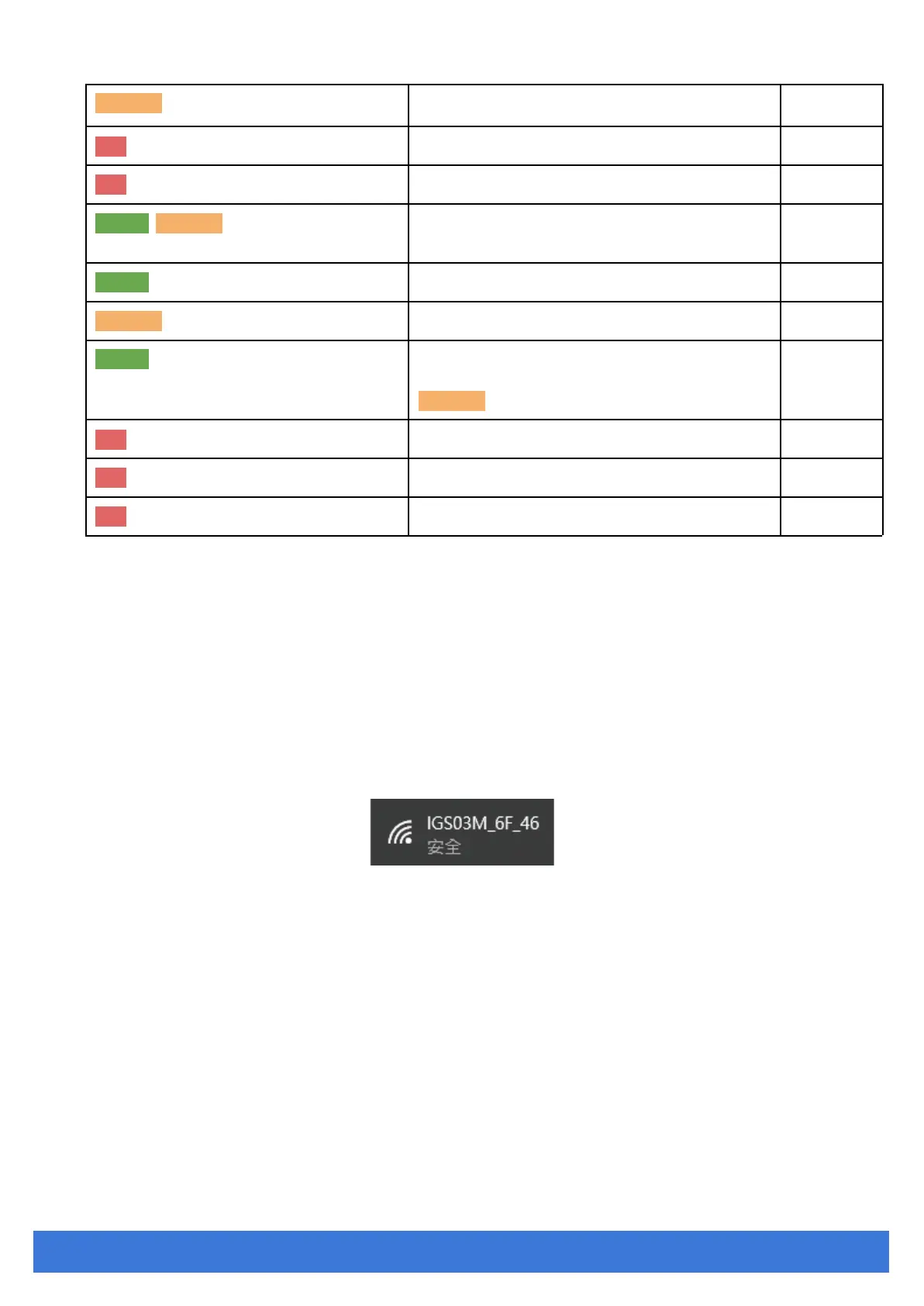
To configure the unit, you have to connect it through the WiFi interface. When it is powered on,
you could scan its native AP and connect it with the WiFi of your NB/PC/Mac/Tablet/Smartphone. It’s
SSID is just like the below figure with part of the mac address. The default key to connect with it is
“12345678”. You can change it later when you get into the web UI.
After connection, enter IP address 192.168.10.1 in your browser. The default account/password
are both “admin”. The following sections describe details of the web UI.
iGS03E
iGS03E is a DHCP client by default. To configure it, you have to connect it to a router with DHCP
enabled. The first thing is to find iGS03E’s IP address in this network so that you can get into it’s webUI
for configuration. If you don’t know the IP address, you may need to use some tool to find it.(For
example, “Fing” APP in Android & iOS. Join your smartphone or tablet with “Fing” in the same network.
And use it to scan all the devices in this network)



 To Next Page