DA2 Installation Guide
3.0 Verifying Installation and identifying the DA2 Com Port
3.1 Windows 98/98SE/Me
1. Right Click on the My Computer icon, then select
Properties.
2. Click on the Device Manager tab.
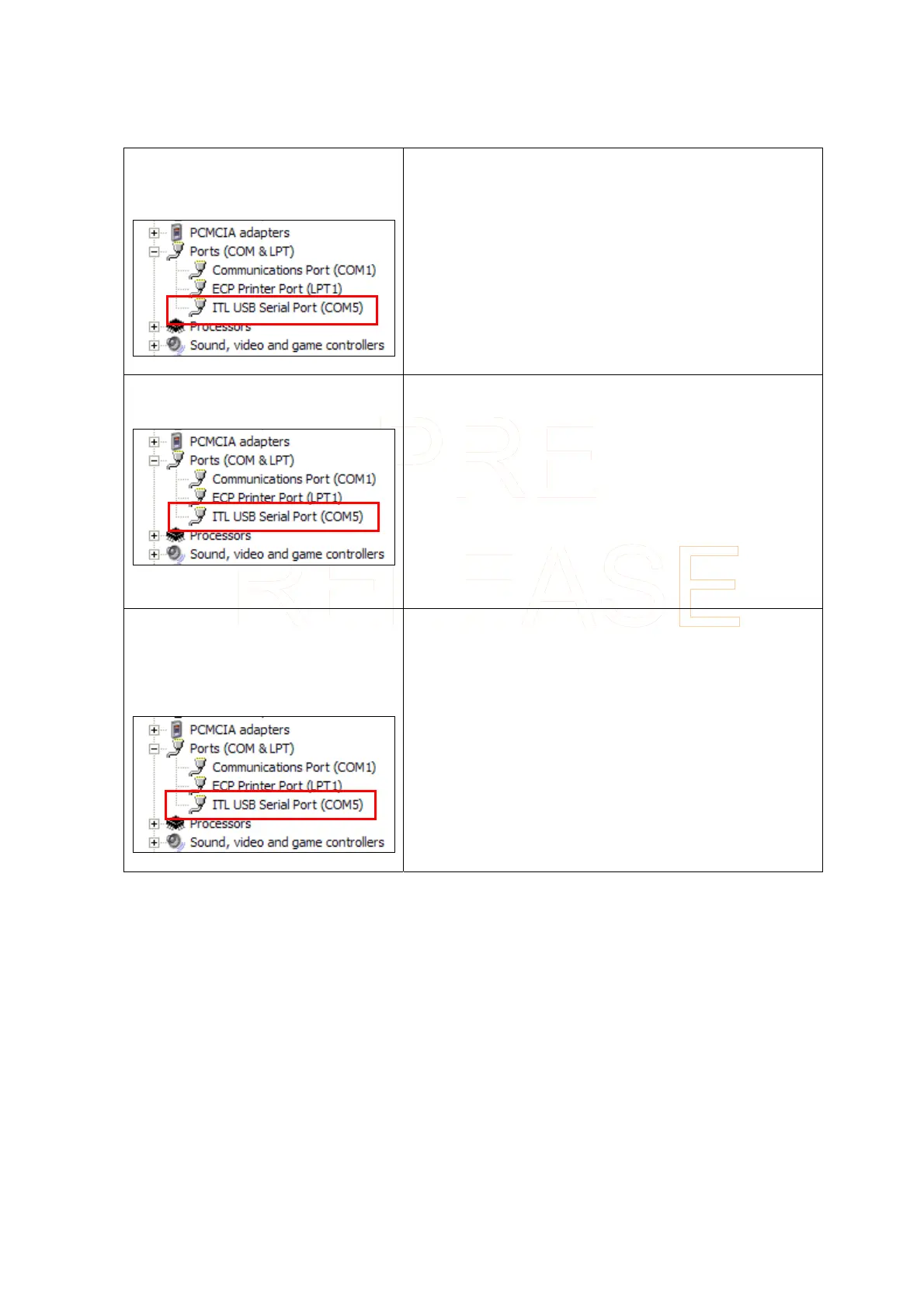
3. Locate the Port (Com & LPT) icon and click on
the + sign next to it.
4. You should see a list of your PC’s RS232, LPT
(Parallel) and the DA2 port (which will be labelled
as ITL USB Serial Port (Com
χ
) where χ indicates
the Com Port number the DA2 had been installed
to).
3.2 Windows 2000
1. Right click on the My Computer icon, and then
select Properties.
2. Click on the Hardware tab then the Device
Manager button.
3. Locate the Port (Com & LPT) icon and click on
the + sign next to it.
4. You should see a list of your PC’s RS232, LPT
(Parallel) and the DA2 port (which will be labelled
as ITL USB Serial Port (Com
χ
) where χ indicates
the Com Port number the DA2 had been installed
to).
3.3 Windows XP (Home and
Professional)
1. Right click on the My Computer icon, and then
select Properties.
2. Click on the Hardware tab then the Device
Manager button.
3. Locate the Port (Com & LPT) icon and click on
the + sign next to it.
4. You should see a list of your PC’s RS232, LPT
(Parallel) and the DA2 port (which will be labelled
as ITL USB Serial Port (Com
χ
) where χ indicates
the Com Port number the DA2 had been installed
to).
Innovative Technology Ltd Page 11 of 12



 To Next Page