EasyManua.ls Logo

Insignia NS-39E400NA14 - User Manual

Insignia NS-39E400NA14
84 pages
Print Icon
To Next Page IconTo Next Page
Loading...
NS-39E400NA14
User Guide
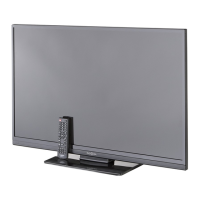
39" LED TV
Before using your new product, please read these instructions to prevent any damage.

Table of Contents

Other manuals for Insignia NS-39E400NA14

Questions and Answers

  • C
    Carol BrockSep 23, 2025
    Why doesn't my Insignia NS-39E400NA14 turn on with my device?
    • B
      Brandon WalkerSep 23, 2025
      First, make sure that the INlink feature is turned on. Then, make sure that TV Auto Power On is set to On on the INlink menu. The device may not support this feature.
  • D
    Deborah RobinsonAug 23, 2025
    What to do if the remote control does not work on Insignia LED TV?
    • P
      penny82Aug 23, 2025
      First, ensure the power cord is correctly connected to your Insignia LED TV and a power outlet. Then, make sure there are no obstructions between the remote and the TV's remote control sensor. Point the remote directly at the sensor, verify the batteries are correctly installed, and replace dead batteries with new ones.
  • V
    vcrossAug 25, 2025
    Why is there no color on my Insignia NS-39E400NA14 LED TV?
    • A
      Ashley GarciaAug 26, 2025
      First, try another channel to rule out station issues. Then, adjust the color settings of your Insignia LED TV. Also, make sure that the video cables are connected correctly and securely to your TV, and that the antenna or cable TV is connected correctly and securely.
  • J
    Julie FuentesAug 27, 2025
    How do I improve poor picture quality on Insignia NS-39E400NA14?
    • S
      Stephanie ManningAug 27, 2025
      To resolve a poor picture on your Insignia LED TV, make sure the room is not too bright, as light reflecting off the screen can make the picture difficult to see. If you have an S-VHS camera or camcorder connected while another device is on, it may cause a poor picture. Try turning off one or more devices.
  • D
    Deanna MartinAug 27, 2025
    How to fix no power on Insignia LED TV?
    • L
      Lisa FarleyAug 27, 2025
      First, make sure the power cord is correctly connected to both your Insignia LED TV and the power outlet. If it's connected, unplug the power cord, wait for about 60 seconds, then plug it back in and turn your TV on. Also, other devices like external speakers or fans might be interfering with your TV; try turning them off one by one to see if that resolves the issue.
  • J
    Jerome WilsonSep 17, 2025
    What to do if there are no channels after auto channel search on Insignia NS-39E400NA14 LED TV?
    • D
      Dwayne HamiltonSep 17, 2025
      Make sure that the antenna or cable/satellite TV is connected securely to your Insignia LED TV. Try replacing the cable between the antenna/cable or cable/satellite box and your TV. Reception can vary by channel depending on the broadcast power level of a given station, so contact your cable or satellite TV provider.
  • A
    Alexandria SmithSep 14, 2025
    Why does the audio receiver setting keep turning back on my Insignia LED TV?
    • B
      burtonrebeccaSep 14, 2025
      When Audio Receiver is set to Off and INlink Control is set to On and you make an adjustment to the audio receiver, Audio Receiver is automatically set to On. To prevent this from happening, turn off the INlink feature.
  • S
    Samantha CampbellSep 15, 2025
    Why doesn't my device show up on the INlink device list of my Insignia LED TV?
    • G
      greenrandySep 16, 2025
      First, make sure that the device is turned on. Then, make sure that the HDMI cable is connected securely to your Insignia LED TV and the device. Also, make sure that the device is connected to your TV with an HDMI cable. Make sure that the INlink feature is turned on. Make sure that the device is a CEC device. If the device is not an Insignia device, it may not be compatible with your TV.
  • D
    danielsryanSep 6, 2025
    How to fix dotted lines on Insignia NS-39E400NA14 screen?
    • M
      Morgan WiseSep 6, 2025
      To address dotted lines or stripes, first ensure the antenna or cable TV is securely connected to your Insignia LED TV. If using an antenna, a weak digital channel signal may be the cause; consider adjusting the antenna or using a high-directional outdoor antenna. Also, make sure the video cables are securely connected and try replacing them if they might be faulty. Other devices might be interfering with your TV, so try turning them off one at a time to identify and move the source of the interference further away.
  • D
    Daniel MooreSep 3, 2025
    How to fix black bars on Insignia NS-39E400NA14 screen?
    • C
      Chad LewisSep 3, 2025
      To resolve this, change the aspect ratio on your Insignia LED TV. Digital TV and movies are increasingly presented in wide screen (16:9).

Summary

CHILD SAFETY

Important Safety Instructions

Electric shock hazard

Details risks and precautions regarding electric shock.

Lightning

Precautions for protecting the device during lightning storms.

Damage requiring service

Introduction

Installing the stand or wall-mount bracket

Installing the stand

Step-by-step instructions for attaching the TV stand.

Installing a wall-mount bracket

Remote control

Installing remote control batteries

Steps for inserting batteries into the remote control.

What connection should I use?

Connecting a cable or satellite box

Using DVI (same as HDMI but requires an audio connection)

Using component video (better)

Using composite video (good)

Using coaxial (good)

Connecting an antenna or cable TV (no box)

Connecting a DVD or Blu-ray player

Connecting an MHL-enabled device

Connecting a game console

Using HDMI (best)

Steps to connect a game console using HDMI.

Connecting a computer

Using VGA (most common)

How to connect a computer using a VGA cable.

Using HDMI (best)

Connecting a USB flash drive

Connecting headphones

Connecting a basic home theater system

Using digital audio

Connecting a home theater system using a digital optical audio cable.

Using analog audio

Connecting a home theater system with multiple devices

Connecting power

Turning on your TV for the first time

Understanding the basics

Turning your TV on or off

How to power the TV on and off, including standby mode.

Selecting the video input source

Steps to choose the active video input source for the TV.

Selecting a channel

Adjusting the picture

Adjusting the TV picture

How to adjust picture settings like mode, brightness, and contrast.

Adjusting the computer image

Adjusting the sound

Adjusting sound settings

How to adjust sound modes, balance, bass, and treble.

Selecting the audio out mode

Changing channel settings

Automatically scanning for channels

How to scan for available TV channels.

Setting up a favorite channel list

Checking the digital signal strength

Setting parental controls

Setting or changing the password

How to set or change the parental control password.

Locking control buttons

Setting parental control levels

Using closed captioning

Turning closed captioning on or off

How to enable or disable closed captioning on the TV.

Selecting the analog closed captioning mode

Selecting the digital closed captioning mode

Customizing digital closed captioning settings

Adjusting time settings

Setting the clock

How to set the TV's internal clock for accurate time display.

Using INlink

Turning INlink on or off

How to enable or disable the INlink (HDMI CEC) feature.

Using an MHL-enabled device or Roku Streaming Stick

Using an MHL-enabled device

Connecting and using MHL-enabled mobile devices with the TV.

Using a Roku Streaming Stick

Connecting and using a Roku Streaming Stick with the TV.

Using a USB flash drive

Switching to USB mode

How to switch the TV input to USB mode for media playback.

Troubleshooting

Restoring settings to the defaults

How to reset all TV settings to their original factory defaults.

Specifications

Programming universal remote controls

One-year limited warranty - Insignia Televisions

What does this warranty cover?

Details of what the limited warranty covers regarding defects.

How to obtain warranty service?

Procedures for getting warranty service for the product.

Insignia NS-39E400NA14 Specifications

General IconGeneral
BrandInsignia
ModelNS-39E400NA14
CategoryLED TV
LanguageEnglish

Related product manuals