EasyManua.ls Logo

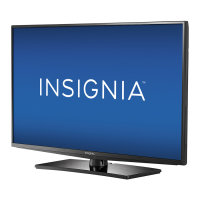
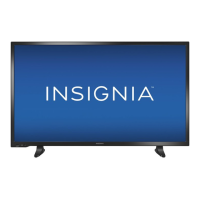
Insignia NS-39D240A13 - User Manual

Insignia NS-39D240A13
57 pages
Print Icon
To Next Page IconTo Next Page
Loading...
NS-39D240A13
User Guide
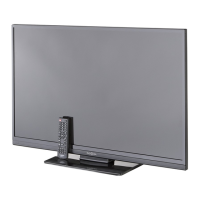
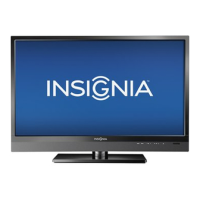
39" LED TV

Table of Contents

Other manuals for Insignia NS-39D240A13

Questions and Answers

  • C
    Carmen PrestonSep 9, 2025
    How to stop audio noise on Insignia NS-39D240A13 LED TV?
    • G
      ginahansenSep 9, 2025
      To troubleshoot audio noise on your Insignia LED TV, try turning off other devices (such as surround sound receivers, external speakers, fans, or hair dryers) one at a time to see if they are causing interference. If you find a device causing the noise, move it further away from the TV.
  • K
    Karen JonesAug 23, 2025
    How to fix Insignia LED TV remote control not working?
    • C
      carterkaylaAug 23, 2025
      If your Insignia LED TV remote control isn't working, make sure the power cord is correctly connected to the TV and the power outlet. Also, ensure there are no obstructions between the remote and the sensor on the TV's front. Point the remote directly at the sensor. Verify that you've removed all packaging from the batteries and that they are correctly installed. If needed, replace the old batteries with new ones.
  • J
    James DuarteAug 25, 2025
    Why is there no color on my Insignia LED TV?
    • B
      Bryan HendersonAug 25, 2025
      If your Insignia LED TV displays no color, a dark picture, or incorrect color, try switching to another channel in case the station is experiencing issues. Adjust the color settings. Make sure the video cables and the antenna or cable TV are connected correctly and securely. If you're using an antenna, check the digital channel signal strength and adjust the antenna or use a more powerful one with an amplifier.
  • N
    nleeAug 27, 2025
    Why is picture quality good on some channels and poor on others on my Insignia LED TV?
    • N
      Nicholas EllisAug 27, 2025
      If your Insignia LED TV picture quality is good on some channels but poor on others and the sound is good, the problem may stem from a poor or weak signal from the broadcaster or cable TV provider. If you're connected to cable or satellite TV without a set-top box, consider installing one to improve signal reception and picture quality. Contact your cable or satellite TV provider to inquire about upgrading to a set-top box.
  • C
    Christopher WilsonAug 27, 2025
    How to fix dotted lines or stripes on Insignia NS-39D240A13 LED TV screen?
    • T
      Taylor MooreAug 28, 2025
      If your Insignia LED TV displays dotted lines or stripes on the screen, ensure that the antenna or cable TV is connected correctly and securely. If you are using an antenna, the digital channel signal may be low, so consider adjusting the antenna or using a more directional outdoor antenna or a set-top antenna with a built-in amplifier. Also, make sure that the video cables are connected securely and try a new set if the issue persists. Other devices, such as a surround sound receiver or fans, may be causing interference, so try turning them off one at a time to identify the source and move it further away from the TV.
  • M
    Megan OwensAug 29, 2025
    How to resolve double images on Insignia LED TV?
    • J
      johnsongaryAug 29, 2025
      To eliminate double images on your Insignia LED TV, use a highly directional outdoor antenna, cable TV, or satellite TV.
  • S
    Stephanie WeissSep 18, 2025
    Why some settings cannot be accessed on Insignia LED TV?
    • S
      samanthamaxwellSep 18, 2025
      If some settings cannot be accessed on your Insignia LED TV, it means that the setting is not available in the current video input mode.
  • J
    Joseph AlvarezSep 19, 2025
    Why does my Insignia NS-39D240A13 LED TV cabinet creak?
    • L
      Laura MorrisSep 19, 2025
      If your Insignia LED TV cabinet creaks, it's due to the temperature rising naturally when the TV is in use, which causes the cabinet to expand or contract. This is normal and not a malfunction.
  • L
    Leslie VazquezSep 7, 2025
    Why does my Insignia NS-39D240A13 LED TV only show snow?
    • M
      Michael JonesSep 7, 2025
      If your Insignia LED TV only shows snow (noise) on the screen, try changing to another channel, as the station might be experiencing issues. Also, ensure that the antenna or cable TV is connected correctly and securely. If you're using an antenna, check the digital channel signal strength, and if it's low, adjust the antenna or consider using a more directional outdoor antenna or a set-top antenna with a built-in amplifier.
  • A
    Anthony MontesSep 4, 2025
    Why is there good picture but no sound on my Insignia NS-39D240A13 LED TV?
    • K
      Karen SantiagoSep 4, 2025
      If your Insignia LED TV has good picture but no sound, try these steps: 1. Increase the volume and make sure the sound isn't muted. 2. Ensure headphones are disconnected, as they disable TV speakers. 3. Verify the correct audio mode is selected. 4. Check that the audio cables are correctly and securely connected. 5. Also, make sure the antenna or cable TV is properly connected and try a new set of audio cables if the issue persists.

Summary

Child Safety

Tune into safety

Safety tips for TV placement and use to prevent accidents.

Wall mounting

Safety guidelines and procedures for wall-mounting the TV.

Important Safety Instructions

Electric shock hazard

Warning about electrical hazards and servicing.

Handling the LCD panel

How to handle the fragile LCD screen safely.

Power source

Guidance on connecting to the correct power source.

Servicing and Warnings

Damage requiring service

Conditions under which TV requires professional servicing.

Condensation

How to prevent and deal with condensation on the TV.

Product Setup and Overview

Introduction

General introduction to the product.

INlink

Information about HDMI CEC compatible device control.

Installing the stand or wall-mount bracket

Instructions for mounting the TV stand or bracket.

TV components

Lists and identifies all parts of the TV.

Front

Identifies front-panel buttons and indicators on the TV.

Side

Identifies side-panel ports and connectors on the TV.

Back

Identifies back-panel ports and connectors on the TV.

Connections

Making connections

Guide to selecting the best connection type for video quality.

Connecting power

Instructions for connecting the TV to a power source.

Connecting a cable or satellite box

How to connect cable or satellite TV boxes.

Connecting an antenna or cable TV (no box)

How to connect an antenna or cable TV directly.

Connecting a DVD or Blu-ray player

Instructions for connecting DVD or Blu-ray players.

Connecting a VCR

Instructions for connecting a VCR.

Connecting a camcorder or game console

How to connect camcorders and game consoles.

Connecting a computer

Instructions for connecting a computer to the TV.

Connecting a USB flash drive

How to connect and use a USB flash drive.

Connecting headphones

Instructions for connecting headphones to the TV.

Connecting a basic home theater system

How to connect a basic home theater system.

Connecting a home theater system with multiple devices

How to connect complex home theater systems.

TV Operation and Features

Remote control

Detailed guide to the TV's remote control buttons and functions.

Turning on your TV for the first time

Initial setup process using the Setup Wizard.

Understanding the basics

Fundamental operations and navigation of the TV.

On-screen menu overview

Explanation of the TV's on-screen menu structure.

Navigating the menus

How to use the remote to move through menus.

Selecting a channel

How to change TV channels.

Adjusting the volume

How to control the TV's sound volume.

Adjusting the TV picture

How to fine-tune picture settings for optimal viewing.

Adjusting the computer image

How to adjust picture settings when a computer is connected.

Adjusting sound settings

How to customize audio output and sound modes.

Playing TV audio only

Option to listen to audio without displaying the picture.

Changing channel settings

Settings related to channel management and tuning.

Hiding channels

How to hide specific channels from the list.

Setting up a favorite channel list

How to create a list of preferred channels.

Viewing a favorite channel

How to access the favorite channel list.

Adding or changing a channel label

How to assign custom names to channels.

Checking the digital signal strength

How to check signal quality for digital channels.

Setting parental controls

Features to restrict content viewing based on ratings.

Using closed captioning

Features for displaying closed captions on screen.

Selecting the analog closed captioning mode

How to choose analog caption display styles.

Customizing digital closed captioning styles

How to customize digital caption display settings.

Setting parental control levels

How to set rating limits for content viewing.

Adjusting time settings

Settings for the TV's clock and sleep timer.

Setting the clock

How to set the TV's internal clock.

Setting the sleep timer

How to set the TV to turn off automatically.

Adjusting menu settings

Settings for on-screen menus and input labels.

Selecting the menu language

How to change the language of the on-screen menus.

Labeling an input source

How to assign custom names to input sources.

Turning Input Sensor on or off

How to enable or disable automatic input detection.

Restoring settings to the defaults

How to reset all customized settings to factory defaults.

Using INlink

Controls for HDMI CEC compatible devices.

Turning Device Auto Power Off on or off

How to enable/disable auto power off for connected devices.

Turning TV Auto Power On on or off

How to enable/disable TV auto power on.

Turning Audio Receiver on or off

How to control audio receiver volume via TV remote.

Displaying a list of INlink-compatible (HDMI CEC) devices

How to view connected HDMI CEC devices.

Using a USB flash drive

How to connect and view files from a USB drive.

Maintaining

Care and cleaning instructions for the TV.

Troubleshooting

Solutions for common TV problems.

Video and audio

Solutions for common video and audio problems.

Remote control

Troubleshooting steps for remote control issues.

General

General troubleshooting tips and common issues.

Specifications and Support

Specifications

Technical details and physical dimensions of the TV.

Programming universal remote controls

How to program a universal remote to control the TV.

Legal notices

FCC compliance and other legal disclaimers.

One-year limited warranty - Insignia Televisions

Details of the limited warranty coverage and terms.

Insignia NS-39D240A13 Specifications

General IconGeneral
Screen Size39 inches
Display TypeLED
Refresh Rate60Hz
HDMI Ports2
USB Ports1
Smart TVNo
Aspect Ratio16:9
Built-in Wi-FiNo
VESA Mount CompatibleYes
Resolution720p (1366 x 768)

Related product manuals