EasyManua.ls Logo

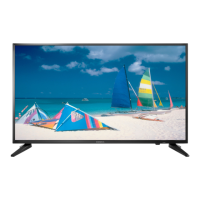
Insignia NS-39D310NA15 - User Manual

Insignia NS-39D310NA15
86 pages
Print Icon
To Next Page IconTo Next Page
Loading...
NS-39D310NA15
User Guide
39" LED TV
Before using your new product, please read these instructions to prevent any damage.

Table of Contents

Questions and Answers

  • M
    Madison HerreraAug 13, 2025
    Why is my Insignia LED TV remote control not working?
    • S
      shellypalmerAug 13, 2025
      If your Insignia LED TV remote control isn't working, make sure that: * The TV's power cord is correctly connected to both the TV and the power outlet. * There are no obstructions between the remote and the sensor on the TV's front. * You are pointing the remote directly at the sensor. * The plastic wrapping has been removed from the batteries. * The batteries are installed correctly. * The batteries are not dead. If they are, replace them with new ones.
  • M
    Monica StarkAug 16, 2025
    What to do if my Insignia NS-39D310NA15 LED TV picture is dark, poor, or has no picture, but the sound is good?
    • R
      Robert CarterAug 16, 2025
      If your Insignia LED TV has a dark, poor, or no picture (screen is lit) but the sound is good, here are some things to try: * Try another channel. * Make sure that the antenna or cable TV is connected correctly and securely. * Adjust the brightness. * Change to a different picture mode. * If you are using an antenna, the digital channel signal may be low. To check the digital channel signal strength, see 'Checking the digital signal strength' on page 58. * If you are using an antenna and the signal strength is low, adjust the antenna or use a highly directional outdoor antenna or set-top antenna with a built-in amplifier. * Make sure that the video cables are connected securely to your TV. * The video cable(s) you are using may be bad. Try a new set.
  • J
    jacob33Aug 20, 2025
    How to fix no color or dark picture on Insignia NS-39D310NA15 LED TV?
    • S
      Samuel SpencerAug 20, 2025
      If your Insignia LED TV has no color, a dark picture, or incorrect colors, try the following: * Try another channel. * Adjust the color settings. * Make sure that the video cables are connected correctly and securely to your TV. * Make sure that the antenna or cable TV is connected correctly and securely. * If you are using an antenna, the digital channel signal may be low. To check the digital channel signal strength, see 'Checking the digital signal strength' on page 58. * If you are using an antenna and the signal strength is low, adjust the antenna or use a highly directional outdoor antenna or set-top antenna with a built-in amplifier.
  • M
    Michael ParsonsAug 25, 2025
    How do I fix dotted lines or stripes on my Insignia NS-39D310NA15 screen?
    • W
      Whitney GonzalezAug 25, 2025
      If you see dotted lines or stripes on your Insignia LED TV screen, consider these solutions: * Ensure the antenna or cable TV is securely connected. * If using an antenna, the digital channel signal may be weak. * Consider adjusting the antenna or using a stronger one with an amplifier if the signal is low. * Check that the video cables are securely connected. * The video cables may be faulty; try a new set. * Other devices might be causing interference. Try turning off nearby devices like surround sound receivers, speakers, fans, or hair dryers one by one to identify the source.
  • J
    jennifercontrerasAug 27, 2025
    How to fix black bars around the picture on Insignia NS-39D310NA15?
    • L
      Lori FordAug 27, 2025
      If the picture on your Insignia LED TV does not fill the screen and there are black bars around it, change the aspect ratio. Digital TV and movies are increasingly presented in widescreen (16:9).
  • J
    Justin TaylorAug 31, 2025
    What to do if my Insignia NS-39D310NA15 has good picture, but no sound?
    • K
      Kim FoxAug 31, 2025
      If your Insignia LED TV has a good picture but no sound, try the following: * Increase the volume and make sure that the sound is not muted. * Ensure headphones are not connected, as this will disable the TV speakers. * Try a different audio mode. * If using a home theater system or sound bar, ensure it is turned on and not muted. * If connected with a digital optical cable, set the Digital Audio/SPDIF option on the AUDIO menu to PCM. * Check that the audio cables and the antenna or cable TV are securely connected to your TV. * If you are using an antenna, the digital channel signal may be low. * The audio cable(s) you are using may be bad. Try a new set.
  • K
    Kimberly CalderonSep 4, 2025
    Why is there no picture and no sound on my Insignia LED TV?
    • B
      Bryce WhiteSep 4, 2025
      If your Insignia LED TV screen is not lit and there is no sound, try the following: * Press the power button on the TV or remote. * Ensure the 'Audio Only' option is set to 'Off'. * Check that the video cables are securely connected. * Adjust the contrast and brightness. * Make sure the power cord is plugged in. * Select the correct video input source. * Try another channel, as the station may be experiencing problems. * Ensure the incoming signal is compatible. * Verify that the antenna or cable TV is connected correctly and securely. * Check the closed caption settings, as some TEXT modes can block the screen.
  • W
    William ToddSep 8, 2025
    Why does my Insignia LED TV only show snow (noise) on the screen?
    • B
      Barbara DavisSep 8, 2025
      If your Insignia LED TV screen only shows snow (noise), try the following: * Try another channel to rule out station issues. * Ensure the antenna or cable TV connection is secure. * If using an antenna, the digital channel signal might be weak. * If the signal strength is low, consider adjusting your antenna or using a high-powered outdoor or set-top antenna with a built-in amplifier.

Summary

Child Safety

Tune Into Safety

Safety tips for using your TV and furniture to prevent accidents.

Wall Mounting

Guidelines and warnings for safely mounting your TV to a wall.

Important Safety Instructions

General Safety Precautions

Numbered safety guidelines for operating the TV and preventing damage.

Specific Warnings

Warnings about electric shock, lightning, power lines, LCD panel handling, and parts.

Introduction

Installing the stand or wall-mount bracket

Installing the stand

Steps to attach the TV stand to the TV.

Installing a wall-mount bracket

Left side jacks

Back

Remote control

Button Functions

Explanation of each button on the remote control.

What connection should I use?

Connecting a cable or satellite box

Using DVI (same as HDMI but requires an audio connection)

Using component video (better)

Using AV (composite video) (good)

Using coaxial (good)

Connecting an antenna or cable TV (no box)

Connecting a DVD or Blu-ray player

Connecting a Roku Streaming Stick

Connecting an MHL-enabled device

Connecting a game console

Connecting a computer

Using HDMI (best)

Connect a computer to the TV via HDMI.

Connecting a USB flash drive

Connecting a basic home theater system

Connecting power

Using the remote control

Turning on your TV for the first time

Changing channel settings

Automatically scanning for channels

Process for scanning and storing TV channels.

Understanding the basics

Selecting the video input source

How to choose between connected devices.

Selecting a channel

Using a Roku Streaming Stick

Using an MHL-enabled device

Connecting and using

Steps to connect and view MHL-enabled devices.

Using INlink

Using a USB flash drive

Adjusting the picture

Adjusting the TV picture

Adjusting picture settings like mode, brightness, contrast.

Adjusting the sound

Adjusting sound settings

Adjusting sound modes, balance, bass, treble, and other audio options.

Selecting the audio out mode

Checking the digital signal strength

Setting parental controls

Setting or changing the password

How to set or change the parental control password.

Setting parental control levels

Using closed captioning

Adjusting time settings

Setting the clock

Setting or adjusting the TV's date and time.

Setting the sleep timer

Troubleshooting

Restoring settings to the defaults

Resetting all TV settings to factory defaults.

Video and audio

Troubleshooting Continued

Remote control

General

Roku Streaming Stick

MHL-enabled device or Roku Streaming Stick

INlink (CEC-compatible) device

Specifications

Programming universal remote controls

One-year limited warranty - Insignia Televisions

Insignia NS-39D310NA15 Specifications

General IconGeneral
Screen Size39 inches
Display TypeLED
Refresh Rate60Hz
HDMI Ports3
USB Ports1
Backlight TypeDirect LED
Smart TVNo
Built-in Wi-FiNo
Resolution720p (HD)
Audio Output10W x 2
InputsHDMI, USB, Composite, RF

Related product manuals