EasyManua.ls Logo

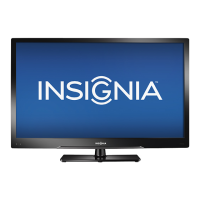
Insignia NS-42D510NA15 - User Manual

Insignia NS-42D510NA15
86 pages
Print Icon
To Next Page IconTo Next Page
Loading...
NS-42D510NA15
User Guide
42" LED TV
Before using your new product, please read these instructions to prevent any damage.

Table of Contents

Other manuals for Insignia NS-42D510NA15

Questions and Answers

  • J
    Joshua MolinaAug 15, 2025
    How to fix Insignia NS-42D510NA15 TV remote control not working?
    • L
      leslielawrenceAug 15, 2025
      First, ensure the Insignia TV's power cord is properly connected to both the TV and a working power outlet. Check for any obstructions between the remote and the TV's remote control sensor. Point the remote directly at the sensor. Remove any clear plastic wrapping from the batteries. Verify that the batteries are correctly installed. If not, replace the old batteries with new ones.
  • L
    lutzdavidAug 18, 2025
    Why won't my Insignia NS-42D510NA15 turn on?
    • C
      Carol WestAug 18, 2025
      Ensure the power cord is correctly connected to both your Insignia TV and a working power outlet. If it's connected, unplug the power cord, wait 60 seconds, then plug it back in and turn on the TV. Check for interference from other devices (like receivers or fans); try turning them off one by one to see if one is the cause, and if so, move it further away from the TV.
  • J
    Jennifer MorganAug 21, 2025
    Why I cannot see a picture on my Insignia NS-42D510NA15?
    • N
      nunezwilliamAug 21, 2025
      First, make sure that your Insignia TV is turned on. Verify that the Roku Streaming Stick is securely connected to the purple HDMI 2/MHL jack. Ensure that you have selected HDMI2 (Roku) as the video input source. Try adjusting the picture settings on your TV.
  • M
    Michelle ScottAug 25, 2025
    Why is my Insignia NS-42D510NA15 screen black with no sound?
    • A
      Amanda BrownAug 25, 2025
      First, press the power button on the TV or remote. Ensure the 'Audio Only' option is off. Check that the video cables are securely connected. Adjust the contrast and brightness. Verify the power cord is plugged in. Select the correct video input source. Try another channel to rule out station issues. Confirm the incoming signal is compatible. Ensure the antenna or cable TV is correctly connected. Lastly, check the closed caption settings, as some TEXT modes can block the screen.
  • M
    mitchellsarahAug 27, 2025
    Why does my Insignia TV have picture but no sound?
    • D
      Danielle WalkerAug 27, 2025
      First, increase the volume and make sure that the sound is not muted. Ensure headphones are not connected, as they disable the TV speakers. Try a different audio mode. If using a home theater system, sound bar, or external speakers, ensure they are on and not muted. If connected with a digital optical cable, set the Digital Audio/SPDIF option on the AUDIO menu to PCM. Check that the audio cables and the antenna or cable TV are securely connected. If you are using an antenna, the digital channel signal may be low. Also, the audio cables you are using may be faulty, so try a new set.
  • K
    Kaitlyn JohnsonAug 30, 2025
    Why is my Insignia NS-42D510NA15 TV picture dark but sound is fine?
    • D
      Dr. Michael Ramirez PhDAug 30, 2025
      Try changing to another channel to rule out station issues. Ensure the antenna or cable TV is securely connected. Adjust the brightness and try a different picture mode. If using an antenna, the digital channel signal may be low, so check the signal strength. If the signal strength is low, adjust the antenna or use a highly directional outdoor or set-top antenna with an amplifier. Also, ensure that the video cables are securely connected and that the video cables aren't faulty by trying a new set.
  • T
    Timothy MartinezSep 2, 2025
    Why can't I select my device on Insignia NS-42D510NA15 TV input?
    • M
      Morgan SummersSep 2, 2025
      Turn on the device you are trying to select. Your Insignia TV automatically detects devices connected to the video jacks when they are turned on. Alternatively, turn off Auto Input Sensing.
  • B
    Bridget FloresSep 5, 2025
    Why is the color off on my Insignia NS-42D510NA15?
    • J
      James RaySep 5, 2025
      Try changing to another channel. Adjust the color settings on your Insignia TV. Ensure that the video cables and the antenna or cable TV are connected correctly and securely. If you are using an antenna, the digital channel signal may be low. If the signal strength is low, adjust the antenna or use a highly directional outdoor antenna or set-top antenna with a built-in amplifier.
  • S
    Stephanie GarciaSep 8, 2025
    What to do if my Insignia TV screen shows only snow?
    • A
      April FisherSep 8, 2025
      Try another channel to rule out station issues. Make sure that the antenna or cable TV is connected correctly and securely. If you are using an antenna, the digital channel signal may be low. If the signal strength is low, adjust the antenna or use a highly directional outdoor antenna or set-top antenna with a built-in amplifier.
  • D
    David BakerSep 12, 2025
    Why does one of my Insignia NS-42D510NA15 TV speakers not work?
    • A
      Adam JonesSep 12, 2025
      Adjust the audio balance settings on your Insignia TV. Make sure that the audio cables are connected correctly and securely.

Summary

Child Safety

Preventing Tip-Overs

Tips on securing the TV and furniture to prevent accidental falls and injuries.

Wall Mounting Safety

Guidelines for safely mounting the TV to a wall, emphasizing proper brackets and installation.

Important Safety Instructions

Electrical Safety

Warnings about electric shock, advising against removing covers and referring to qualified technicians.

Operational & Environmental Safety

Service, Power, and Grounding

Guidelines for safety checks, power source, servicing, and outdoor antenna grounding.

Remote Control Guide

Remote Control Buttons

Details the functions of each button on the TV remote control for various operations.

Choosing the Best Connection

Connection Quality Guide

Recommends connection types (HDMI, Component, AV, Coaxial) based on video quality.

Connecting Source Devices

Cable or Satellite Box (HDMI)

Instructions for connecting a cable/satellite box via HDMI for optimal video and audio.

Cable or Satellite Box (DVI)

Explains DVI connection, noting the need for a separate audio connection.

Connecting Component Video Sources

Connecting DVD or Blu-ray Players

Component Video Connection (Better)

Steps for connecting players using component video cables for good quality.

Connecting a Roku Streaming Stick

Roku Streaming Stick Setup

Instructions for plugging the Roku Streaming Stick into the HDMI 2/MHL jack for streaming.

Connecting an MHL-enabled Device

Connecting a Game Console

Connecting Component Video Game Consoles

Component Video Setup

Steps to connect game consoles using component video cables.

Connecting a Computer

HDMI Connection (Best)

Instructions for connecting a computer via HDMI for optimal display and audio.

Connecting a Computer via DVI

DVI Connection Setup

Steps for connecting a computer via DVI, noting the need for a separate audio connection.

Connecting a USB Flash Drive

USB Flash Drive Setup

Instructions for plugging a USB flash drive into the TV's USB port for viewing photos.

Connecting Power

AC Power Connection

Instructions for connecting the AC power cord to a power outlet and safety precautions.

Using the Remote Control

Initial TV Setup

First-Time Power On

Guides through the TV SETUP wizard for language, time, source, and channel setup.

Initial TV Setup - Source Selection

Selecting TV Source

Steps to select Antenna, Cable Service, or Satellite Service and scan for channels.

Understanding TV Basics

Selecting Video Input Source

How to access the INPUT SOURCE list and select connected devices.

Using Roku Streaming Stick

Connect and Use Roku

Instructions for connecting and accessing the Roku Streaming Stick menu.

Using MHL-enabled Devices

MHL Device Setup

Instructions for connecting MHL devices via HDMI 2/MHL for screen mirroring and audio.

Using INlink for Device Control

Enabling INlink Control

How to turn INlink on/off in the SETTINGS menu for HDMI CEC device control.

Using a USB Flash Drive

Switching to USB Mode

How to select USB mode to access connected flash drives.

Adjusting Picture Settings

Picture Mode Selection

How to select picture modes like Vivid, Standard, Movie, Game, or Custom.

Picture Adjustment Options

Details on adjusting backlight, brightness, contrast, color, tint, and sharpness.

Adjusting Sound Settings

Sound Mode Selection

How to select sound modes like Standard, Theater, Music, News, or Custom.

Audio Adjustment Options

Details on adjusting balance, bass, treble, and TV speakers output.

Parental Controls Setup

Set or Change Password

How to set or change the parental control password for accessing locked content.

Block Unrated TV Programs

How to block TV programs that do not have ratings.

Setting Parental Control Levels

U.S. and Canadian Ratings

How to set parental control levels based on U.S. (TV and Movie) and Canadian ratings.

Troubleshooting Common Issues

Restoring Default Settings

How to reset all TV settings to factory defaults using the Reset to Default option.

Updating TV Firmware

Firmware Update Procedure

Steps to update the TV firmware using a USB flash drive and a computer.

Troubleshooting: Video & Audio Problems

Picture Quality Issues

Solutions for problems like no picture, dark picture, incorrect color, or snow/noise.

Audio Issues

Solutions for audio problems like no sound, poor sound, or audio noise.

Troubleshooting: Screen & Remote Issues

Remote Control Problems

Solutions for when the remote control does not work or programming universal remotes.

Troubleshooting: General & Network Issues

General TV Operation Issues

Solutions for no power, no signal errors, no channels after scan, and grayed-out inputs.

Roku Streaming Stick Issues

Troubleshooting for problems with Netflix streaming and channel availability on Roku.

Troubleshooting: MHL & INlink Devices

MHL Device Connectivity

Solutions for MHL device not charging or not displaying video/audio.

Troubleshooting: Remote Control & INlink

Troubleshooting: INlink & Volume Control

Insignia NS-42D510NA15 Specifications

General IconGeneral
BrandInsignia
ModelNS-42D510NA15
CategoryTV
LanguageEnglish

Related product manuals