EasyManua.ls Logo

Insignia NS-CT1DC8 - User Manual

Insignia NS-CT1DC8
16 pages
Print Icon
To Next Page IconTo Next Page
Loading...
Before using your new product, please read these instructions to prevent any damage.
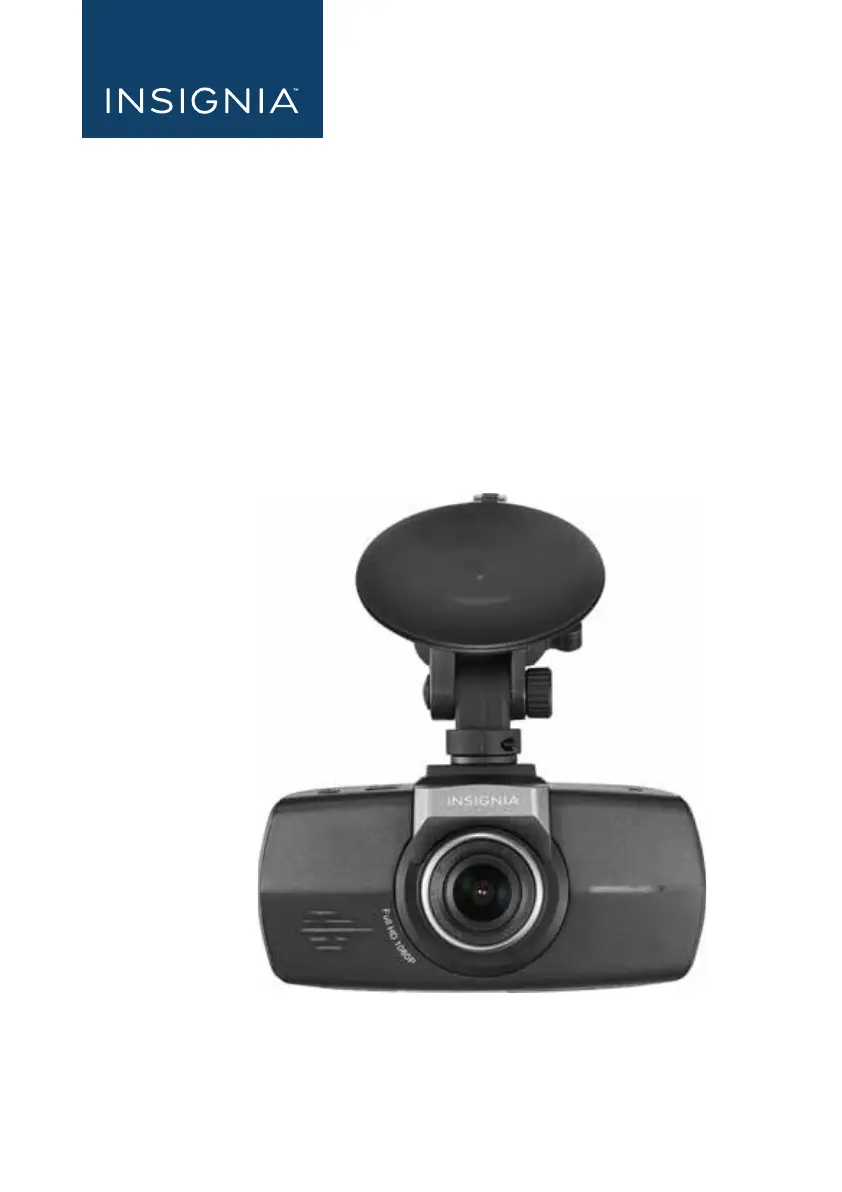
Dash Camera
NS-CT1DC8
USER GUIDE
NS-CT1DC8_17-0513_MAN_V1_ENG.fm Page 1 Tuesday, December 12, 2017 11:25 AM

Other manuals for Insignia NS-CT1DC8

Questions and Answers

  • P
    pthomasAug 13, 2025
    Why won't my Insignia Dash Camera turn on?
    • B
      Brian GardnerAug 13, 2025
      If your Insignia Dash Camera isn’t turning on, ensure the power cord is properly connected and that your vehicle’s cigarette lighter socket is clean and free of corrosion. Also, verify that the power cord’s cigarette lighter adapter is firmly seated in your cigarette lighter and that the status LED is on.
  • M
    michaelgreenAug 17, 2025
    What to do if the screen suddenly goes black on my Insignia Dash Camera?
    • S
      shelleymcknightAug 17, 2025
      If the screen on your Insignia Dash Camera suddenly goes black, it may be due to the unit saving power by automatically turning off the backlight on the LCD screen after a period of inactivity. If you prefer the LCD screen to remain on, check the Auto Display Off Setting in Menu Configurations.
  • B
    Brian ThompsonAug 21, 2025
    How to transfer films or photos from the Insignia Dash Camera to a computer?
    • M
      Michael PerkinsAug 21, 2025
      To transfer films or photos from your Insignia Dash Camera to a computer: * Ensure you are using a USB cable that supports data transfer, as some cables are only for charging. * Alternatively, remove the SD card from the dash camera and insert it into your computer's card reader or a USB card reader to transfer the files.
  • L
    lucassarahAug 25, 2025
    How to improve poor video quality on Insignia Dash Cameras?
    • R
      Robert BraunAug 25, 2025
      To improve video quality on your Insignia Dash Camera, adjust the resolution setting for recording video.
  • S
    Sarah WardAug 28, 2025
    How to prevent Insignia NS-CT1DC8 from overwriting videos?
    • K
      Kenneth PowersAug 28, 2025
      To prevent your Insignia Dash Camera from overwriting specific videos, press the "SOS video" button in recording mode to manually activate Event Recording. This will protect the current video from being overwritten.
  • S
    Stephen OconnorSep 1, 2025
    How to fix blurry pictures and video on Insignia Dash Cameras?
    • D
      davidzimmermanSep 1, 2025
      If your pictures and videos are blurry on your Insignia Dash Camera, clean the lens with a lens cloth.
  • L
    Laurie HumphreySep 4, 2025
    How to firmly mount the mounting bracket of Insignia NS-CT1DC8 to the windshield?
    • T
      Thomas HensleySep 5, 2025
      To ensure the mounting bracket of your Insignia Dash Camera is firmly mounted to the windshield, make sure the glass is clean and dry. Also, remove the protective film on the back of the mounting bracket before attaching it to the windshield.
  • A
    Andrew HubbardSep 9, 2025
    How to enable or disable sound in Insignia Dash Camera videos?
    • M
      Mitchell WallSep 9, 2025
      To enable or disable sound in your Insignia Dash Camera videos, press the Microphone button during recording. This will toggle the microphone function on or off.

Summary

Important Safety Instructions

Product Features and Contents

Main Features Overview

Installing Your Dash Camera

Using Your Dash Camera

Dash Camera Operations

Recording Video

How to start and stop video recording.

Loop Recording

Explanation of how continuous recording overwrites old files and how to protect clips.

Emergency Recording

How emergency recordings are triggered and protected from overwriting.

Video Screen Interface

Menu Set Screen Navigation

Video Screen Controls

Troubleshooting Common Issues

Insignia NS-CT1DC8 Specifications

General IconGeneral
BrandInsignia
ModelNS-CT1DC8
CategoryDash Cameras
LanguageEnglish

Related product manuals