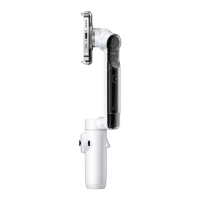
Flow Pro User Manual
Connect to the Insta360 app
1. Turn on Flow Pro.
2. Turn on the phone's Bluetooth and Wi-Fi.
3. Open the Insta360 app and tap the camera icon at the bottom of the page. Follow the on-
screen instructions to activate your gimbal.
4. The first time you connect to the Insta360 app, you need to authorize the connection and
provide information. This requires an internet connection.
5. After successful activation, download the analysis resources to shoot with the Insta360 app.
Can't connect to the Insta360 app?
1. Ensure the Insta360 app is updated to the latest version, restart Flow Pro and the app and
reconnect.
2. If you still can't connect, cancel the Bluetooth pairing, turn off your phone's Bluetooth, and try
again.
If the connection fails, press the Trigger Button and the Shutter Button at the same time for 3
seconds to reset the Bluetooth. Once successful, you will hear three beeps. Then, try to connect to
the app again.



 To Next Page