NOTES:
l Individually upgrading/downgrading the Intel® Ethernet FCoE driver will not work and may
even cause a blue screen; the entire FCoE package must be the same version. Upgrade the
entire FCoE package using the Intel® Network Connections installer only.
l If you uninstalled the Intel® Ethernet Virtual Storage Miniport Driver for FCoE component,
just find the same version that you uninstalled and re-install it; or uninstall and then re-install
the entire FCoE package.
Intel® Ethernet FCoE Boot Option ROM Setup
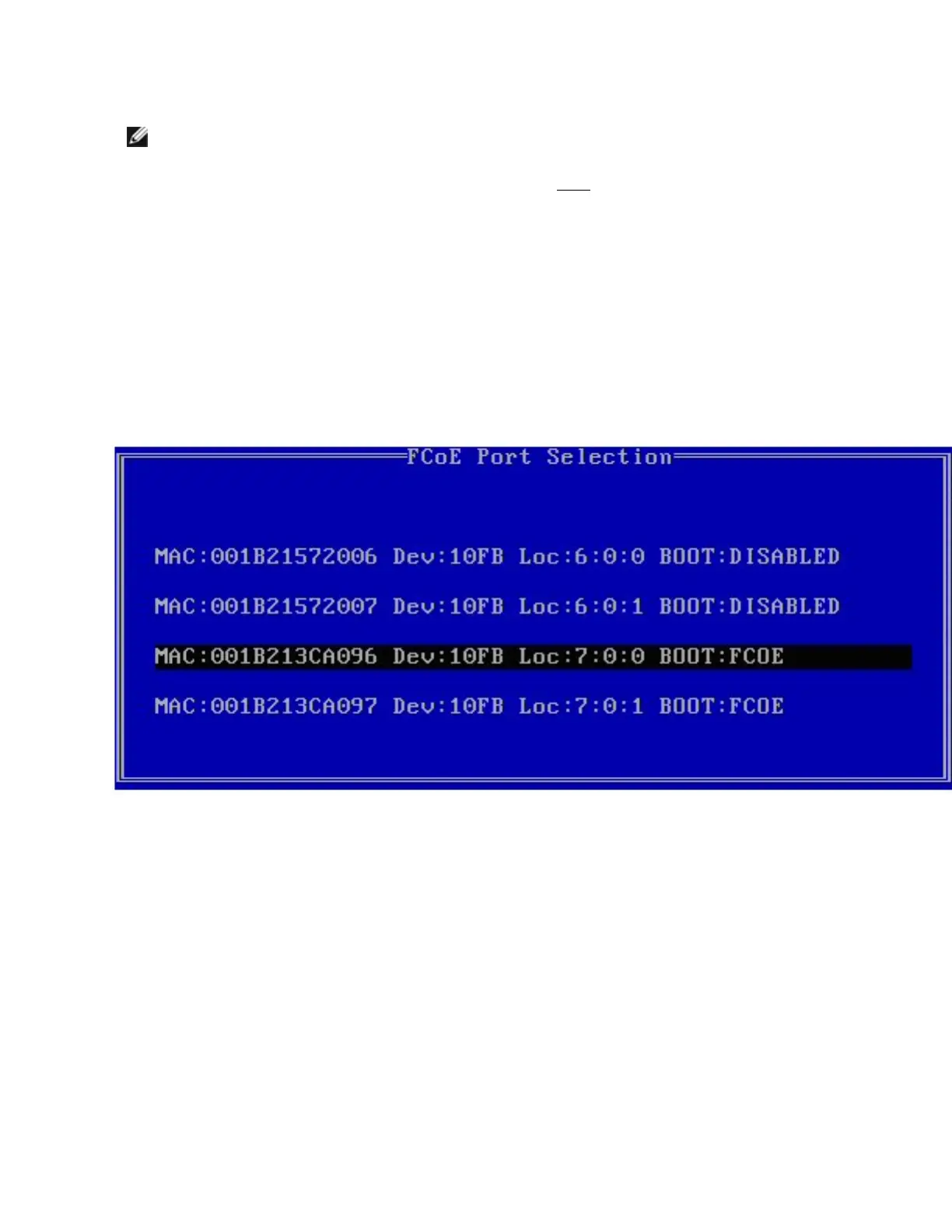
FCoE Port Selection Menu
To configure Intel® Ethernet FCoE Boot, switch on or reset the system and press Ctrl-D when the message
"Press <Ctrl-D> to run setup..." is displayed. After pressing Ctrl-D, you will be taken to the Intel®
Ethernet FCoE Boot Port Selection Setup Menu.
The first screen of the Intel® Ethernet FCoE Boot Setup Menu displays a list of Intel® FCoE Boot-capable
adapters. For each adapter port, the associated SAN MAC address, PCI device ID, PCI bus/device/function
location, and a field indicating FCoE Boot status is displayed. Up to 10 FCoE Boot-capable ports can be
displayed within the Port Selection Menu. If there are more Intel® FCoE Boot-capable adapters, these are not
listed in the setup menu.
Highlight the desired port and press Enter.



 To Next Page
 Loading...