19" Intelligent 8-Port PDU User Manual
9
⑥. Change the User Name and Password
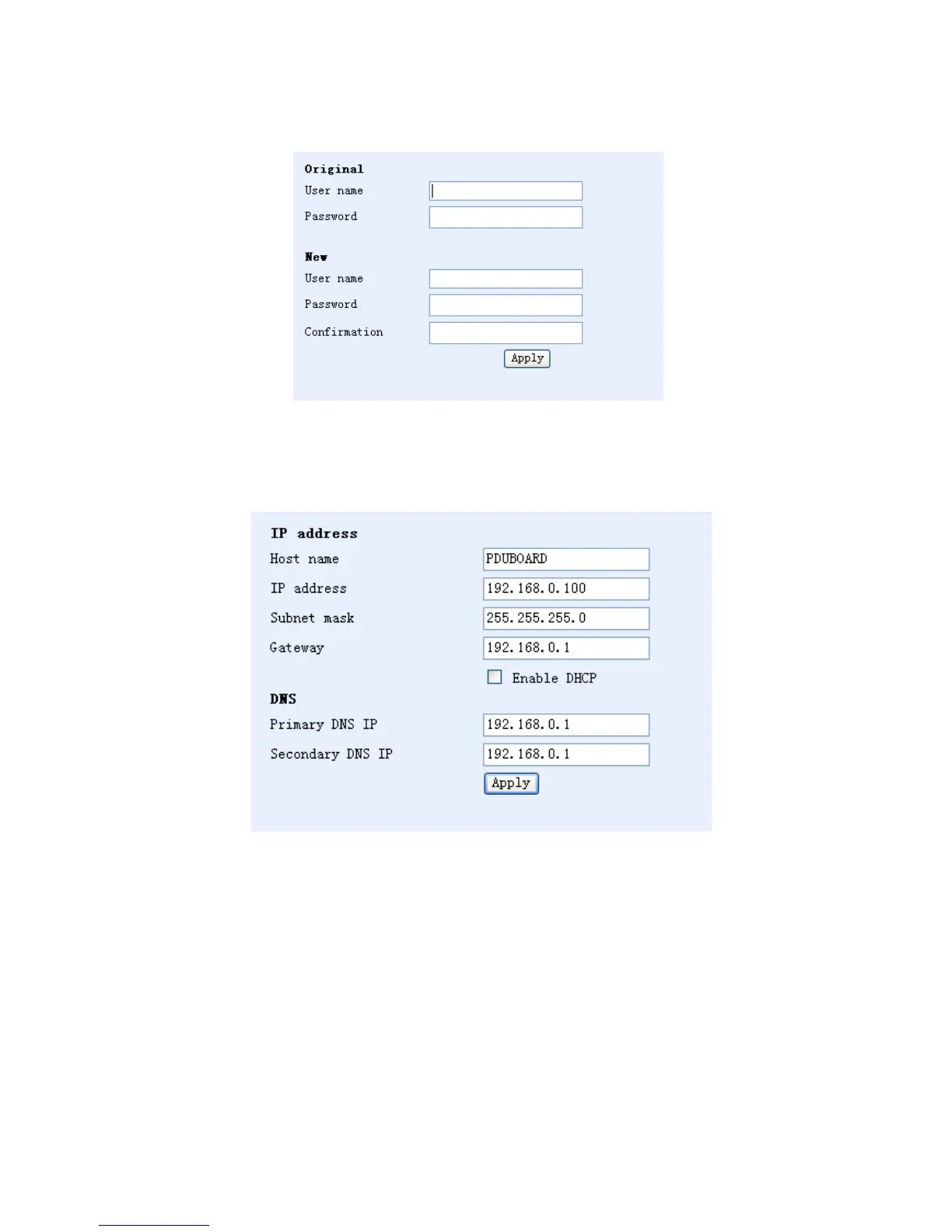
Click “User” in the configuration box on the left side of the interface. The screen displays following:
After filling in the original and new user name as well as the password and password confirmation respectively,
click the Apply button. The new user name and password will be used at the next login.
⑦. IP Address and DNS Setting
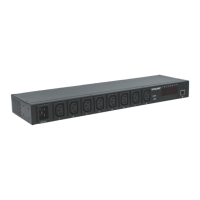
Click “Network” in the configuration box on the left side of the interface. The screen displays the following:
Users can adjust values here. The meaning of each input in the above dialog box is as follows:
• Host Name: the name of the LAN;
• IP Address: the current LAN IP address;
• Subnet Mask: the current LAN subnet mask;
• Gateway: the current gateway;
• Enable DHCP: allows the supervising router to distribute network parameters automatically for the
Intelligent PDU;
• Primary DNS IP: refers to the supervising router setting of the current LAN;
• Secondary DNS IP: refers to the supervising router setting of current LAN


 To Next Page