4
Operation,
Software update
- it is important to ensure all the connected MC3 units are all running the
same software revision, failure to do this could result in unforeseen
operation.
Check regularly for software updates on www.interspaceind.com web site. For PC only.
Attach a PC to USB port 1 and run the update—select the button that says “check for
updates” - follow its instructions and the MC3 will be updated.
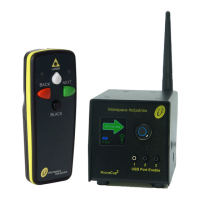
Place the MicroCue3 in a clear space for viewing and in good clear line of sight to the
presenters and their handsets. Ensure the aerial is pointing up for the best reception.
Using the supplied micro USB cables - connect the MC3 to the (working) computer
using port 1 first for convention. (see “items included”)
If this is the first time of plugging in, the computer must have a minute or two to
configure itself. The computer should come up to say the device has been configured
correctly. ( see “first time connection”) Do not unplug or use during this time or you may
corrupt the installation!
Do a walk test with the handset and check for any dead spots of operation - you may
have to move the receiver if this occurs or set up a 2nd MicroCue3 unit as a receiver
near the presenter. Bear in mind an empty venue (no audience) can change significantly
especially if they are between the presenter and the receiver (MC3).
Check you have the handsets for the receiver - delete rogue handsets if need be. (see
“erasing handsets”)
The presenter uses the simple yet powerful handsets of Interspace Industries. The
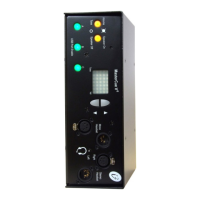
technician uses the main unit as a powerful resource for ensuring a cue gets through
with visual and audible monitoring if needed.
Should you wish to use a different command than the “arrow right, arrow left” for the
cues, please see “Keyboard command programming”
Once plugged in on USB the corresponding port enable switch will illuminate to say it is
connected and active.
If a port switch starts to flash it means the Port has been disconnected or gone to sleep,
this is to give the technician information to reset the USB connection if needed such as
re-plugging it.
65
For Technical Support or Sales Enquiries:
Interspace Industries Head Office:
+44 (0) 1462 600 101
Emergency Technical Support Hot Line:
+44 (0) 7976 385 046
Website:
www.interspaceind.com
For tekniske spørsmål eller kjøp kontakt:
Lokalt kontor for Interspace industries
Hamstad Media AS
e-post
daniel@hamstadmedia.no
Telefon
Telefon: 48287106
Nettsted
www.hamstadmedia.no
Für technischen Support oder Vertriebsanfragen:
Ihr lokaler Ansprechpartner von Interspace Industries:
publitec Präsentationssysteme & Eventservice GmbH
+49 2330-8032-0
Hotline für technischen Notfall-Support außerhalb der
Geschäftszeiten:
+49 163-8032-11
(Morgens von 7:00 – 8:30 Uhr, Abends von 18:00 – 22:00
Uhr, sowie am Wochenende von 7:00 – 22:00 Uhr)
Website:
www.publitec.tv


 To Next Page
 Loading...