91239 7 08/20
7
175 SP2(SC2) + CP4(CC3)/CP5(CC4)/CP6(CC5)/CP7(CC6)
3.6 Customization of automatic
oiler output
The automatic oiler output can be adapted to your re-
quirements:
a) Ample Mode: 25% more oil is transported to
the cutting mechanism than in normal mode.
b) Normal Mode - default setting
c) Scarce Mode: 25% less oil is transported to the
cutting mechanism than in normal mode.
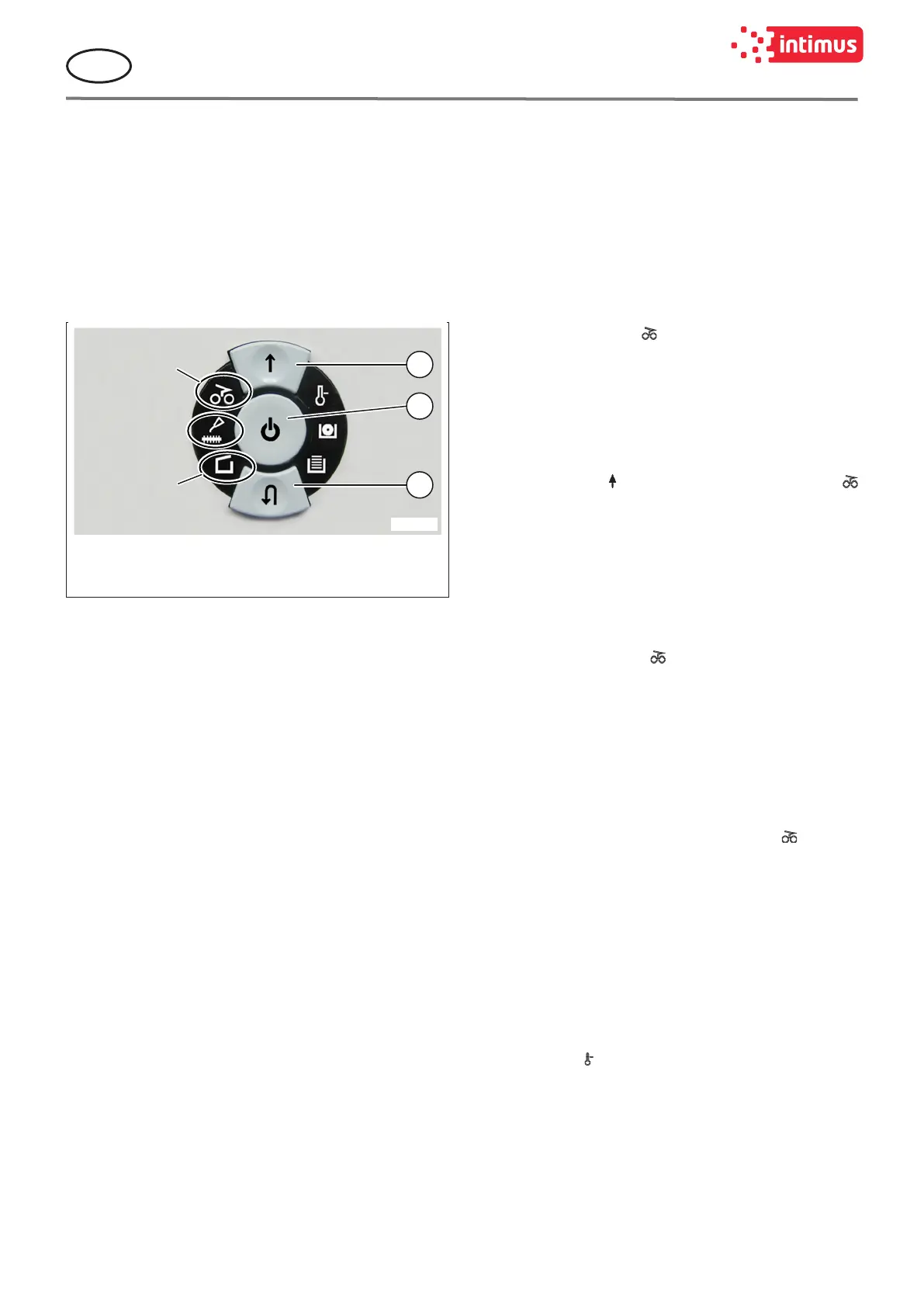
1
2
3
000144
Ample Mode
(+25%)
Normal Mode
Scarce Mode
-25%
1 Forwards button
2 Functions button
3 Reverse button
g. 5 Customization of automatic oiler output
For customizing the automatic oiler output proceed as
follows:
1. The machine must be switched o.
2. Open the door.
3. Press and hold the forward button (g. 5/1) and the
reverse button (g. 5/3) simultaneously.
4. Additionally press and let go of the function but-
ton (g. 5/2).
¾ All LED indicators on the display light up.
5. Let go of the forward button and the reverse but-
ton.
¾ Now you are in the memory mode.
6. Press the forward button twice (g. 5/1).
¾ Now you are in the customization mode for au-
tomatic oiler output.
¾ The LED indicator on the left side ashes show-
ing the current settings.
7. Press the function button (g. 5/2) so often until
the needed oiler output mode comes on.
¾ Each time you press the function button the
output mode changes (Ample, Scarce, Normal)
8. Press the reverse button (g. 5/3).
¾ Now you are again in the memory mode.
9. Press the function button.
¾ The selected settings are saved.
¾ The machine switches o.
10. Close the door.
If you want to continue shredding turn the machine
on: press the function button (g. 5/2) briey.
4 Malfunctions
4.1 Material jam in the machine
(auto-reverse-funktion)
If a jam is caused by too much material being fed in the
following happens:
• The cutters jam, then run in reverse for a short time
(material is released) and stop.
• The motor switches o.
• The control display (g. 2/8) comes on. Proceed
as follows:
1. Remove any returned paper or briey press the
forward button (g. 2/2).
¾ The cutters now run forwards automatically and
shred the remaining paper in the cutters. During
the forward run the forward button (g. 2/2)
LED display comes on. The control display
(g. 2/8) goes out.
2. Continue shredding with less paper.
4.2 Light barrier covered when
door opened
Should there still be material in the feed slot when the
door is opened, the motor switches o and the cutters
stop. The control display (g. 2/8) comes on.
Close the door and acknowledge the status by pres-
sing the forward button (g. 2/2) briey. The existing
material is fed to the cutters and shredded.
4.3 Light barrier covered when ma-
chine turned on
Should there still be material in the feed slot when the
machine is switched on the control display (g. 2/8)
comes on.
1. Remove the material or
2. Press the forward button (g. 2/2) briey.
¾ The existing material is fed to the cutters and
shredded.
4.4 Motor protection
Should the motor be overloaded it switches o. The
control display (g. 2/3) comes on. The machine can
be started again after a cooling down period of about
15 – 20 minutes (depending on the model and the
room temperature).


 To Next Page